How can I rotate the server GPG keys?
Some organisation settings are encrypted with the server key and stored in the database, so after a rotation they can no longer be decrypted and must be reconfigured:
- SMTP / email server settings: the whole configuration is encrypted with the server key, so it must be entered again.
- SSO settings (Pro Edition): the provider configuration must be entered again.
- LDAP / directory sync (Pro Edition): the configuration is kept, but the directory bind password must be re-entered.
Plan to reconfigure these in Organisation Settings straight after the rotation.
Your users' stored passwords and other secrets are not re-encrypted or lost: each secret is encrypted with the individual user's OpenPGP key, not the server key, so they stay accessible after the rotation. Login sessions are not invalidated either, because JSON Web Token (JWT) authentication uses a separate key pair. Each user is prompted once to accept the new server key on their next sign-in. If you use encrypted metadata, rotate the metadata key as well. These last two points are covered by the warnings at the end of this page.
Docker installation
It is quite simple with docker to rotate your passbolt server GPG keys:
- CE
- PRO
docker compose -f docker-compose-ce.yaml exec -ti passbolt rm /etc/passbolt/gpg/serverkey.asc && docker compose -f docker-compose-ce.yaml exec -ti passbolt rm /etc/passbolt/gpg/serverkey_private.asc
docker compose -f docker-compose-pro.yaml exec -ti passbolt rm /etc/passbolt/gpg/serverkey.asc && docker compose -f docker-compose-pro.yaml exec -ti passbolt rm /etc/passbolt/gpg/serverkey_private.asc
Destroy then recreate passbolt container and new GPG server keys will be generated:
- CE
- PRO
docker compose -f docker-compose-ce.yaml up -d --force-recreate
docker compose -f docker-compose-pro.yaml up -d --force-recreate
Since the containers are now running, we need to add a new environment variable to specifically specify to the API the new fingerprint, which means you need to copy the new serverKey fingerprint:
- CE
- PRO
docker compose -f docker-compose-ce.yaml exec -ti passbolt su -s /bin/bash -c "gpg --list-key" www-data
docker compose -f docker-compose-pro.yaml exec -ti passbolt su -s /bin/bash -c "gpg --list-key" www-data
Search for Passbolt default user <[email protected]> with the creation date matching the day you perform the rotation. The fingerprint should be a line above e.g.,: "E52977D63A9A447D1AFB3C289DE0BA9CCA0DD42A".
- CE
- PRO
In the docker-compose-ce.yaml environment section, add the following environment variable to the passbolt service with the new fingerprint:
(..)
    environment:
      (...)
 ->   PASSBOLT_GPG_SERVER_KEY_FINGERPRINT: "ADD IT HERE"
In the docker-compose-pro.yaml environment section, add the following environment variable to the passbolt service with the new fingerprint:
(..)
    environment:
      (...)
 ->   PASSBOLT_GPG_SERVER_KEY_FINGERPRINT: "ADD IT HERE"
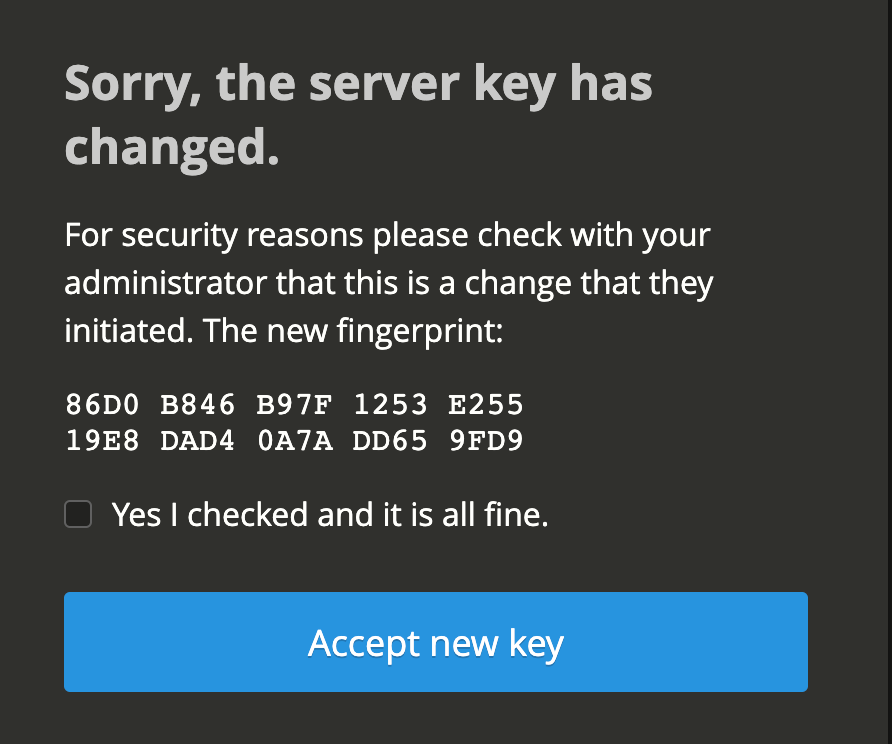
After navigating with your web browser to the passbolt interface you should see a pop-up telling you that the serverKey changed. This is expected and all of your users will see this warning. It needs to be accepted to go further.
If you are using E2EE metadata, after the rotation, if you add new users, you will need to manually share the metadataKey with them every time in Manage Users & Groups once they perform the user registration. We don't want that, navigate to Organisation Settings > Metadata Key, scroll down and use the "Rotate key" button to avoid that.
Other installations
This section covers package installations and installations from source. Two things vary between them, and the commands below use the package defaults:
- The web server user.
www-dataon Debian and Ubuntu,nginxon RPM-based distributions. - The passbolt directory.
/usr/share/php/passboltfor a package installation,/var/www/passboltfrom source.
Substitute both throughout if yours differ.
While running web server commands, it's common to use www-data. However, this can vary based on your distribution. For example, nginx is used in RPM-based distributions. Always double-check what's applicable for your specific setup to avoid errors.
Create a temporary GPG home folder:
mkdir /tmp/gpg-temp
Generate new GPG keys:
gpg --homedir /tmp/gpg-temp --batch --no-tty --gen-key <<EOF
  Key-Type: RSA
  Key-Length: 3072
  Key-Usage: sign,cert
  Subkey-Type: RSA
  Subkey-Length: 3072
  Subkey-Usage: encrypt
  Name-Real: Passbolt default user
  Name-Email: [email protected]
  Expire-Date: 0
  %no-protection
  %commit
EOF
Replace the current GPG server keys with the new ones:
gpg --homedir /tmp/gpg-temp --armor --export [email protected] | sudo tee /etc/passbolt/gpg/serverkey.asc > /dev/null
gpg --homedir /tmp/gpg-temp --armor --export-secret-key [email protected] | sudo tee /etc/passbolt/gpg/serverkey_private.asc > /dev/null
Ensure the new GPG keys have the correct owner and group:
sudo chown www-data:www-data /etc/passbolt/gpg/serverkey_private.asc
sudo chown www-data:www-data /etc/passbolt/gpg/serverkey.asc
Get new GPG keys fingerprint from public key:
sudo gpg --show-keys /etc/passbolt/gpg/serverkey.asc | grep -Ev "^(pub|sub|uid|$)" | tr -d ' '
Ensure the fingerprint from private key is the same:
sudo gpg --show-keys /etc/passbolt/gpg/serverkey_private.asc | grep -Ev "^(pub|sub|uid|$|sec|ssb)" | tr -d ' '
Open /etc/passbolt/passbolt.php configuration file and replace old fingerprint with the new one in the passbolt section:
'passbolt' => [
      // GPG Configuration.
      // The keyring must to be owned and accessible by the webserver user.
      // Example: www-data user on Debian
      'gpg' => [
          // Main server key.
          'serverKey' => [
              // Server private key fingerprint.
              'fingerprint' => 'XXXXXXXXXXXXXXXXXXXXXXXXXXXX',
              'public' => CONFIG . DS . 'gpg' . DS . 'serverkey.asc',
              'private' => CONFIG . DS . 'gpg' . DS . 'serverkey_private.asc',
          ],
      ],
Run a healthcheck to find the GNUPGHOME folder passbolt is using. Note down what it reports: the next step deletes that folder, and it is not always the default.
sudo -H -u www-data bash -c "/usr/share/php/passbolt/bin/cake passbolt healthcheck --gpg" | grep GNUPGHOME
Delete the GNUPGHOME folder reported by the healthcheck above. It is recreated automatically. The command below uses the package default, so change the path if the healthcheck reported a different one:
sudo rm -rf /var/lib/passbolt/.gnupg
Import the new server key into the keyring. The recreated keyring is empty, so nothing brings the server key back on its own: keyring_init reads the private key path from your configuration and imports it into the keyring of the user that runs it, which is why it must not run as root:
sudo su -s /bin/bash -c "/usr/share/php/passbolt/bin/cake passbolt keyring_init" www-data
It prints the path it imported, then Keyring init OK. The command is safe to run again, as importing a key that is already in the keyring does nothing.
Confirm the result before moving on:
sudo su -s /bin/bash -c "/usr/share/php/passbolt/bin/cake passbolt healthcheck --gpg" www-data
If the healthcheck still reports that the server public key is not in the keyring, the import did not reach the keyring of the web server user: check which user you ran it as, and the GNUPGHOME reported by the healthcheck.
You can now delete the temporary GPG home folder:
rm -rf /tmp/gpg-temp
After navigating with your web browser to the passbolt interface you should see a pop-up telling you that the serverKey changed. This is expected and all of your users will see this warning. It needs to be accepted to go further.
If you are using E2EE metadata, after the rotation, if you add new users, you will need to manually share the metadataKey with them every time in Manage Users & Groups once they perform the user registration. We don't want that, navigate to Organisation Settings > Metadata Key, scroll down and use the "Rotate key" button to avoid that.