Account Recovery Management
The Account Recovery is a feature introduced with passbolt v3.6.0 that helps users to recover their accounts in case of a recovery kit or passphrase loss.
If you are looking for how to set up your account on another machine,
you can check this documentation.
This feature needs to be activated by you, administrator, as it is disabled by default.
Furthermore, with passbolt 5.8, we are introducing the ability to create additional roles (Organisation settings -> Role-Based Access Control). Upon being given a role with access to the account recovery requests management, non-admins will be able to view, index, and review account recovery requests.
Requirements
You can manage this setting if you are meeting the following requirements:
- You have an active administrator account,
- You are running Passbolt Pro v3.6.0 or higher, or Passbolt Cloud.
How does it work?
Depending on the organisation's policy, all users will be able to deposit an encrypted backup of their private keys in passbolt. Backups which can only be unlocked cryptographically by the organisation's administrators having in their possession the organisation recovery key.
Watch the process of account recovery from the user and the admin perspective.
How to manage account recovery requests?
Managing account recovery requests by email
When losing their passphrase and/or their private key, users will follow the account recovery procedure, resulting in an email sent to you, administrator.
To avoid usurpations, we strongly recommend to contact directly the users who asked for an account recovery before accepting it.
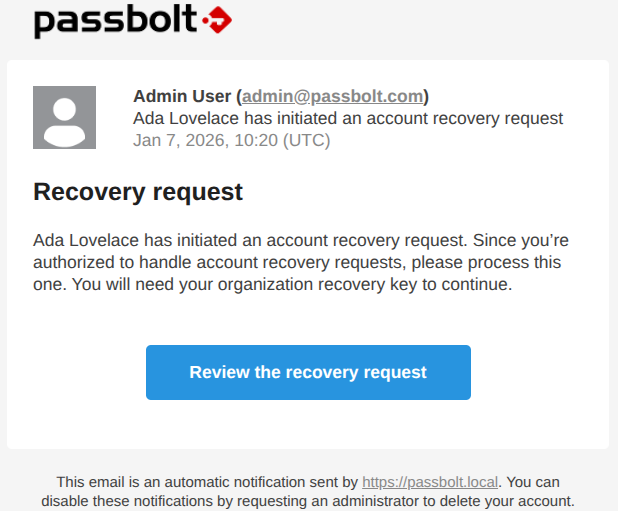
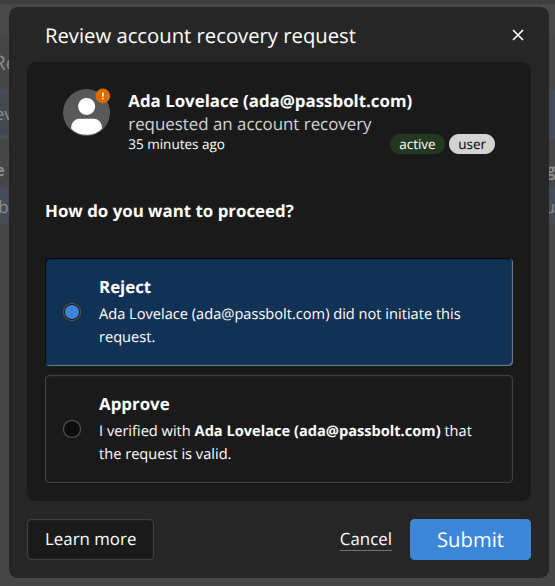
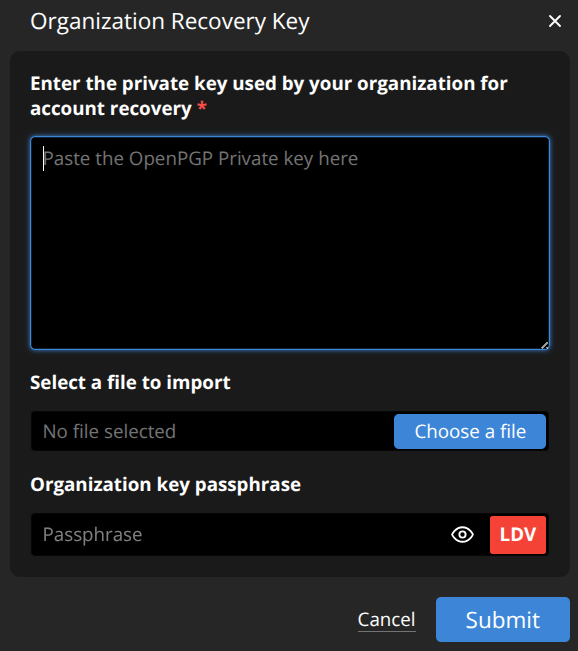
Clicking on Review the recovery request, you will end up on a prompt review. If you agree on this request being valid, you will be asked to provide the Organisation Recovery Key (ORK) and the passphrase associated.
This will send a confirmation email to the user waiting for it, and the user will be able to complete the account recovery process.
Managing account recovery requests on the browser extension
To access the management page, on the top right corner of the browser extension's interface, you can click on ⚙ -> Manage Users & Groups.
Status on account recovery acceptance
On the management page, you will be able to check if users accepted the account recovery option (Approved), or not (Pending).
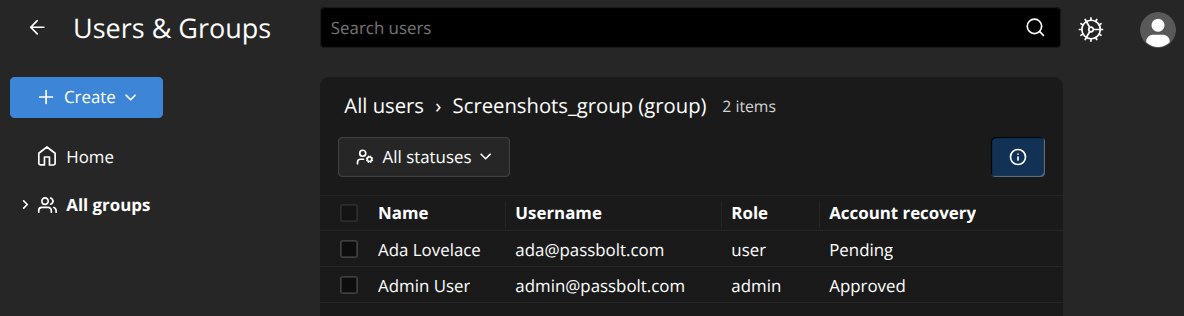
Filtering pending requests
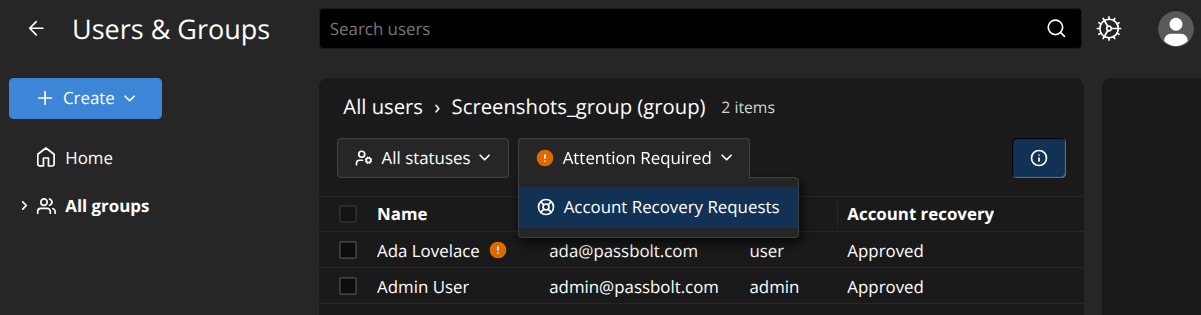
If there are some active pending requests, you will see a new box on the management page called Attention required with an attention mark (❗). Clicking on the box and selecting Account Recovery Requests, you will filter the users to show only those who require an admin review.
Reviewing pending requests
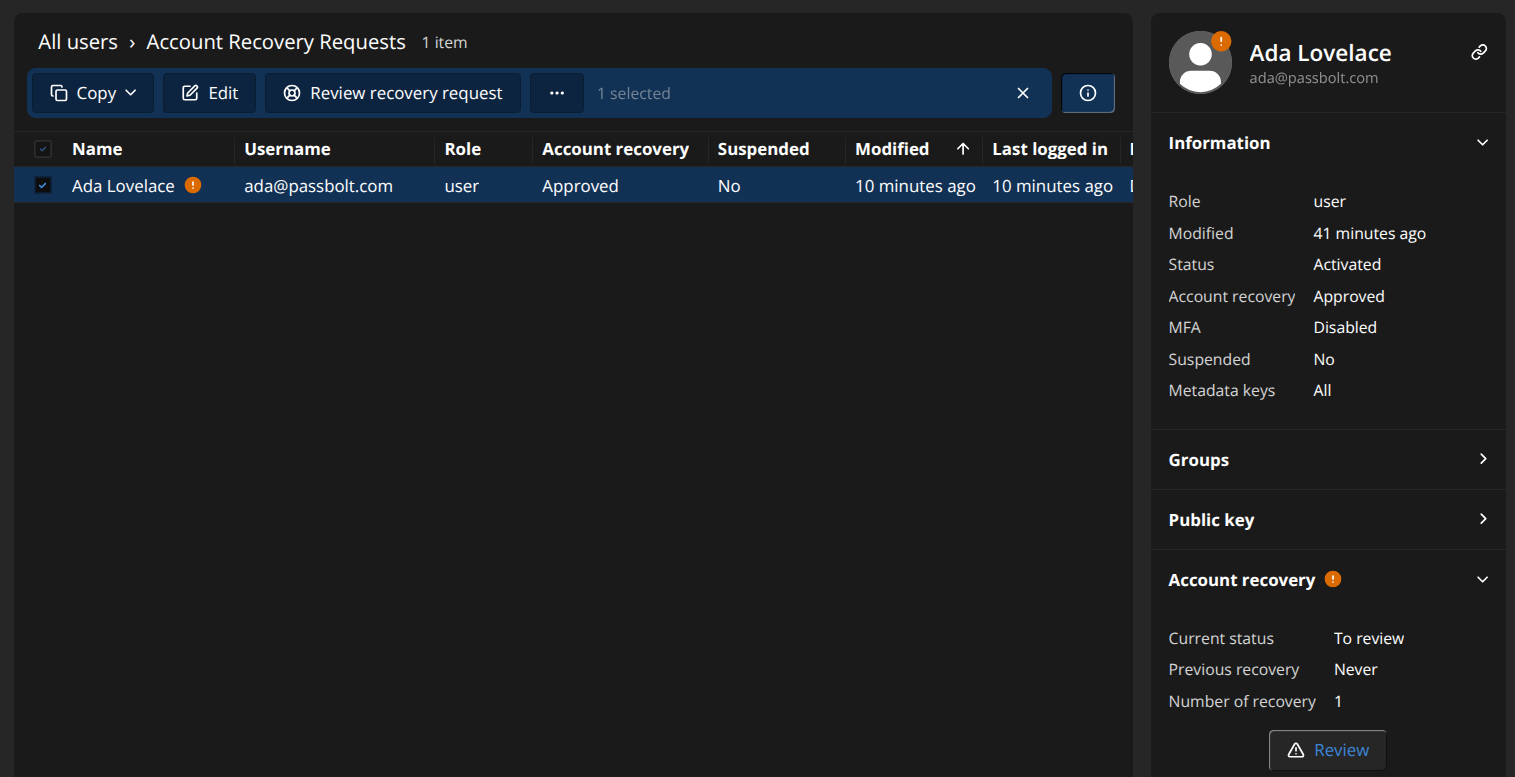
On the same management page, select the user who requires a review. Then, on the right tab (click 🛈 if hidden), click the Review button under the Account recovery section.
To avoid usurpations, we strongly recommend to contact directly the users who asked for an account recovery before accepting it.
A prompt is displayed to review the request by approving or rejecting it. You will be asked to provide the Organisation Recovery Key (ORK) and the passphrase associated.
Following this step, the user will be able to complete the account recovery process.