Account Recovery Configuration
The Account Recovery is a feature introduced with passbolt v3.6.0 that helps users to recover their accounts in case of a recovery kit or passphrase loss.
If you are looking for how to set up your account on another machine,
you can check this documentation.
This feature needs to be activated by you, administrator, as it is disabled by default.
Furthermore, with passbolt 5.8, we are introducing the ability to create additional roles (Organisation settings -> Role-Based Access Control). Upon being given a role with access to the account recovery requests management, non-admins will be able to view, index, and review account recovery requests.
Requirements
You can configure this setting if you are meeting the following requirements:
- You have an active administrator account,
- You are running Passbolt Pro v3.6.0 or higher, or Passbolt Cloud.
How does it work?
Depending on the organisation's policy, all users will be able to deposit an encrypted backup of their private keys in passbolt. Backups which can only be unlocked cryptographically by the organisation's administrators having in their possession the organisation recovery key.
Watch the process of account recovery from the user and the admin perspective.
How to enable account recovery for your organisation?
To enable account recovery for your organisation, navigate to the account recovery administration page: ⚙ > Organisation settings > Account recovery.
How to choose the organisation's policy?
Based on what best suits your organization's preferences, you will enable it by choosing among the proposed policies by going to ⚙ > Organisation settings > Account recovery.
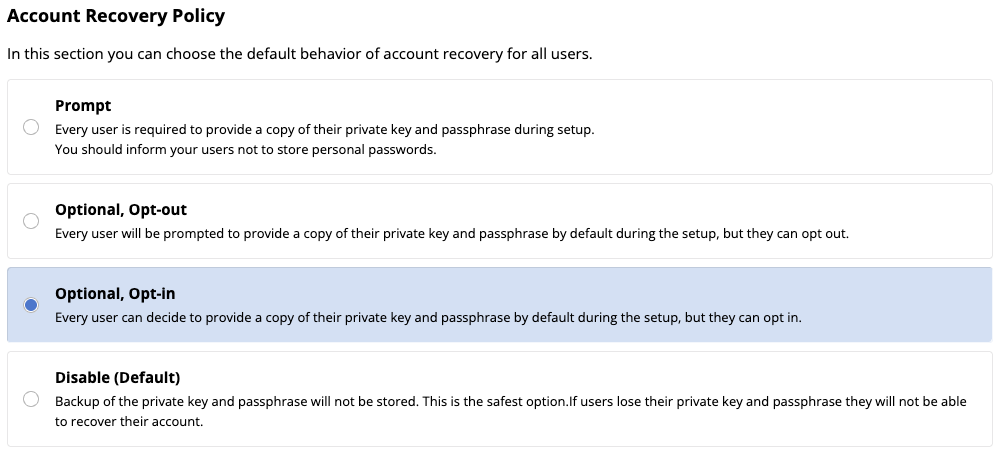
- Prompt: new users will be forced to accept when registering for the first time, while existing users will be prompted to accept or ignore after signing in to the application. When ignored, this prompt will be displayed after each connection, but its goal is mainly to inform the users about the private key transfer that is going to happen. It is especially useful if they prefer not to use their personal private key.
- Opt-out: users have the choice to accept or reject the option, and the account recovery is enabled by default as per the organisation's preferences. Users will be able to set their preferences when registering for the first time while existing users will be prompted to accept or reject after signing in to the application.
- Opt-in: users have the choice to accept or reject the option, but the account recovery is disabled by default as per the organisation's preferences. Users will be able to set their preferences when registering for the first time while existing users will be prompted to accept or reject after signing in to the application.
- Disable: the option is disabled and nobody will be able to use it. This is the default policy before enabling account recovery.
Set the Organisation Recovery Key (ORK)
Once you have chosen the organisation's policy, the next step is to set an Organisation Recovery Key. This key will be used to encrypt the escrow (securely held by a trusted authority) of the organisation's users' private keys.
Changing the passbolt's domain name will see the account recovery feature NOT working anymore.
If this change is strictly required by your organisation, please contact Passbolt's support before proceeding.
ORK management best practices
Most secure (recommended)
Create the key offline, store it offline (e.g. in a physical safe), rotate after each use.
In this model, the account recovery escrow key (securely held by a trusted authority) is generated offline on a trusted system and stored offline, for example in a physical safe. The private key is never stored in passbolt or on an internet-connected device, which significantly reduces the attack surface. Even in the event of a passbolt user admin compromise, the escrow key remains protected. For maximum security, the key is rotated after every recovery operation.
The main issues of this approach are operational rather than technical. Loss, damage, or mishandling of the key can prevent future account recovery, and recovery operations require careful coordination and physical access. These risks can be reduced by clearly documenting recovery procedures, limiting access to a small number of trusted individuals, and regularly validating that the recovery process works as intended.
Most user-friendly
Create the key using passbolt, store it in passbolt with a minimal set of users, rotate when access changes.
In this model, the account recovery escrow key is generated and stored within passbolt and shared with a minimal set of trusted users, typically members of a security or IT team. This approach simplifies setup and day-to-day operations and allows faster account recovery when needed. Access and usage benefit from passbolt’s existing access controls and audit capabilities.
You can do so by clicking on Create -> Custom fields and putting the ORK content into the Value field. Then you are free to share it directly or in groups.
The primary risk is a larger attack surface, as the key is accessible through passbolt. These risks can be mitigated by strictly limiting access to a small group of dedicated users with strong endpoint security, regularly reviewing access rights, and rotating the key whenever someone with access leaves the organisation or no longer requires it.
Import the Organisation Recovery Key (ORK)
This method is the recommended one as it will keep your Organisation Recovery Key isolated from passbolt until the moment you need it.
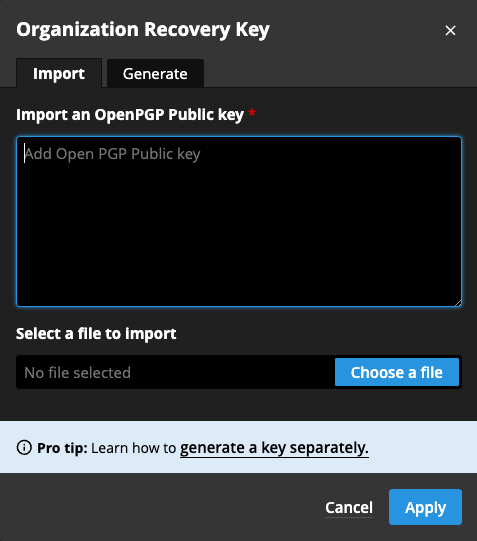
In order to be accepted, the Organisation Recovery Key should meet these requirements:
- The key should be a public GPG key.
- The key should use the RSA algorithm.
- The key should have a length of 4096 bits.
- The key should have a passphrase.
If you do not know how to generate an OpenPGP key, check out the following documentation: how to generate an OpenPGP key.
Generate the organisation recovery key (ORK)
If you cannot generate an OpenPGP key on your own, we got your back!
In the import recovery key dialog, click on the Generate tab. From there you will find a tool that will help you to generate your Organisation Recovery Key.
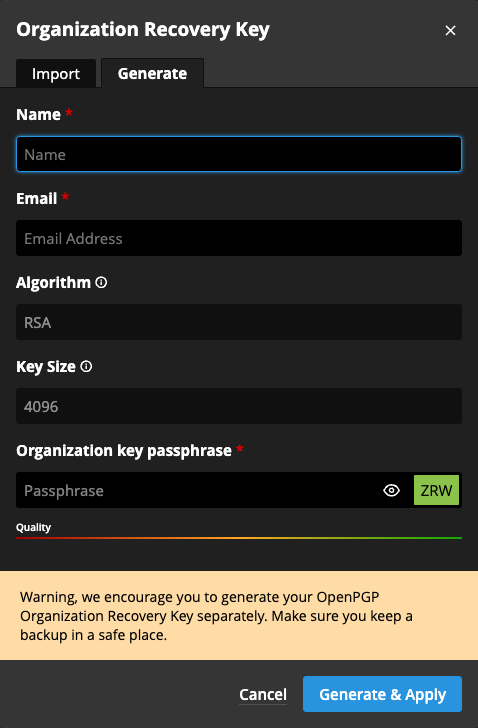
Passbolt will prompt you to save the generated key on your computer (naming convention: filename-date-fingerprint). Keep this backup offline in a safe place, it will be required later to:
- update the organisation's policy,
- approve users' recovery requests,
- rotate the ORK.
Rotate the organisation recovery key (ORK)
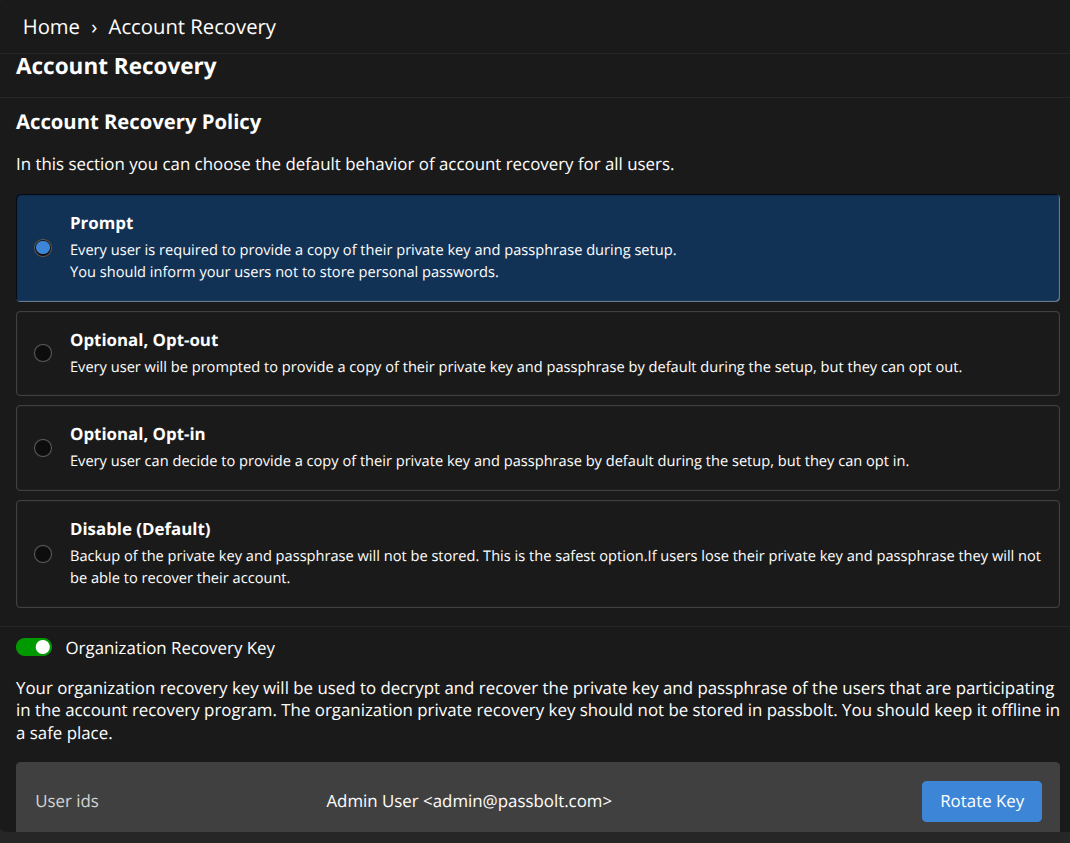
In order for you to rotate the Organisation Recovery Key, you will need to go to the same page as per the account recovery policies. Click on ⚙ > Organisation settings > Account Recovery. Scroll down to discover the button Rotate key on the right. You will then need to either import or generate a new key.
Enable the account recovery policy
Once the account recovery policy is configured and its key is set, click "Save settings" to activate the policy.
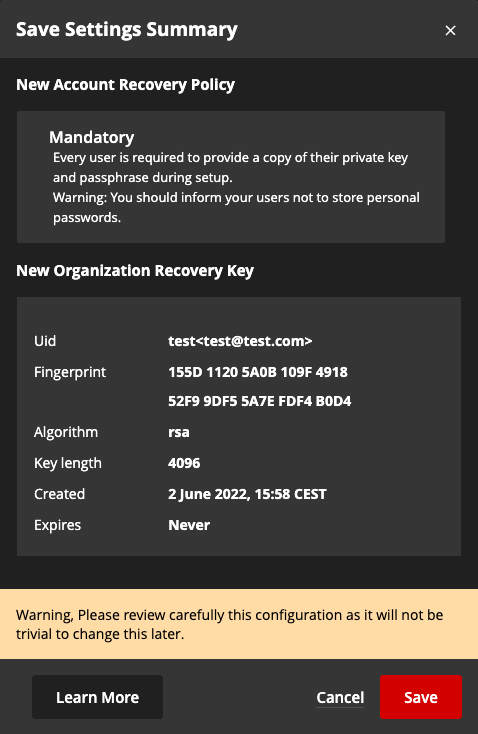
On the next step, you will be prompted to review the policy.
It is advised to do a careful check here before continuing.
Update the account recovery policy
To update the account recovery policy of your organisation, navigate to the account recovery administration page: ⚙ > Organisation settings > Account recovery.
Select the policy of your choice and update the Organisation Recovery Key (ORK), if necessary, as explained in the section enable account recovery.
Once you have made your changes, click on the "Save settings" button. You will be prompted to review the changes and to provide the Organisation Recovery Key currently in use. This extra check will prevent attackers from disabling then enabling the feature again with an ORK of their own.
Disable account recovery
To disable account recovery for your organisation, navigate to the account recovery administration page: ⚙ > Organisation settings > Account recovery.

Select the policy "Disable" and click on the "Save settings" button. You will be prompted to review the changes and then to provide the Organisation Recovery Key (ORK) currently in use. This extra check will prevent attackers from disabling then enabling the feature again with an ORK of their own.
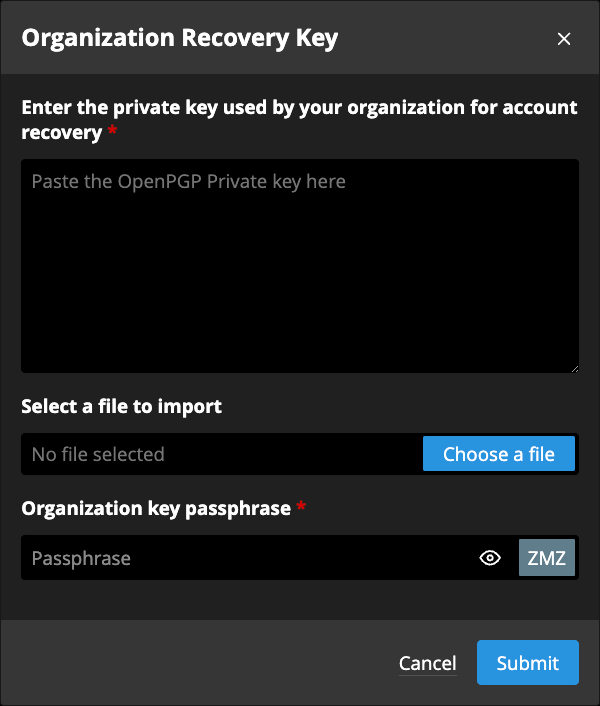
By disabling account recovery, you will truncate all the relative data. If you decide to enable this feature again, admins and users will have to accept once again to share their personal private key.
Reset account recovery
If you ever lose the Organisation Recovery Key (ORK), you can perform a manual reset of the feature using the following command:
The webserver user will depend on the distribution. For this example it uses Debian, but you might want to change "www-data" to "nginx" if you are using a RedHat/RPM distribution.
sudo su -s /bin/bash -c "/usr/share/php/passbolt/bin/cake passbolt truncate_account_recovery_tables" www-data
By using this command to reset account recovery, you will truncate all the relative data. Furthermore, any pending account recovery request will stay uncompleted forever. The involved users will have to create a new account from scratch and thus all their non-shared data will be lost. Note that if you ever decide to enable this feature again, admins and users will have to accept once again to share their personal private key.
If you are using Passbolt Cloud instead of the self-hosted Pro version, you can contact our support team to obtain the relevant request form.