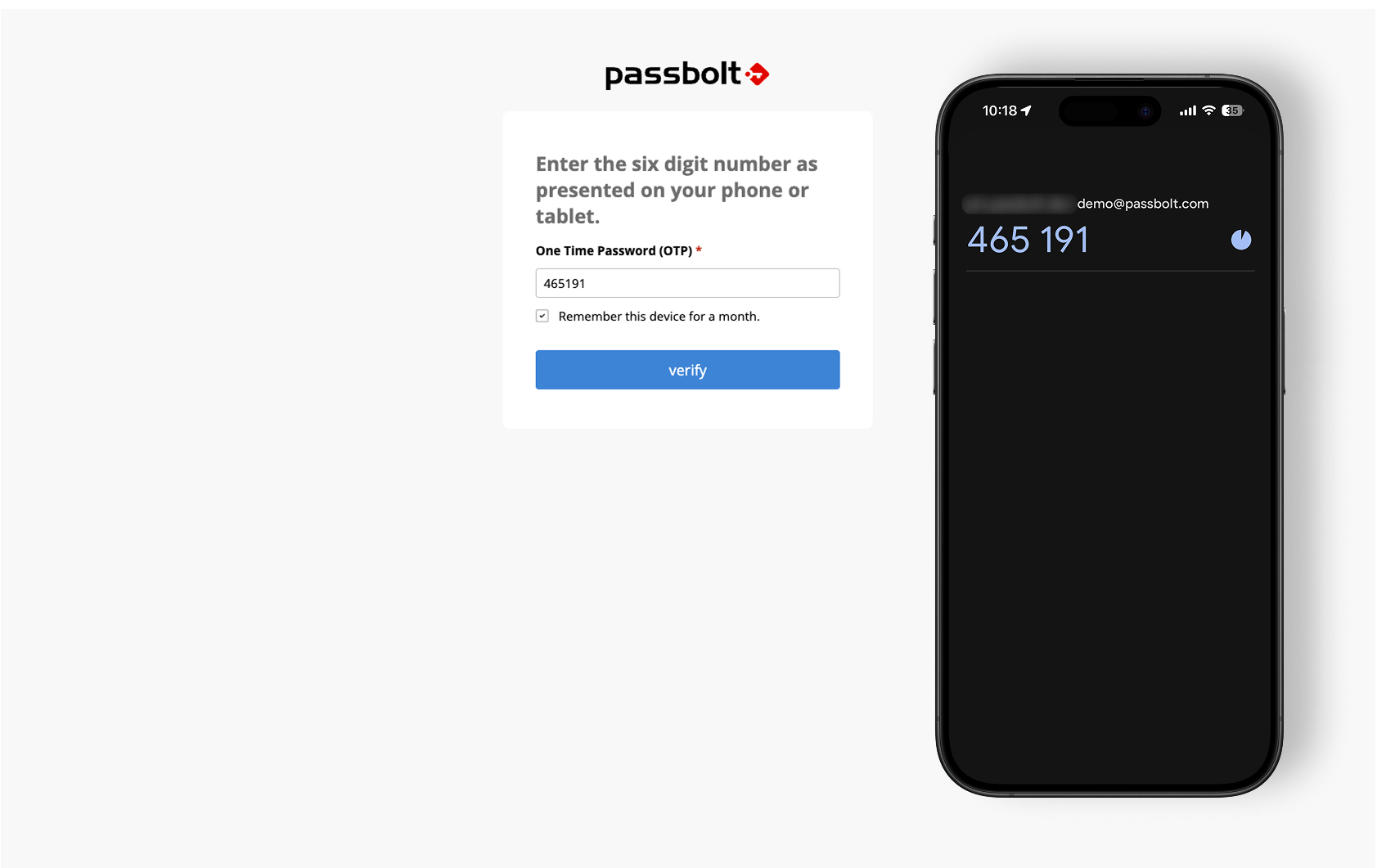
How to configure your account with TOTP
Install a TOTP application
To use this authentication service, you must install an application that supports Time-Based One-Time Passwords (TOTP), such as Google Authenticator or FreeOTP. Throughout this page, we will focus on the Google Authenticator mobile application, compatible with smartphones and tablets.
- Google Authenticator for Android on Google Play Store.
- Google Authenticator for iOS on Apple Store.
Setup TOTP
To setup TOTP as multi-factor authentication method, navigate to the multi-factor authentication user settings page: Avatar > Manage Account > Multi Factor Authentication. Next, you should be able to select the provider "TOTP Authenticator".
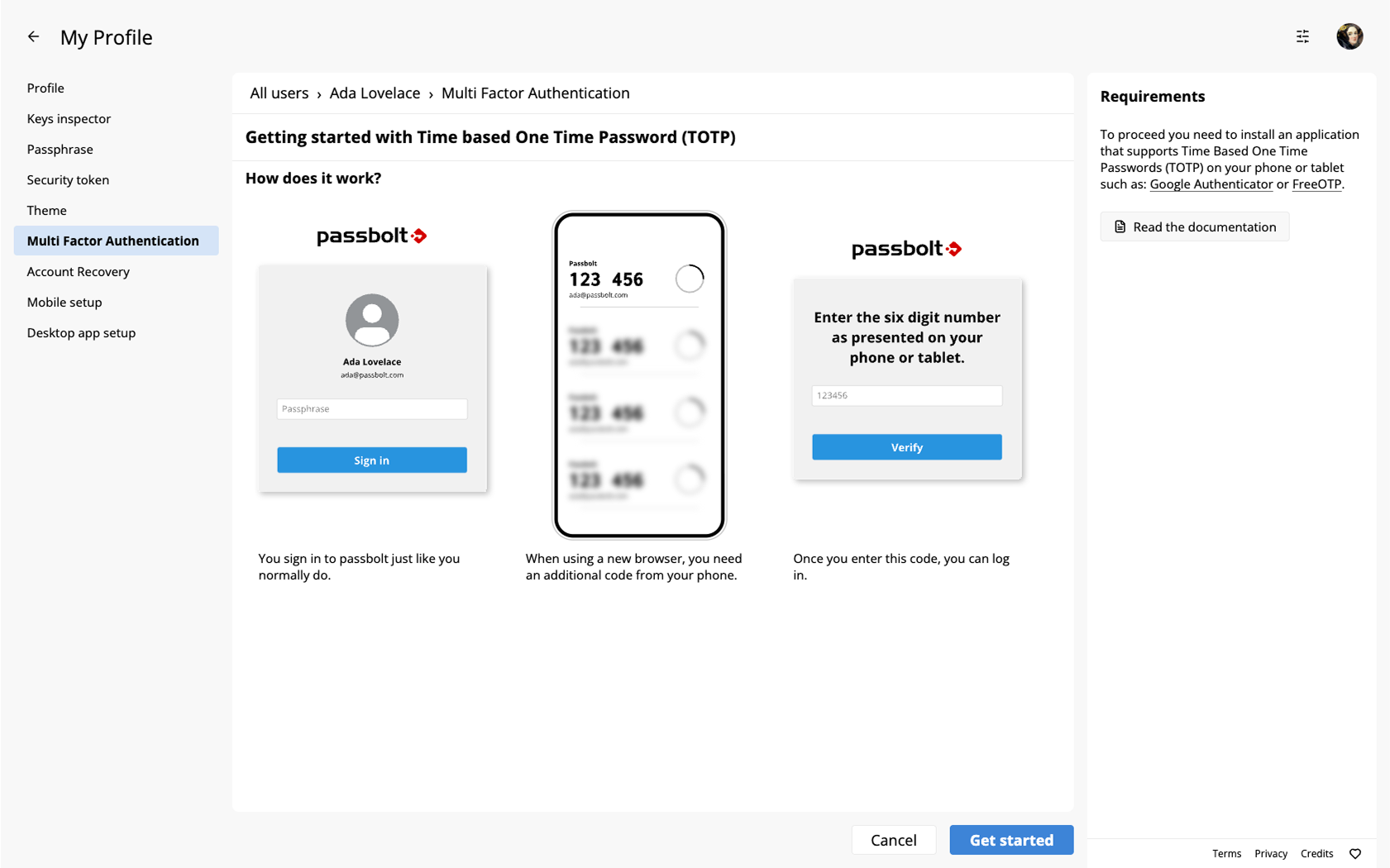
Upon clicking on your provider, you will be presented with a short visual guide on how the feature operates, followed by an invitation to "Get Started!".
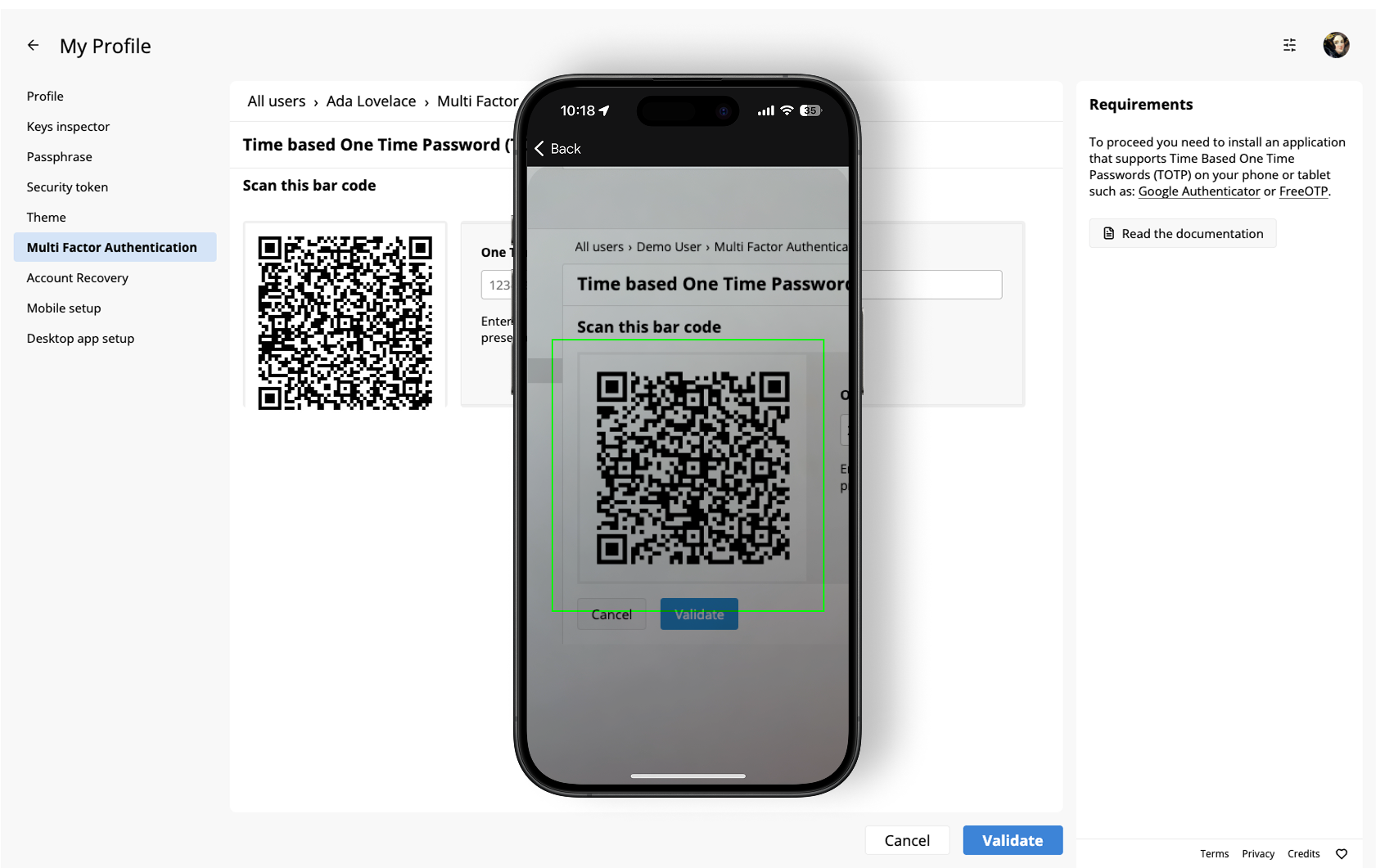
The next step will show a QR code that you can scan with the Google Authenticator app. This app will then produce a six-digit code that refreshes every 30 seconds. Input this code into Passbolt and click on "Validate" to ensure it functions correctly and complete the setup.
Authenticate with TOTP
After setting up TOTP, each time you sign-in to Passbolt, you'll need to enter the six-digit code from the Google Authenticator app. Additionally, if permitted by the "Multi-factor Authentication Policy", passbolt can remember your MFA authentication for a month.