How to configure your account with TOTP
Install a TOTP application
To use this authentication service, you must install an application that supports Time-Based One-Time Passwords (TOTP), such as Google Authenticator or FreeOTP. Throughout this page, we will focus on the Google Authenticator mobile application, compatible with smartphones and tablets.
- Google Authenticator for Android on Google Play Store.
- Google Authenticator for iOS on Apple Store.
Setup TOTP
To setup TOTP as multi-factor authentication method, navigate to the multi-factor authentication user settings page: Avatar > Manage account > Multi Factor Authentication. Next, you should be able to select the provider "TOTP authenticator".
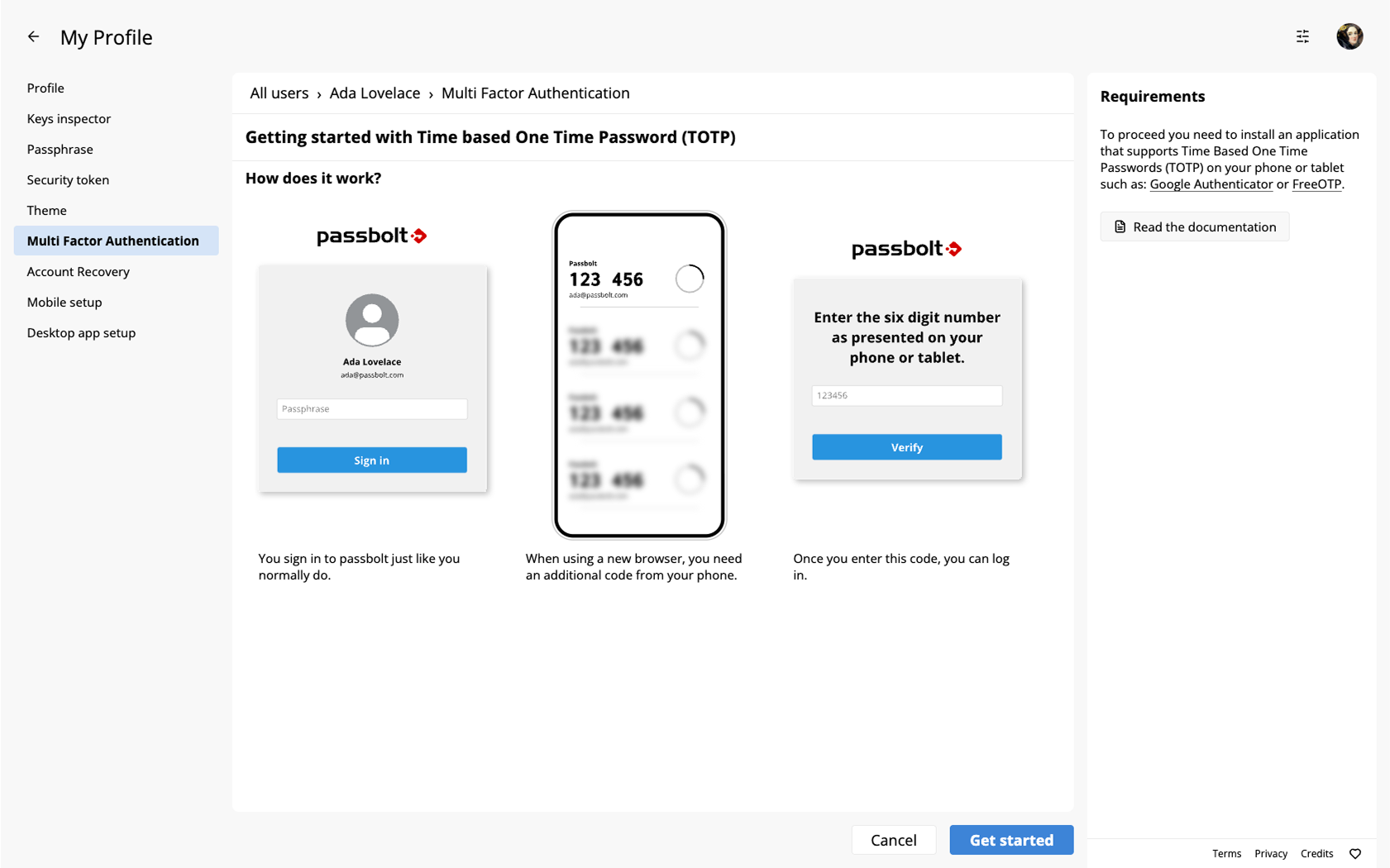
Upon clicking on your provider, you will be presented with a short visual guide on how the feature operates, followed by an invitation to "Get Started!".
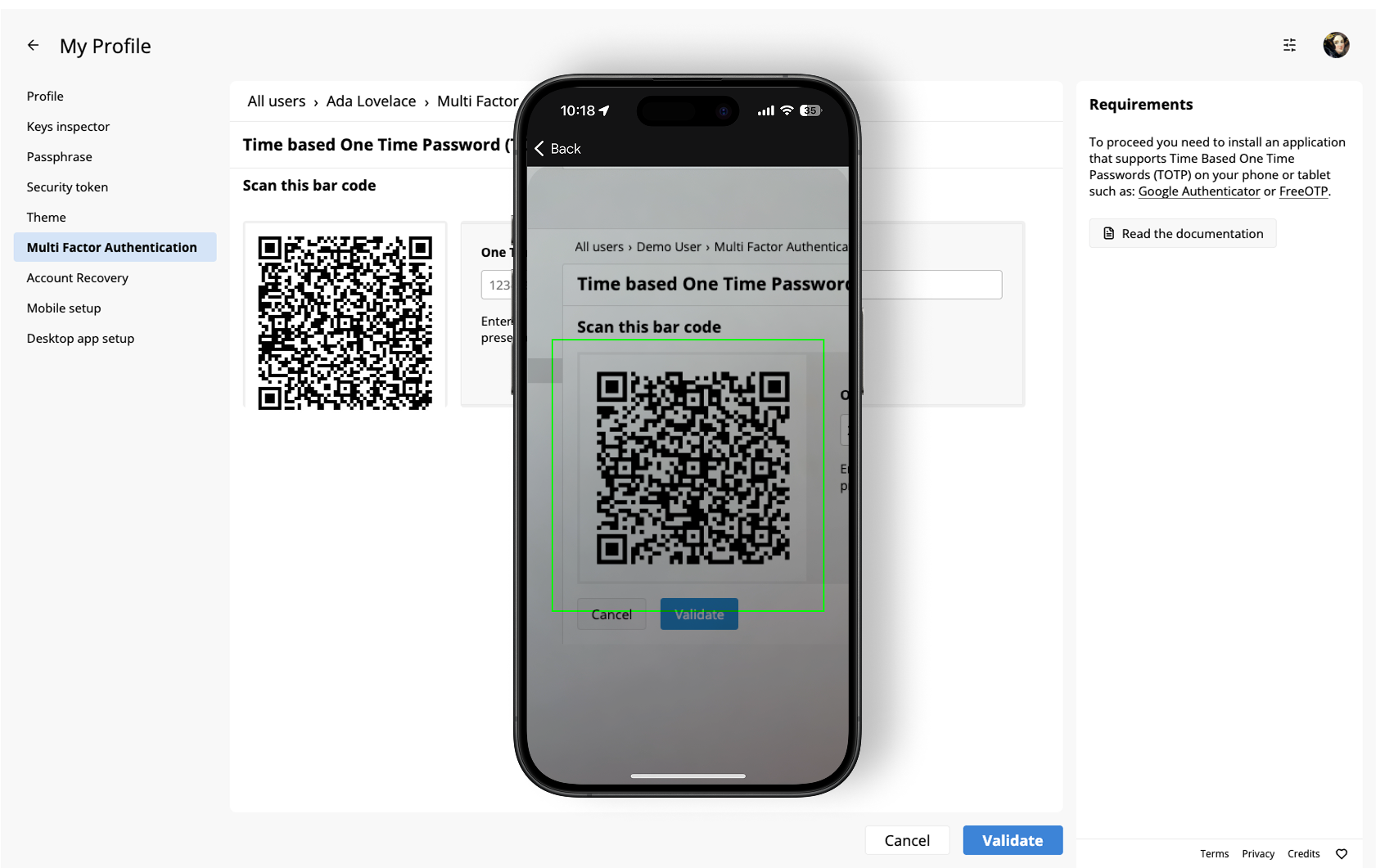
The next step will show a QR code that you can scan with the Google Authenticator app. This app will then produce a six-digit code that refreshes every 30 seconds. Input this code into Passbolt and click on "Validate" to ensure it functions correctly and complete the setup.
Authenticate with TOTP
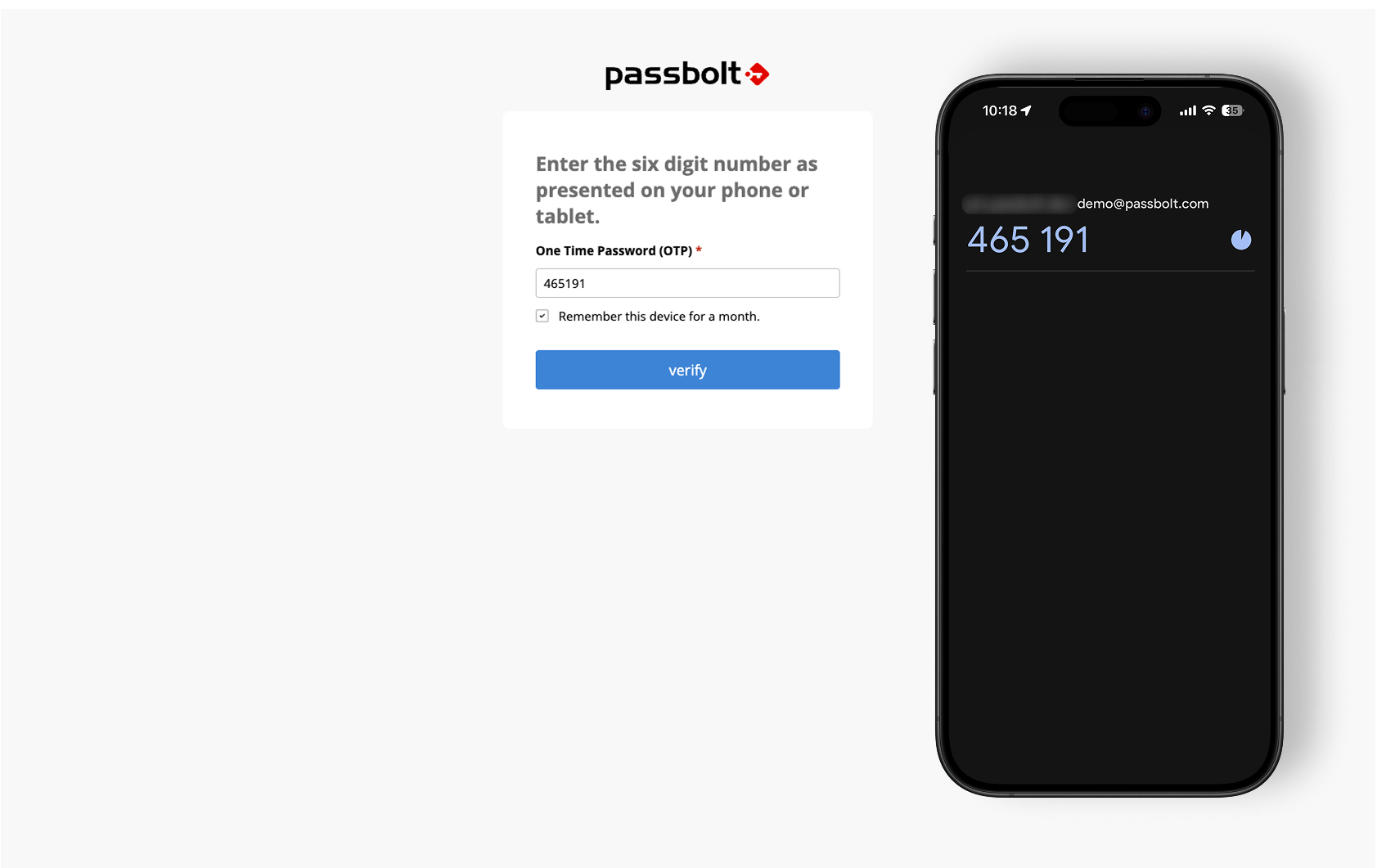
After setting up TOTP, each time you sign-in to Passbolt, you'll need to enter the six-digit code from the Google Authenticator app. Additionally, if permitted by the "Multi-factor Authentication Policy", passbolt can remember your MFA authentication for a month.
If the QR code does not appear
The setup screen offers no alternative to scanning: there is no key to type in by hand, so a blank square where the QR code should be leaves you stuck until it renders. Try the following, in order:
- Cancel and start the setup again from the provider list, which requests the QR code again.
- Open the console of your browser and look for an error while the screen loads. That message is what support will ask you for.
- Try another browser, or a profile without your other extensions: a content blocker can interfere with the way the image is built.
If none of it helps, contact your administrator or passbolt support with the console output rather than retrying, since nothing on the screen can work around a missing QR code.
If your code is refused
passbolt accepts the code of the current period only. There is no tolerance for the period before or the one after, so a code that was correct when you read it is refused once its countdown has run out, even by a second. Type it as soon as it appears, and when the timer of your application is nearly over, wait for the next one instead.
Beyond that, a code is a comparison between two clocks, and either of them can be at fault:
- The clock of the phone or tablet running your authenticator application. Mobile systems keep it synchronised on their own, so check that automatic time setting has not been turned off.
- The clock of the passbolt server, which your administrator maintains. When it drifts, every code from every user is refused, which is what configuring NTP is for.
A refusal that hits you alone points at your device. One that hits the whole organisation at the same time points at the server.