How to Work with Groups
A group is a named set of people that resources can be shared with, so that an access belongs to a team rather than to a list of individuals. Most of what a group does for you happens without you doing anything: you are added to it, and the resources shared with it appear in your workspace.
By default, only administrators can create a group, and every group has at least one group manager, who is the person in charge of its membership.
See the groups you belong to
- Click the gear icon.
- Select Manage Users & Groups.
- In the panel on the left, look at the Groups section, which starts on All groups. Two filters narrow it down: Groups I manage and Groups I am member of.
Selecting a group filters the list of people to its members, which is how you see who is in it.
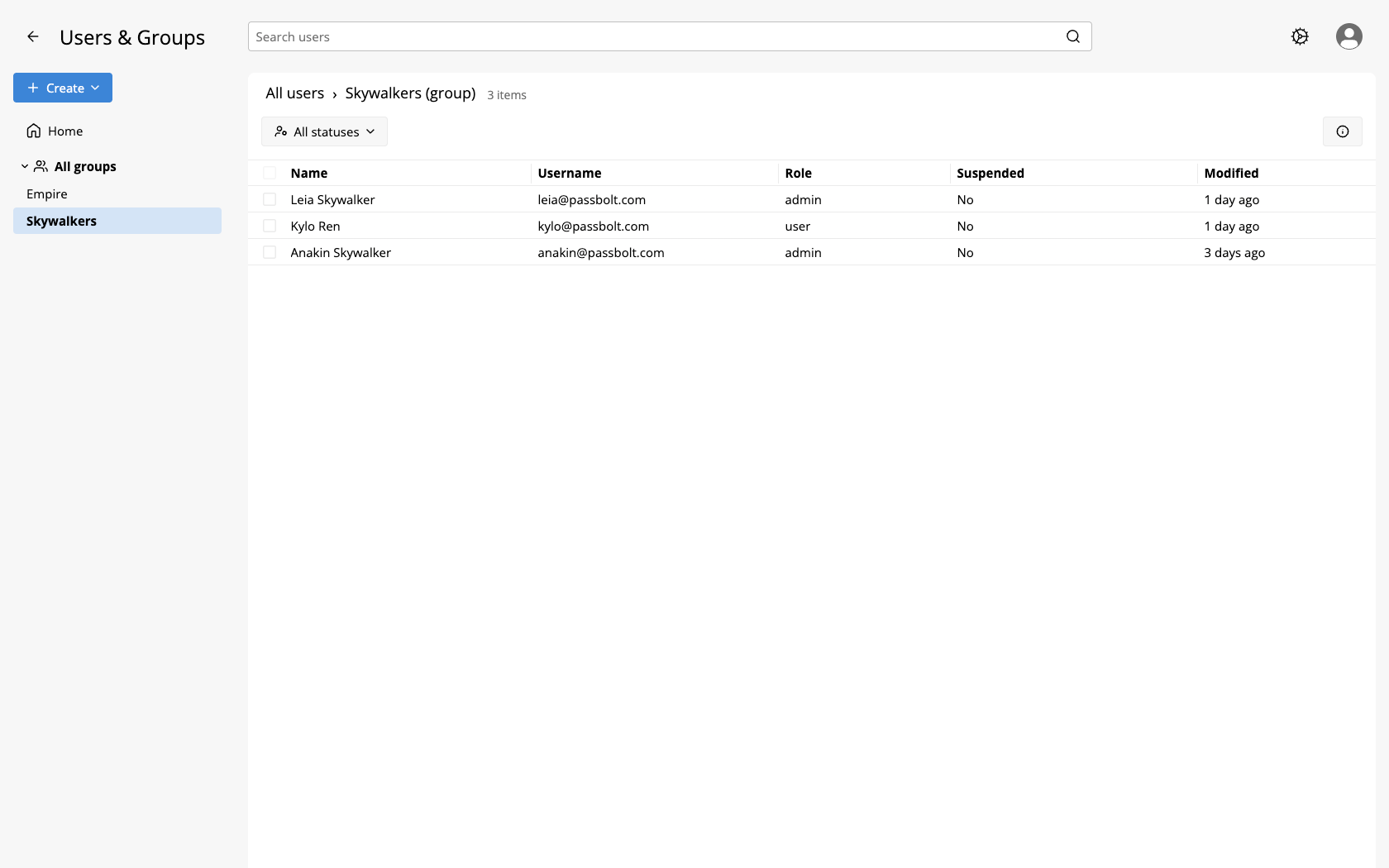
Your administrator can take the users workspace away from a role. The Manage Users & Groups entry then disappears from the gear menu, and seeing the groups is no longer possible from the interface.
The Groups section of that workspace filters users. The passwords workspace has no equivalent section: to find what a group has access to, look at the resources themselves, since the share dialog and the details of a resource name the groups it is shared with.
Access that comes from a group
A resource shared with a group is shared with every one of its members, and being a member is all it takes: nothing appears in your workspace to say that this access is collective rather than personal.
- The resource shows up in Shared with me, as long as the group does not make you an owner of it.
- When you have both a personal permission and a group permission on the same resource, the highest of the two applies.
- In the share dialog, groups sit next to people in the same list, told apart by their subtitle: an email address for a person, a count of members for a group.
Joining and leaving a group
Joining is not instantaneous, and it is not automatic. Because passbolt encrypts every secret for each person who may read it, the server cannot hand you the secrets of a group on its own: a group manager has to add you, and their browser re-encrypts each secret of the group for you during the operation. On a group holding many resources, expect this to take a while. This is also why directory synchronisation never adds anybody to a group that shares passwords, and notifies the group managers instead.
Leaving a group removes the access, and passbolt deletes your encrypted copies of the secrets you lose. You keep only what something else still grants you, such as a resource shared with you personally or through another group.
Losing access is about the future. A former member may well have read or copied a secret while they were in the group, and no deletion can call that back. When someone leaves a sensitive group, change the secrets as well.
If you manage a group
A group manager is an ordinary user with one extra responsibility: the membership of that group. It comes with no extra right over the resources shared with it, and the resources you own stay yours to manage.
To change the membership of a group you manage:
- Click the gear icon, then Manage Users & Groups.
- Right click your group in the Groups section of the left panel, or use its more button.
- Select Edit, then add or remove members.
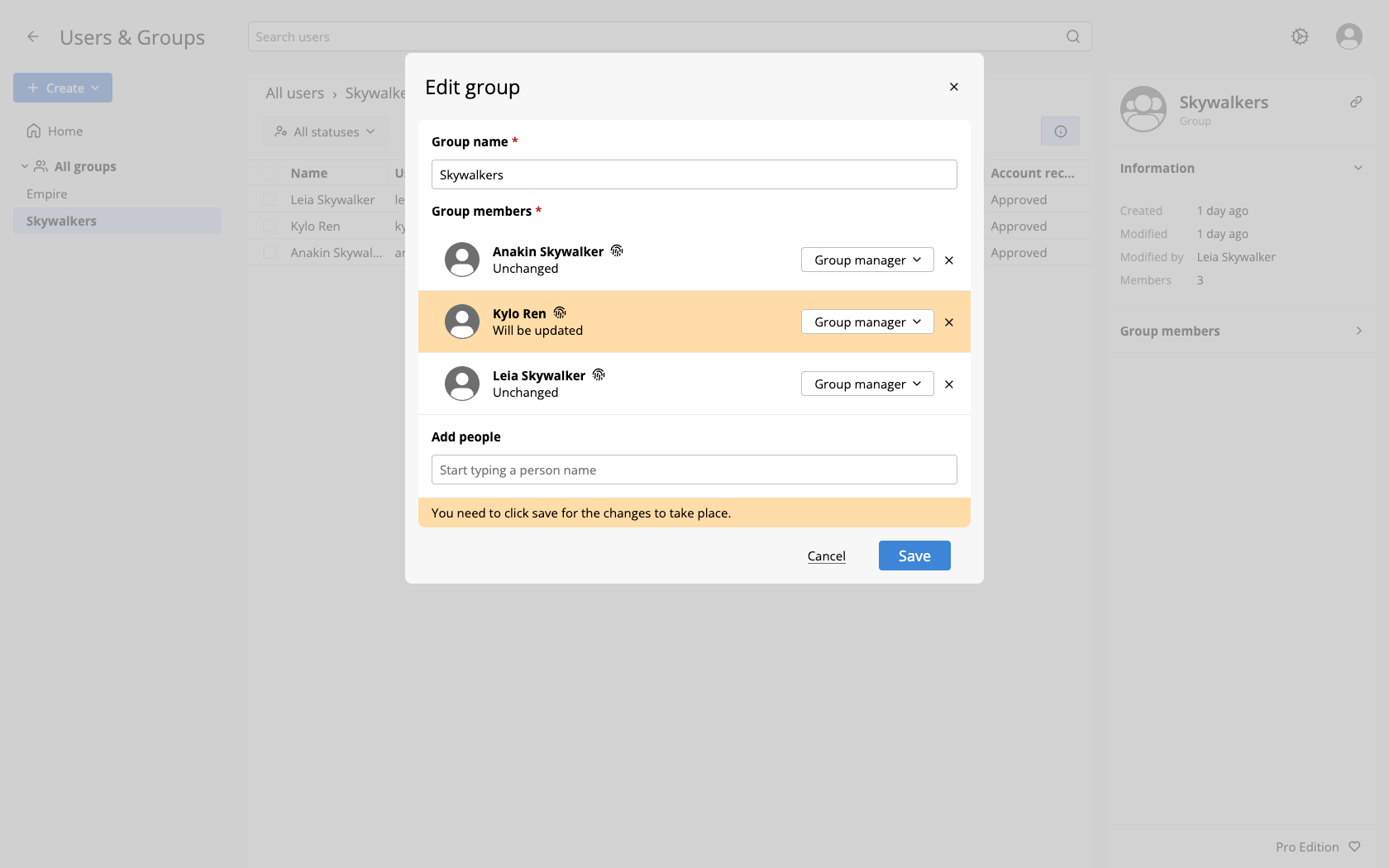
The action menu only appears on the groups you manage, which is how you know which ones they are without checking a list.
Two things to expect when you use it:
- Adding a member re-encrypts every secret of the group for that person, in your browser. On a large group, leave the window alone until it finishes.
- Removing a member deletes their encrypted copies of the resources they lose, unless another permission still gives them access.
The administrator side of groups, including their creation, is covered in managing user groups.