How to Use Offline Mode
Since version 5.16.0, passbolt can keep a read-only, encrypted copy of the resources you rely on most, so you can still reach them when the server cannot be reached.
Offline mode is in beta, and your administrator has to enable it before it appears.
Mark a resource as available offline
- In the passwords workspace, select a resource.
- Choose Make available offline from the ... menu, or right click the resource and choose the same entry.
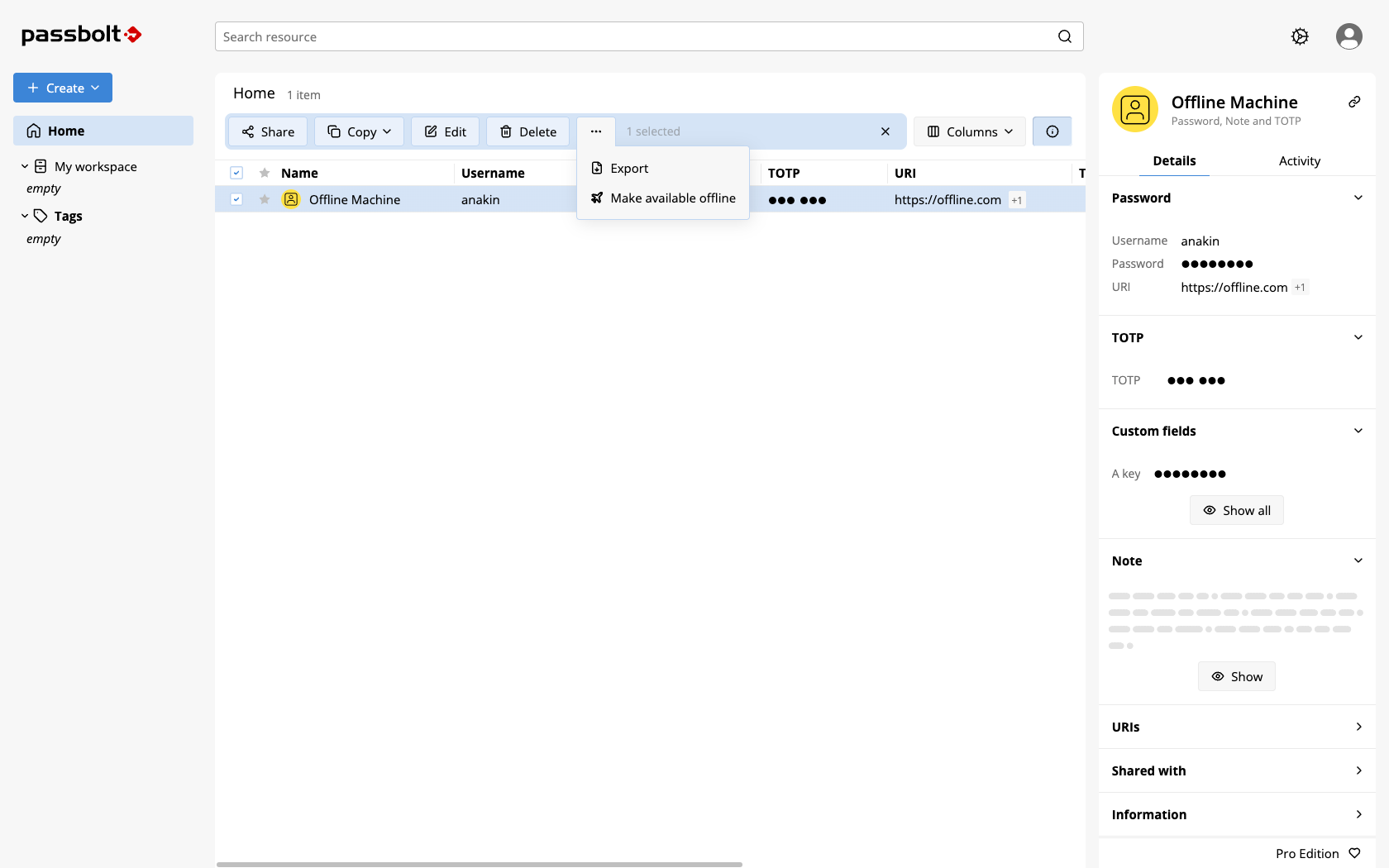
passbolt confirms with "The resource has been made available offline." Marking the same resource again does nothing new, and removing the mark later shows "The resource is no longer available offline." and clears it from your device the next time you go online.
An Available Offline column in the workspace shows the state of each resource: Yes, No, or Not supported for a resource that cannot be marked. A matching Available offline filter is available in the sidebar.
The entry is absent, rather than disabled, when Offline mode is not available to you. Either your administrator has not enabled it for the organisation, your role does not allow marking items, or the resource itself is not eligible, see below.
Only resources in the version 5 format can be marked, whatever they hold: passwords, TOTP, notes, custom fields and PIN codes all qualify. Folders cannot be marked as available offline yet, and there is no bulk action, items are marked one by one. You can mark up to 1000 items by default; beyond that limit passbolt answers "You have reached the maximum number of offline items (1000)."
Use offline mode
When passbolt cannot reach the server, opening Quick Access shows "Unable to reach the server, you are not connected to the network." instead of the usual popup.
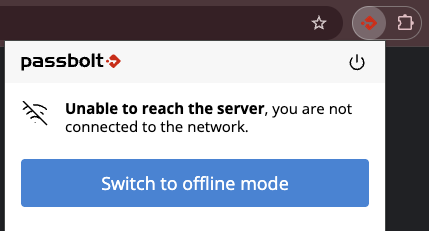
If you have items available offline, a button offers to continue: Switch to offline mode if you still had a session open, Use offline mode otherwise. Either one signs you out of the stale online session first.
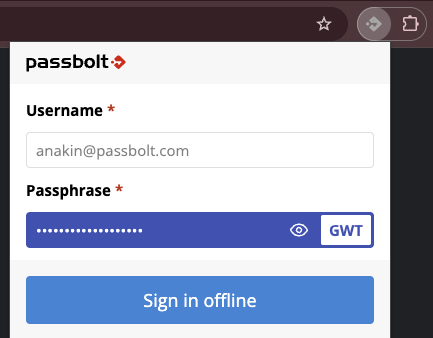
Your username is already filled in, since the extension is set up for your account. Enter your Passphrase and select Sign in offline. The check happens entirely on your device, by decrypting your private key: there is no round trip to the server, and no single sign-on.
Your passphrase is the only way in while offline. If your organisation uses single sign-on and you do not know your passphrase by heart, keep a copy of it somewhere safe, such as your recovery kit.
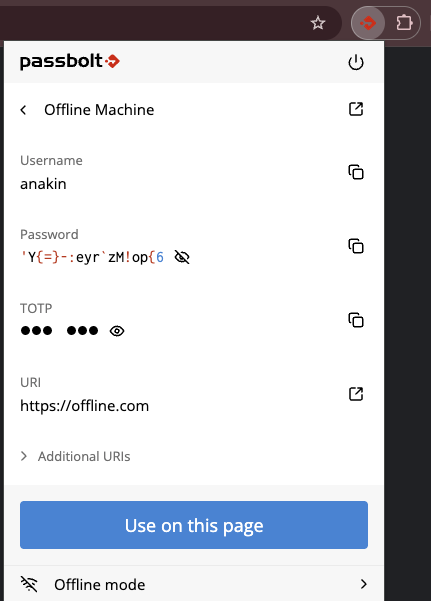
Once signed in, Quick Access only lists the items you marked, search included. Use on this page fills the page you are on exactly as it does online, whether passbolt finds the match by searching or by matching the page's URL, see using autofill and the in-form menu. A footer stays visible with an Offline mode details link; it reads Offline mode while the server is unreachable, and becomes a Switch to online mode link once the server is reachable again.
The details screen shows Last sync, your remaining Session duration (or "Expired"), and the Data retention period, all set by your organisation, see the Offline mode administration page.
How long you stay signed in
Your administrator sets a maximum session duration. If you ask to stay signed in for longer than that maximum, or indefinitely, you get the maximum instead, it is a ceiling, not a suggestion. When your offline session expires, passbolt asks for your passphrase again, it does not delete your cached items.
How long your data stays on this device
The retention period counts from the last time your device was online, not from when you marked an item. As long as you reconnect regularly, your marked items stay available. If a device stays disconnected past the retention period, passbolt clears everything it cached for offline use. The clearing happens when your browser starts and when you sign out, so a browser you leave running can hold its data a little past the period.
If someone removes your access to a resource while your device is offline, the encrypted copy stays on that device until it reconnects and refreshes, or until the retention period runs out, whichever comes first.
What offline mode does not do
- It is read only, nothing can be created or edited while offline.
- The cache is tied to a single browser profile. Using two browsers, or two computers, means marking your items in each of them.
- Offline access only works from Quick Access, not from the passbolt web application.