Offline mode
Since version 5.16.0, passbolt supports Offline mode.
Offline mode is currently in beta, the entry in the administration menu carries a beta chip.
Offline mode enables read-only access to critical credentials when the passbolt server is unreachable or network connectivity is unavailable.
How does it work?
Users mark individual resources as available offline. passbolt writes an encrypted copy to their device. When the server becomes unreachable, they open Quick Access, enter their passphrase, and read only the items they marked, nothing else. See how to use Offline mode for that side of the workflow.
The plugin is enabled by default on every instance, so the feature is one save away.
To configure Offline mode for your organisation, select ⚙ > Organisation settings > Offline mode.
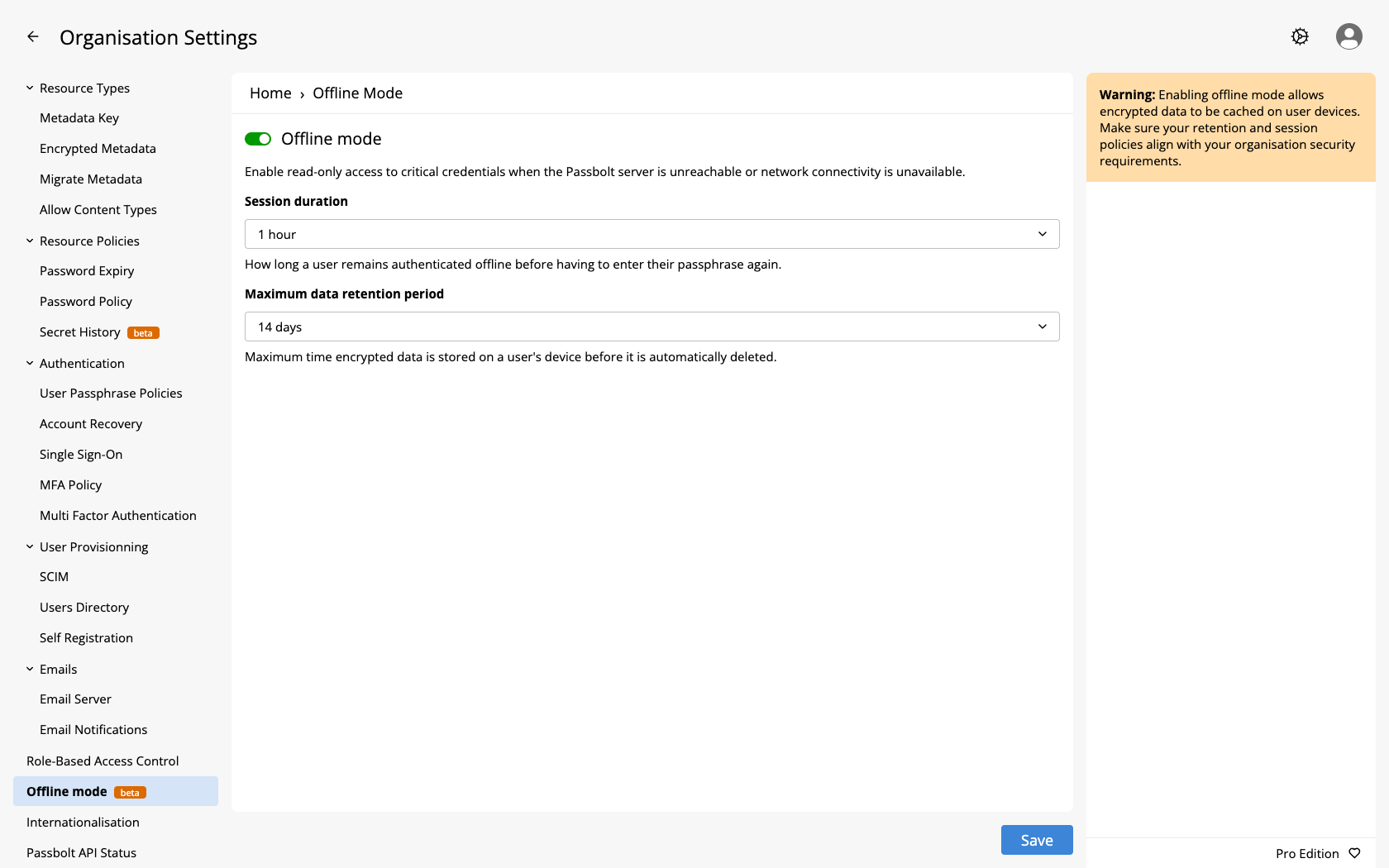
Configure the organisation settings
The feature stays inactive for your organisation until an administrator saves the settings screen. Saving the toggle on turns Offline mode on; switching it off and saving removes the organisation settings entirely, which turns it back off.
Disabling Offline mode does not just hide the settings, it deletes every user's offline items across the organisation. There is no separate confirmation step beyond the save action itself. Re-enabling the feature does not bring the old marks back, users have to mark their items again.
The screen holds two settings:
| Setting | Values | Default |
|---|---|---|
| Session duration | 5 minutes, 15 minutes, 1 hour, 1 day | 5 minutes |
| Maximum data retention period | 1, 7, 14, 30 days | 7 days |
The table lists the choices the administration screen offers. The API validates a range rather than the list: max_session_duration accepts any whole number of seconds from 300 to 86400, and data_retention_period any whole number of days from 1 to 30. Those ranges apply on the editions that allow customisation, see the note below. A third setting, the maximum number of items each user can mark, has no control on this screen and can only be set through the API as max_items.
Session duration is how long a user remains authenticated offline before having to enter their passphrase again. It is a ceiling rather than a fixed value: a user who asks to stay signed in for longer, or indefinitely, gets this duration instead. When it expires, passbolt asks for the passphrase again without clearing the cached items.
Maximum data retention period is the maximum time encrypted data is stored on a user's device before it is automatically deleted. The countdown starts from the last time that device reached the server, not from the moment an item was marked, so a device that syncs regularly keeps its items indefinitely.
In the Community Edition all three settings are pinned server-side: 5 minutes of session duration, 7 days of data retention and 1000 items. The two dropdowns only ever show the current value, and the API rejects any other value with a message naming the one value that setting accepts, for example "This setting is not customizable on this edition, it should be 1000." for the item limit. A value outside the normal range gets that same message rather than a range error. Choosing these values requires the Pro Edition, Business Cloud, Sovereign Cloud or Enterprise Cloud.
Role-based access control
Offline mode adds three actions to the API Permissions block of Role-Based Access Control:
| Setting label | Action | Effect |
|---|---|---|
| Can view offline items | OfflineItemsView.view | Shows the Available Offline column, the Available offline filter, and the offline items in the workspace |
| Can mark items as available offline | OfflineItemsAdd.add | Allows marking a resource as available offline |
| Can remove offline availability | OfflineItemsDelete.delete | Allows removing the offline mark from a resource |
All three are allowed for every role by default, and administrators are never restricted by them, whichever way the role settings are configured.
Setting Can view offline items to deny for a role deletes the offline items already marked by users who hold that role. The deletion is not immediate, it happens the next time the server-side cleanup runs.
What offline mode does not do
- It is read only. Nothing can be created or edited while offline.
- Only resources in the version 5 format can be marked as available offline. Any v5 resource qualifies, whether it holds a password, a TOTP, a note, custom fields or a PIN code; v4 resources cannot be marked.
- Folders cannot be marked as available offline yet.
- Items are marked one at a time, there is no bulk action.
- Each user can mark at most 1000 items by default. The administration screen has no control for this limit. Through the API, the
max_itemssetting accepts 1 to 5000 on the Pro Edition, Business Cloud, Sovereign Cloud and Enterprise Cloud; the Community Edition, and any instance with the policies plugin disabled, accept 1000 only. - Single sign-on does not work offline, users need their passphrase.
- Offline access only works from Quick Access, not from the web application.
- In the Community Edition, session duration, retention period and item limit are fixed and cannot be customised.
What is stored on a user's device
The encrypted copy lives in the browser, split across the resource itself, its secret, and the metadata key used to decrypt it. The secret and the metadata key are encrypted to the user's OpenPGP key, and the resource metadata is encrypted with the metadata key, exactly as the server stores them. Only structural fields such as identifiers, permissions and tags are stored in plain text. The content becomes readable in memory only after the user enters their passphrase to sign in offline.
Revoked access and a disconnected device
Removing a user's access to a resource, whether by revoking a share, removing them from a group, or deleting the group, deletes their offline mark on the server straight away. The encrypted copy already on their device is only removed the next time that device reconnects and refreshes its data. A device that never reconnects keeps its copy until the maximum data retention period expires it. The flush itself runs when the extension starts and when the user signs out. A browser that keeps running while offline therefore holds its data until one of those happens, which can be past the retention period. Choose the retention period with that gap in mind.
The same applies when Offline mode itself is switched off: the server-side data is deleted immediately, but a device that stays offline keeps its cached copy until its retention period runs out.
Notifications
Administrators receive an email whenever the settings change:
| Trigger | Subject |
|---|---|
| Settings saved | "You edited the Offline Mode settings" / "Name edited the Offline Mode settings" |
| Settings removed (feature disabled) | "You disabled Offline Mode" / "Name disabled Offline Mode" |
Both emails are sent to every administrator and have no corresponding toggle in Administration > Email Notifications.
Remove the feature from the instance
The plugin is enabled by default, so there is nothing to switch on. To take Offline mode off the instance altogether, disable the plugin: the Offline mode entry then disappears from the administration menu, whatever the organisation settings hold.
- Package Installation
- Docker
Open /etc/passbolt/passbolt.php and edit the plugins block:
'passbolt' => [
  'plugins' => [
      'offlineMode' => [
          'enabled' => false,
      ],
  ],
],
PASSBOLT_PLUGINS_OFFLINE_MODE_ENABLED=false
The Pro Edition has a second, independent plugin for the customisable policies. Disabling it while the base plugin stays on keeps the menu entry, but pins all three settings to the fixed values of the Community Edition, 5 minutes of session duration, 7 days of data retention and 1000 items:
- Package Installation
- Docker
'passbolt' => [
  'plugins' => [
      'offlineModePolicies' => [
          'enabled' => false,
      ],
  ],
],
PASSBOLT_PLUGINS_OFFLINE_MODE_POLICIES_ENABLED=false
Downgrading from the Pro Edition to the Community Edition leaves the Offline mode settings row as it was. The flush_pro_data command replaces that row with the default values, 5 minutes of session duration, 7 days of data retention and 1000 items, and it only runs once the instance is already on the Community Edition. An administrator who downgrades without running it keeps a settings row that the Community Edition validator rejects the next time the settings are saved. See downgrading to the Community Edition.