Why can't I use autofill ?
Autofill is a useful feature that helps you save time by giving quick access to the appropriate password when you're on a website, and by automatically filling in the login information for you. However, for this to work, Passbolt needs to detect a login form on the webpage you're visiting. It does this by analyzing the HTML code and looking for specific selectors that indicate "this is the username field" and "this is the password field". The selectors passbolt search for are defined bye the W3C web-standards.
How to verify ?
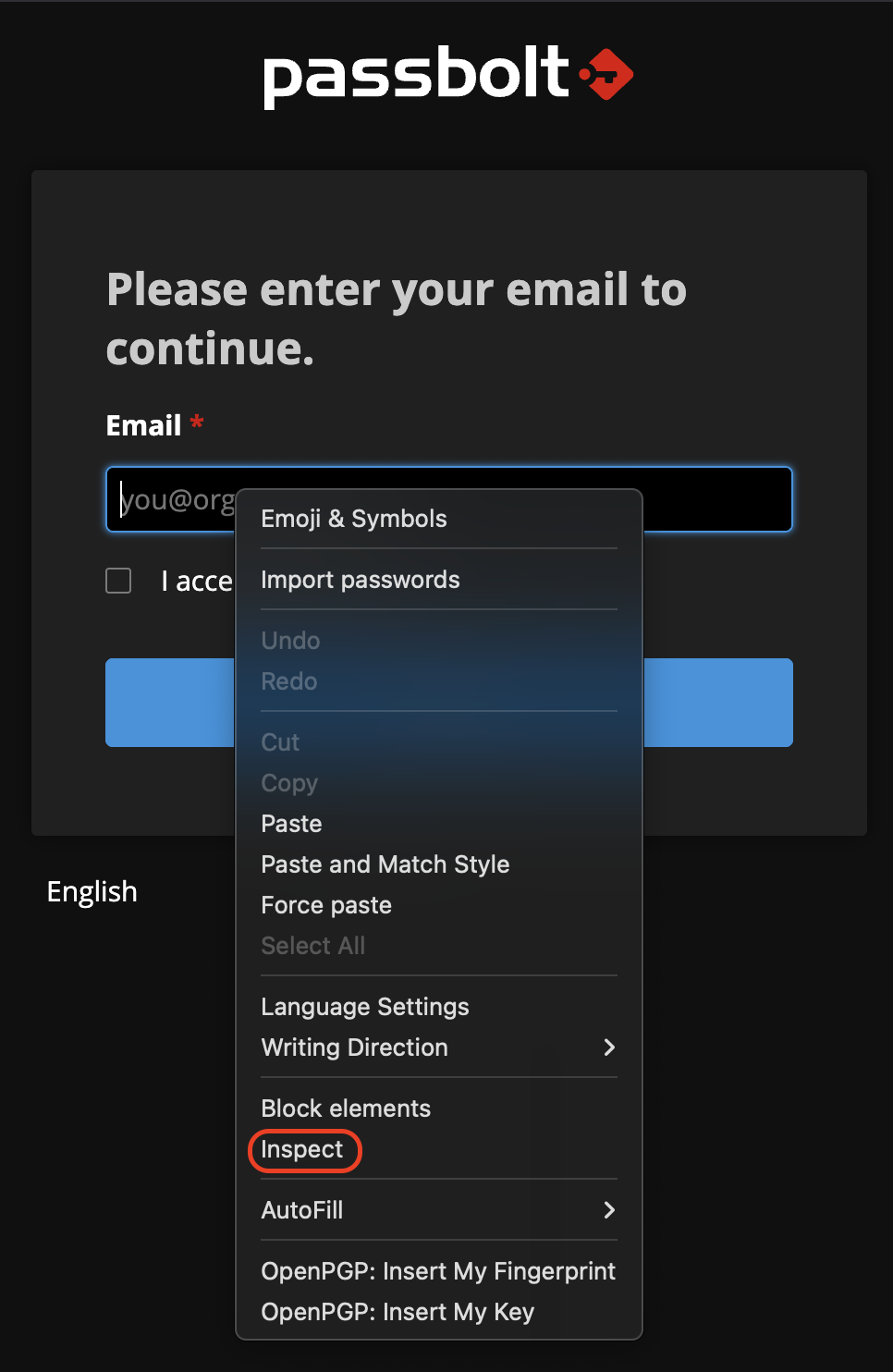
You can check which selectors are used on a webpage by right-clicking on the username or password input field and selecting Inspect.
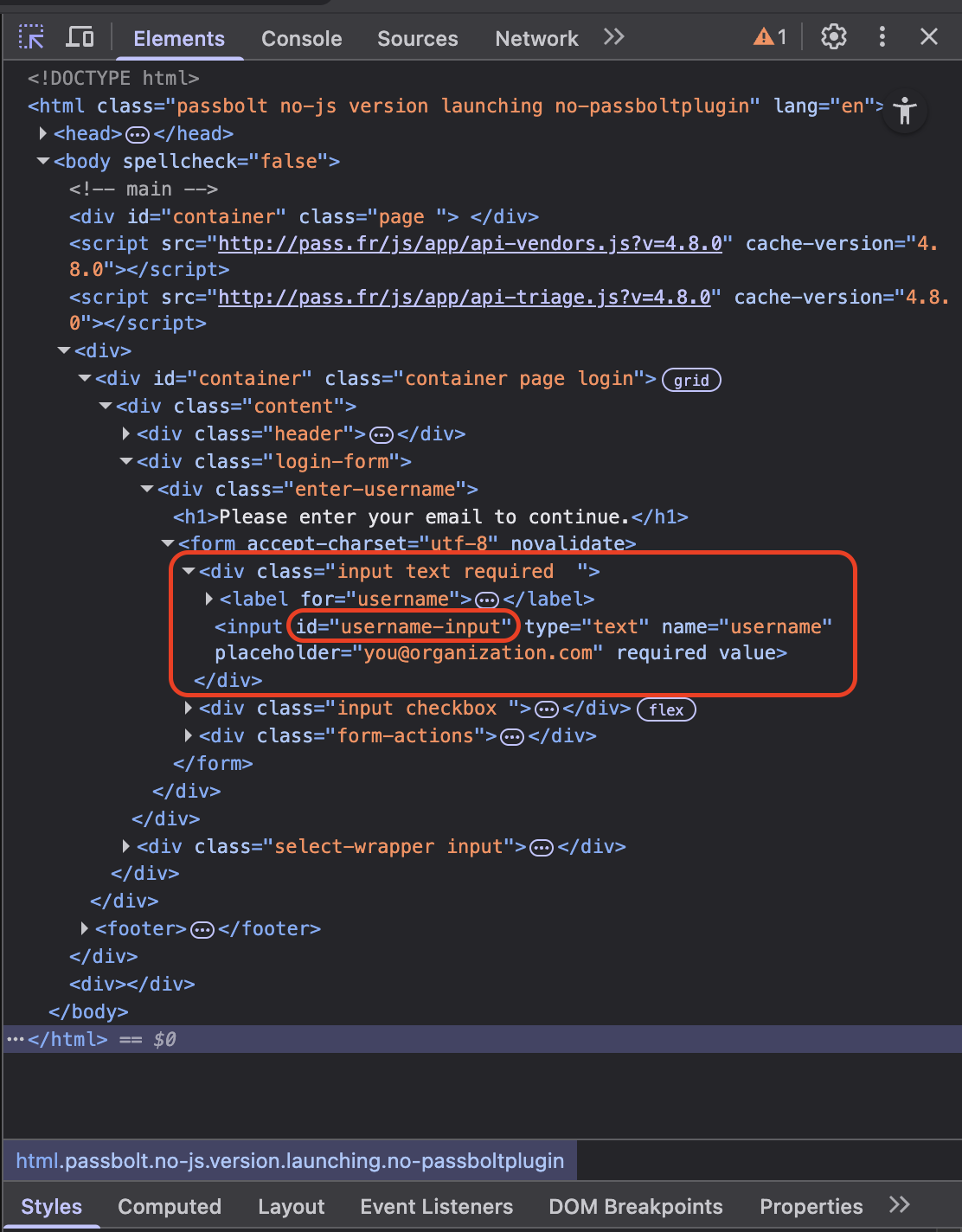
You will then see the HTML source code of the webpage. What matters here is the section related to the input field. In this example, Passbolt is able to detect the input field because the name and id attributes follow W3C web standards for form autofill.
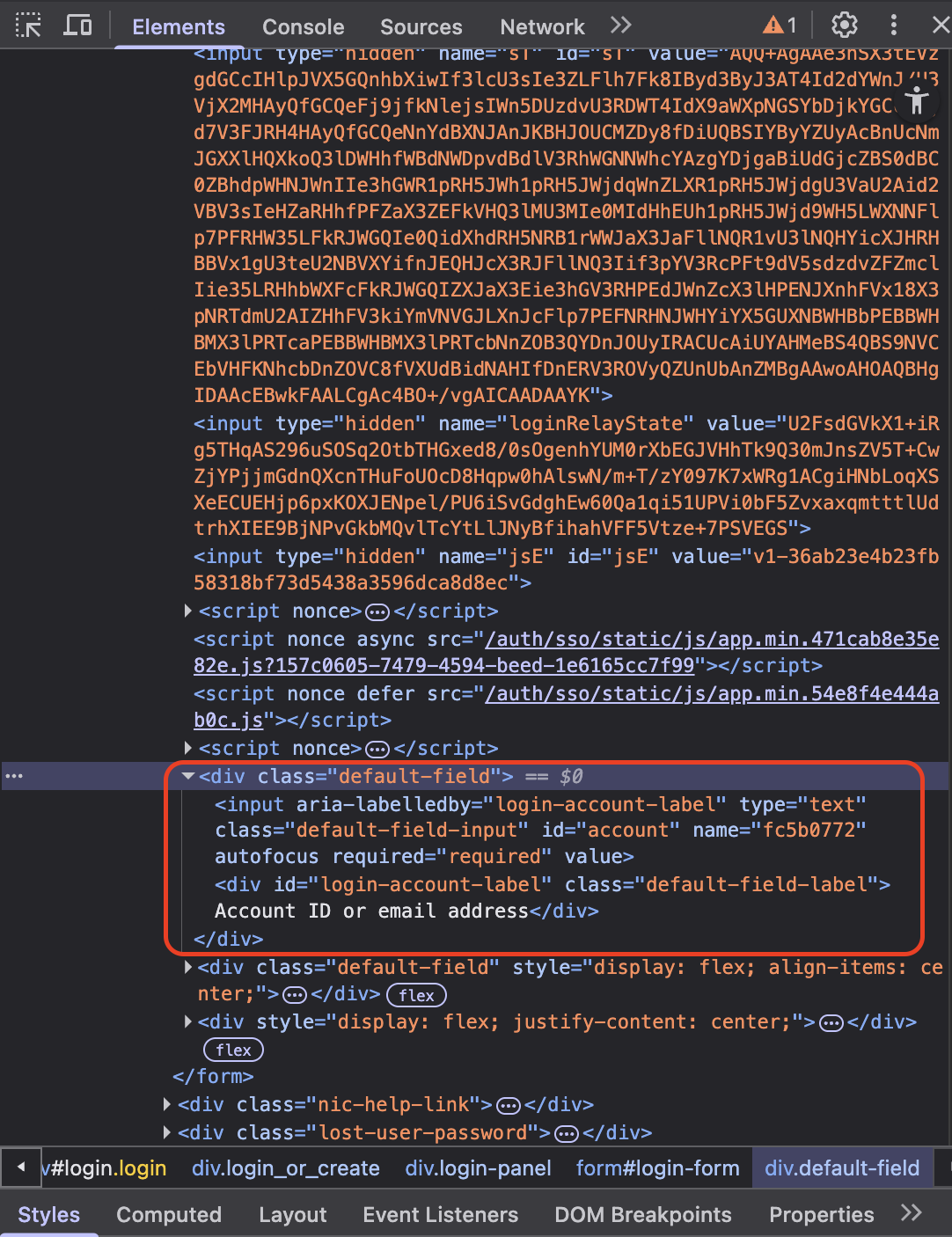
But, in the following example, the username input field uses attributes that are not supported by Passbolt, which prevents the extension from autofilling the username.
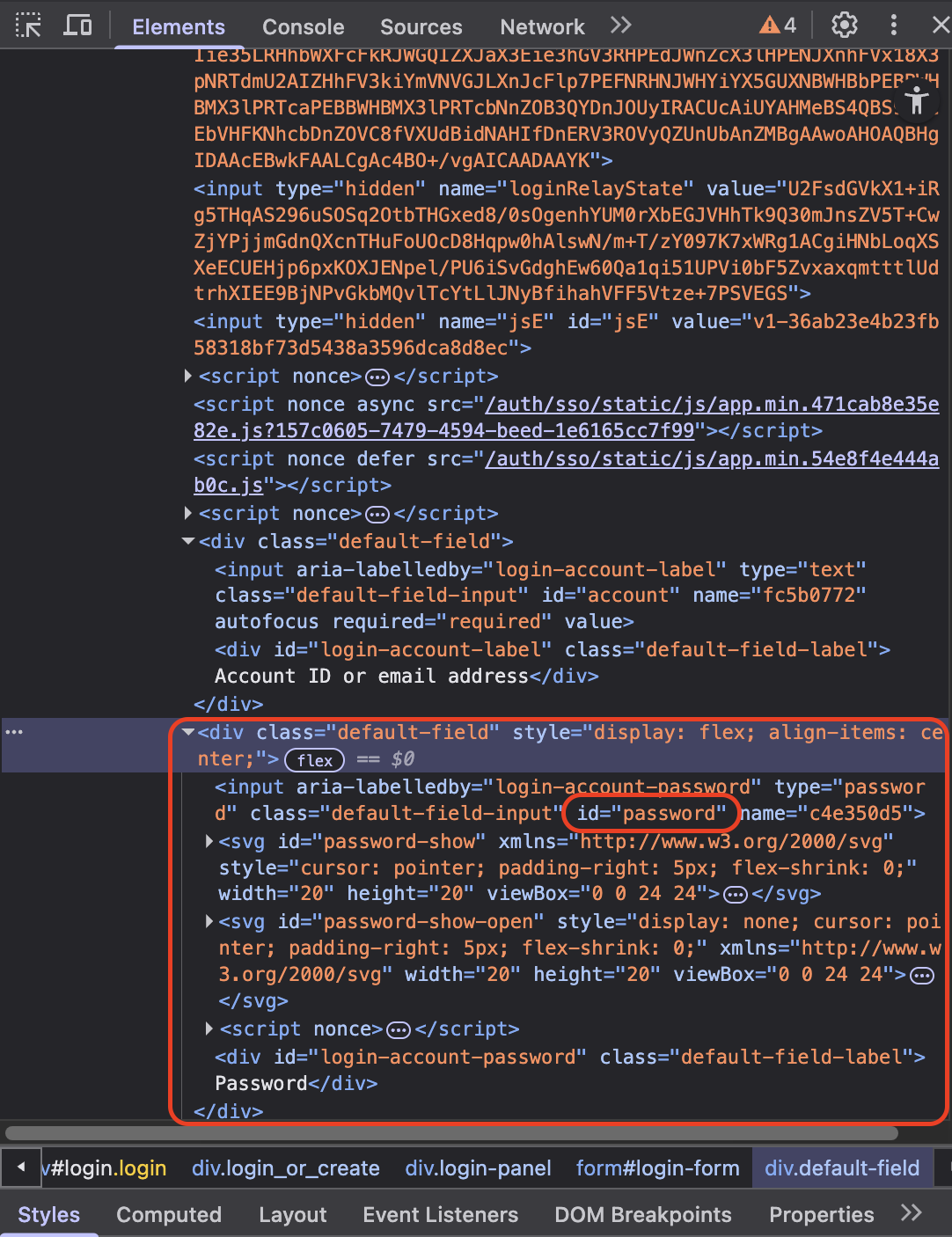
However, the password input field uses an id that is recognized by Passbolt, so in this case, autofill will only be available for the password field.
What about Shadow DOM or iFrames?
Some websites embed login forms inside Shadow DOM or <iframe> elements.
These techniques are commonly used for encapsulation or third-party content. Unfortunately, due to browser security limitations, Passbolt cannot access or interact with fields inside shadow roots or iframes. As a result, autofill will not work on these types of pages.
What are my possibilities ?
You can contact the website's support or development team and ask them to adjust the login form to make them autofill compatible, for example by using standard field names or IDs that follow the W3C web-standars.
The passbolt icon is missing from every login field
The passbolt icon that appears inside login fields, and the menu it opens, come from the in-form integration. This can be switched off for a whole organisation, and there is no user setting to turn it back on.
One test tells the two situations apart:
- The icon is missing on every website, but you can still fill a form from the passbolt icon in your browser toolbar: the in-form integration has most likely been switched off for your organisation. Ask your administrator.
- Filling from the toolbar does not work either, or the icon is missing only on some websites: the cause is elsewhere, see the form detection explained above.
Before concluding, check that:
- you are signed in to passbolt in this browser, as the in-field menu needs the extension to be authenticated,
- the extension is allowed to run on the website, in particular on Safari and when a Chrome extension is restricted to selected sites,
- the login form is not inside an iframe or on a browser internal page, where extensions cannot run,
- the page is actually visible and not permanently animated, as the in-field menu is not inserted on a page that passbolt does not consider visible.
The in-form integration is enabled by default and has no administration screen. It is switched off server-side, either with the PASSBOLT_PLUGINS_IN_FORM_INTEGRATION_ENABLED environment variable or with passbolt.plugins.inFormIntegration.enabled in /etc/passbolt/passbolt.php, which takes precedence. Switching it off removes the in-field icon and its menu, and the automatic detection of login forms that feeds them. It does not remove the ability to fill a form: the quick access popup of the extension keeps working, in every edition. See the environment variables reference.
More info
You can find the list of supported selector here. If autofill isn't triggered even though you're on a login page, it usually means the login form uses selectors that Passbolt does not recognize.
We know that unsupported website poses a strain on our client, and our backlog is actively working on improving this functionnalities in passbolt. (ref. PB-39112)