Scenario: I've lost my passphrase
Description
This page is a step-by-step user guide on how to proceed in case of a passphrase loss.
Steps
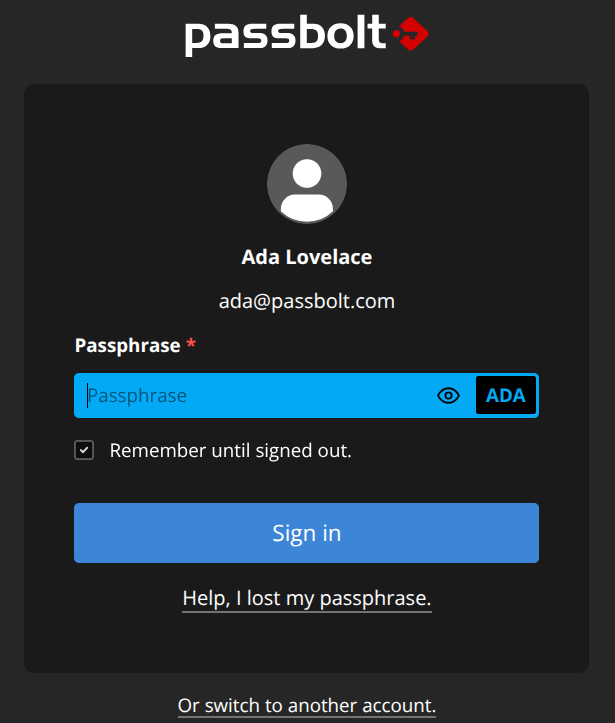
Step 0: Help, I lost my passphrase
When trying to log in, I notice that I do not have my private key. As the above picture is showing, I can click on "Help, I lost my passphrase".
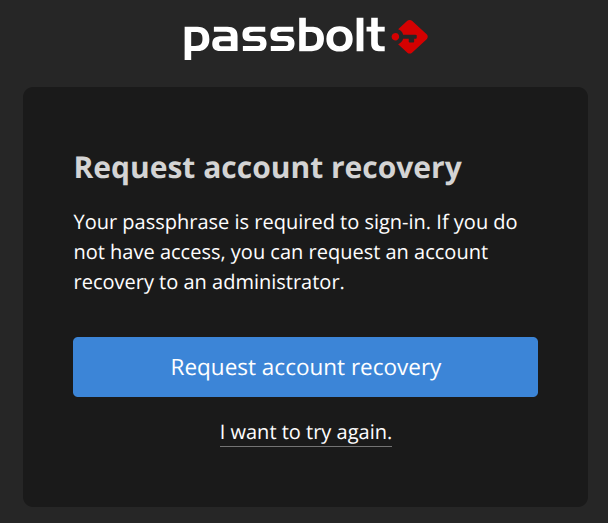
Step 1: Request account recovery
As I lost my passphrase, I can click on the button "Request account recovery".
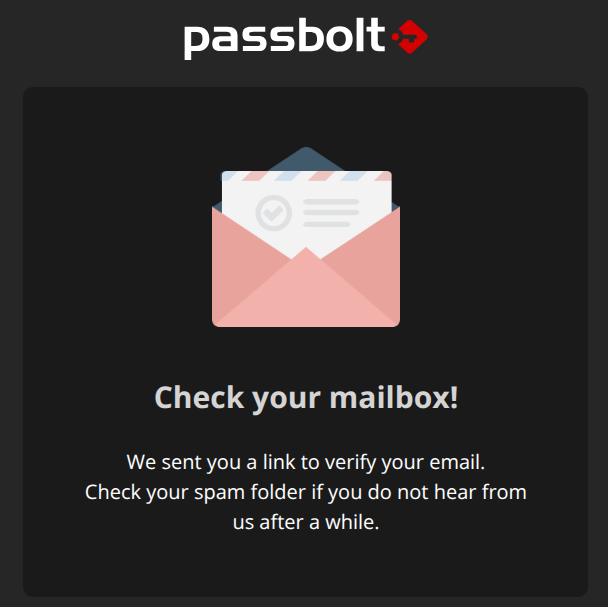
Step 2: Check your mailbox
When I'm ending up on this screen, I know that an email has been sent to my mailbox in order to start the account recovery process.
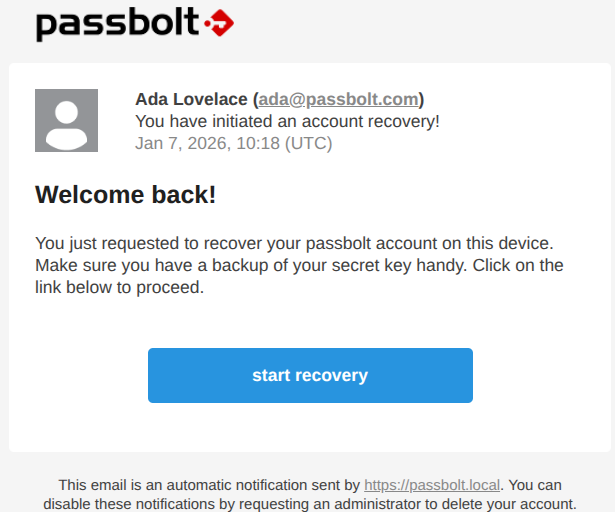
Receiving this email, I can click on "Start recovery".
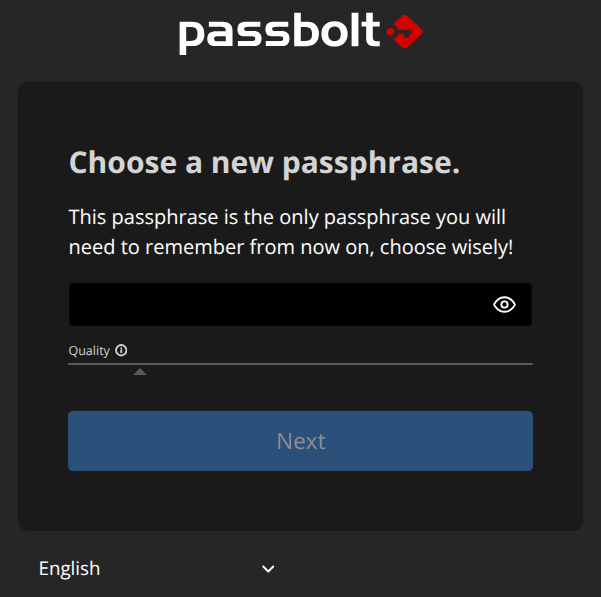
Step 3: Choose a new passphrase
Here, I need to choose a new passphrase and click on "Next".
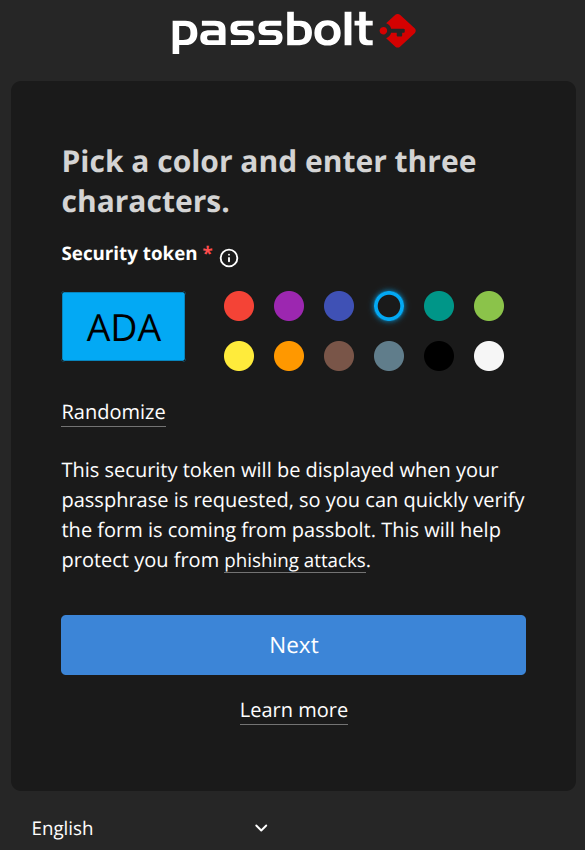
Step 4: Customise the security token
I'm choosing here three letters and a color to be able to quickly verify that the form is coming from passbolt, and click on "Next".
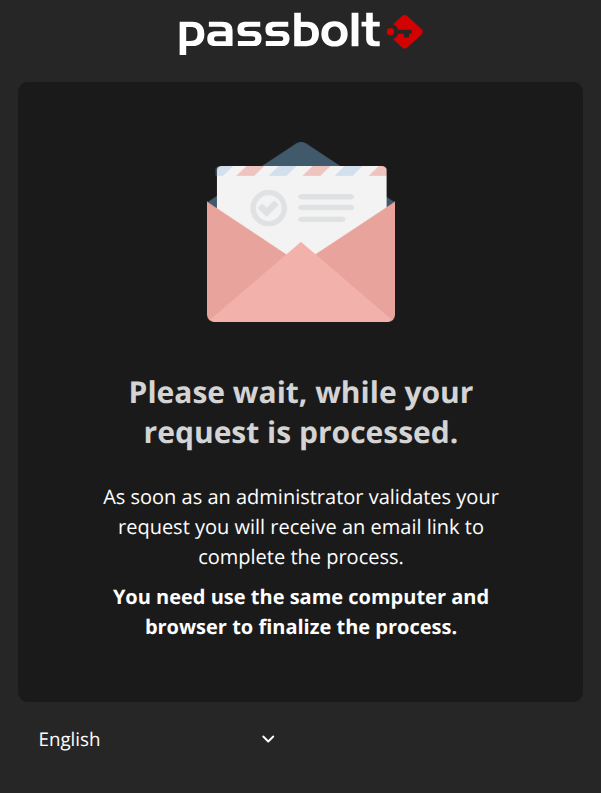
Step 5: Please wait, while your request is processed
When I'm ending up on this screen, I know that an email has been sent to administrators in order to accept my account recovery request. I need to wait until the approval which will come by email.
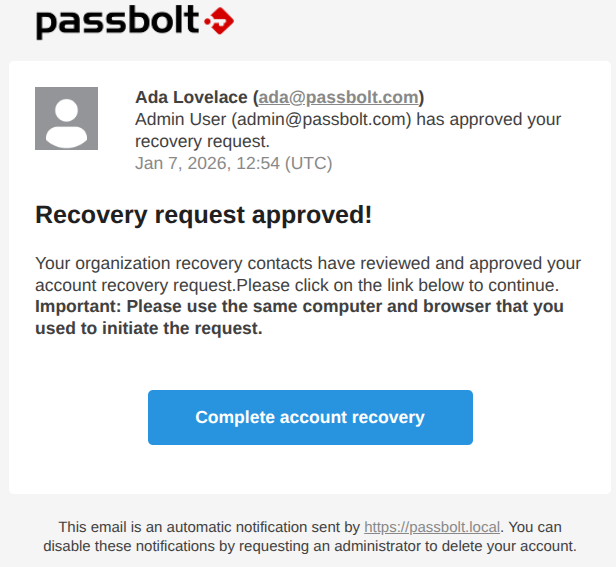
Receiving this email, I can click on "Complete account recovery".
This link must be opened in the same web browser the passphrase was reset.
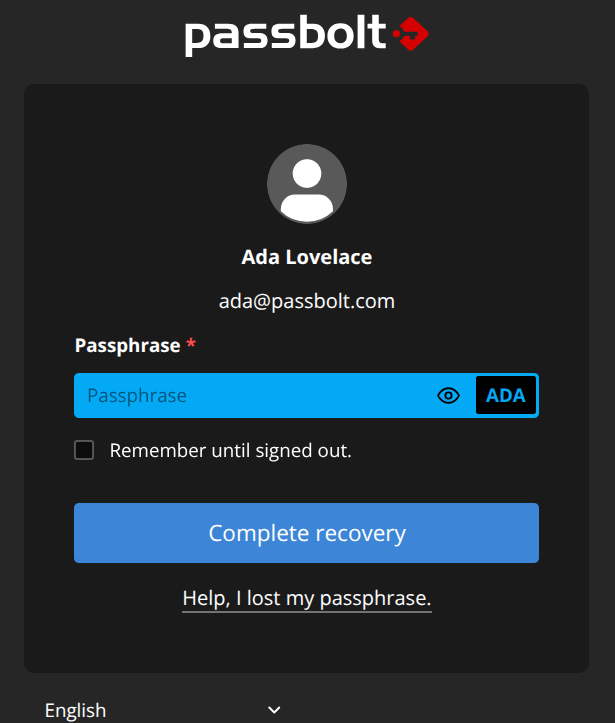
Step 6: Complete recovery
Here, I need to enter the new passphrase I chose, while checking the security token customisation. When entered, I can click on "Complete recovery".
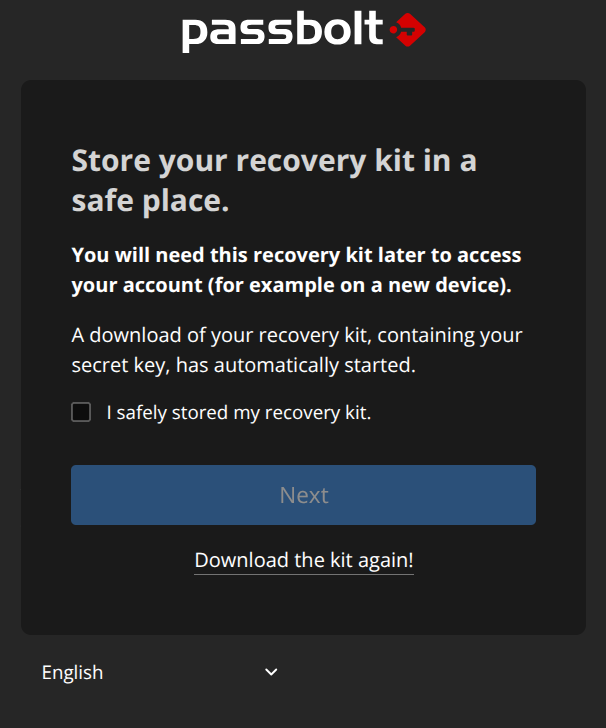
Step 7: Store your recovery kit in a safe place
Time for me to store my new recovery kit in a safe place, to tick the box "I safely store my recovery kit", and to click on "Next".
The end
At this stage, you should have recovered a full access to your passbolt account!
Thank you for reading.