How can I change the theme and the display language?
Two settings decide what passbolt looks like and what language it speaks to you in. Both live in your profile, and both are saved on your account rather than in your browser, so they follow you from one machine to the next.
Choose a theme
- While logged into your passbolt account, click your account image in the top right corner.
- Select Manage account.
- Open the Theme tab.
- Click the preview of the theme you want.
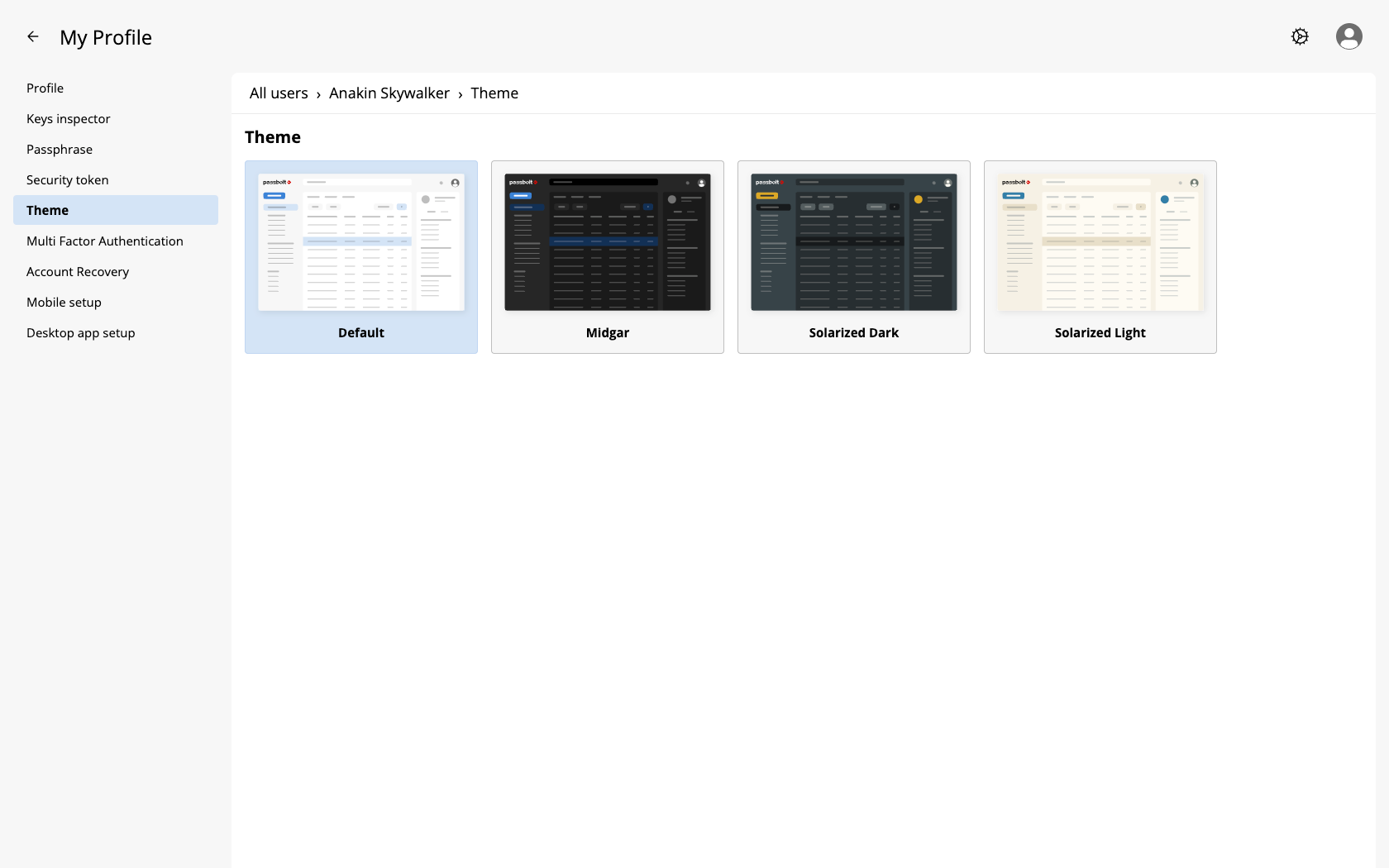
Four themes are available: Default, Midgar, Solarized Dark and Solarized Light. There is no save button and no preview mode: the theme changes the moment you click it, and passbolt confirms with "The theme has been updated successfully". Clicking the theme you are already using does nothing.
Your theme is not limited to the web application. It also styles every surface of the browser extension: the Quick Access popup, the menu that appears in the password fields of websites, and the sign in, setup and recovery screens.
passbolt follows the light or dark preference of your operating system, and switches along with it. Choosing a theme replaces that behaviour with your explicit choice.
Choose the display language
The language is not a tab of its own, it is a field of your profile:
- Open Manage account, as above, and stay on the Profile tab.
- Start editing your profile.
- Pick a language in the Language list.
- Save the form. Unlike the theme, the language is part of the profile, so nothing changes until you save.
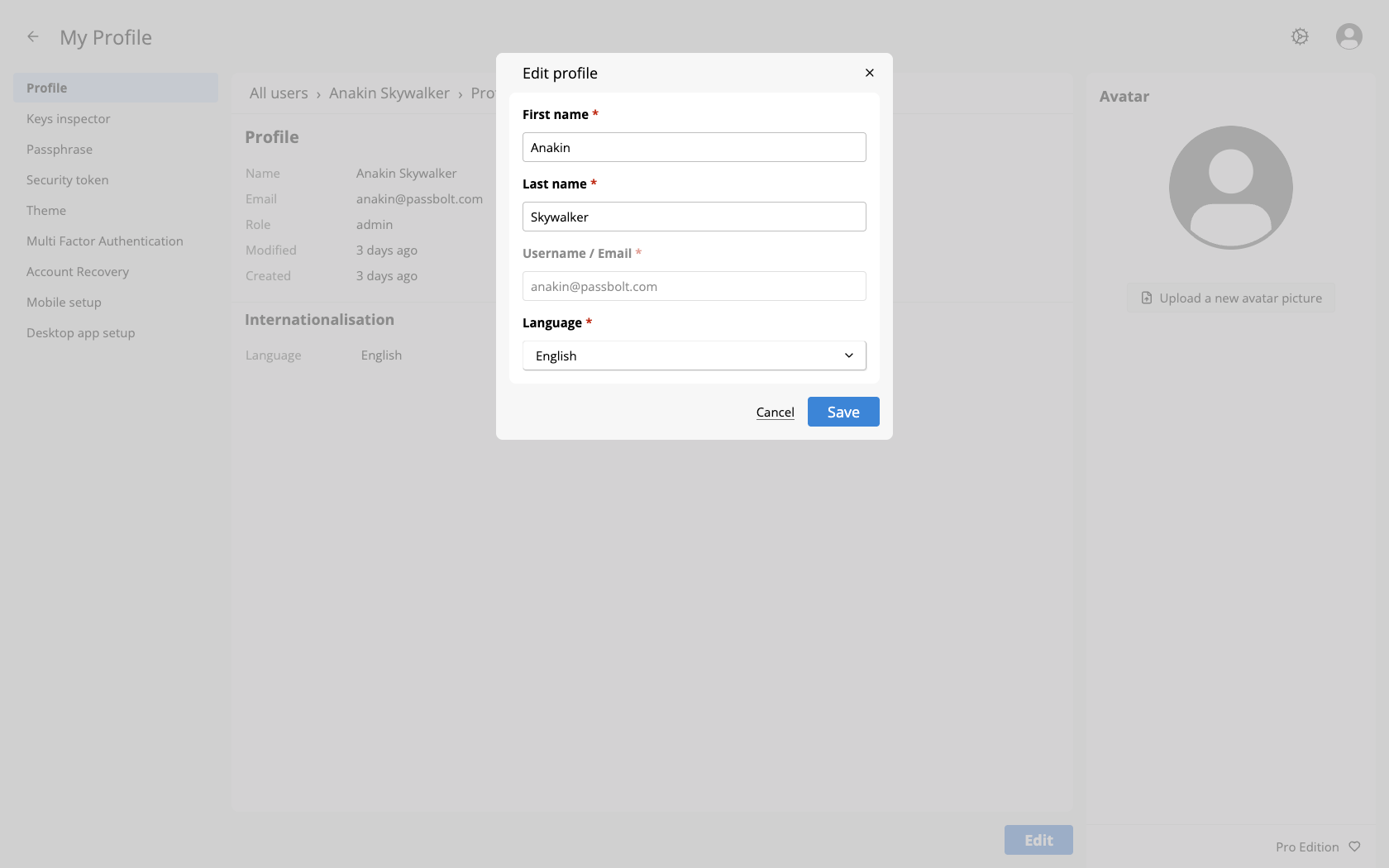
Which languages are on offer depends on the version of passbolt you are using, and your administrator does not compose that list. An entry marked "(beta)" means the translation is not complete, so expect to meet some English in those places.
Your notification emails follow it too
The language of your profile is also the language of the emails passbolt sends you. It is resolved when a notification is queued rather than when it is sent, so changing your language now does not translate the notifications already waiting to go out.
The sign in, setup and recovery screens cannot know who you are yet, so they use the default language of your organisation, whatever your own preference says.
These settings belong to your account
Your theme and your language are stored on your passbolt account, not in your browser. Sign in from another browser or another computer and you will find them again, and reinstalling the extension does not reset them.
Your own language always wins over the default language chosen by your organisation, which only applies to people who have no preference of their own. That explains why a new organisation default can do nothing for you: passbolt records a language preference on your account when you register, when you complete your setup and when you complete an account recovery, taken from the organisation default in force at that moment. You have had one ever since, without ever opening your profile.