Password Expiry
Password expiry is available in all editions since version 4.5.0. Since version 5.1.0, the feature is switched on automatically when a new instance is created; on instances created with an earlier version, an administrator needs to enable it in the administration settings. The configurable expiry policies described below are available in the Pro Edition, Business Cloud, Sovereign Cloud and Enterprise Cloud.
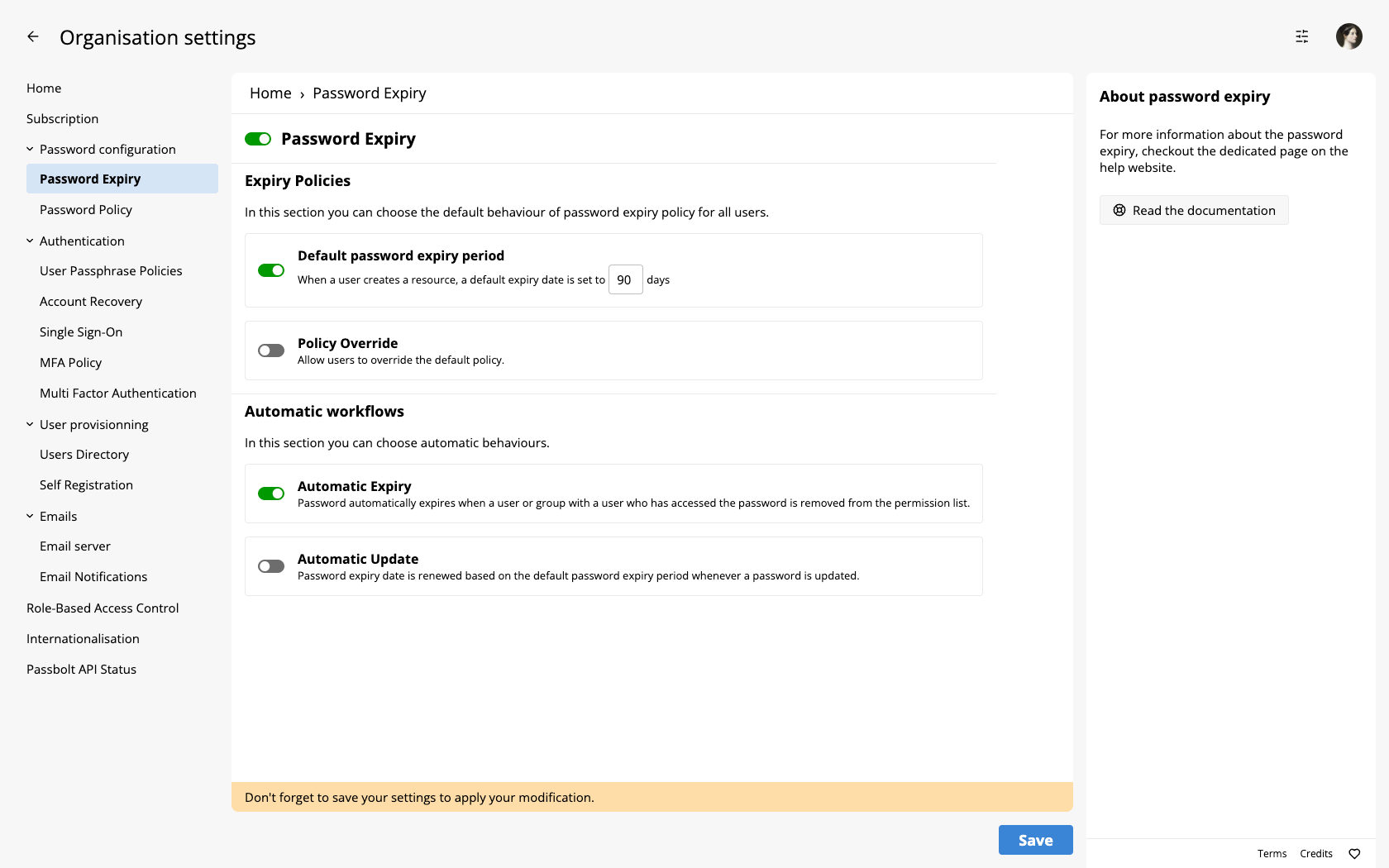
How does it work?
This feature allows administrators to set automatic expiry policies for passwords. This ensures that passwords are regularly rotated, improving security by mitigating risks when users lose access to resources. Additionally, the Pro Edition offers advanced settings for customising password expiry policies. Users can manually mark passwords as expired and adjust expiry dates, giving teams flexibility and control over their password management practices.
Expiry Policies
Expiry policies require the Pro Edition, Business Cloud, Sovereign Cloud or Enterprise Cloud. In the Community Edition, password expiry runs with its default behaviour and cannot be configured.
Default password expiry period
By default, no expiry period is defined: the 90 days shown in the field is only a placeholder, and the field stays disabled until the default expiry period option is enabled. As long as no period is defined, newly created resources do not receive a time-based expiry date. Event-based expiry, described in the automation workflows below, still applies. Once a period is set, new resources automatically receive an expiry date that many days in the future.
Policy Override
This option is not enabled by default, this will allow the users to override the default policy which means that they will be able to override the defined expiry date.
Automatic workflows
In the Community Edition, both options are always enabled: the screen lists them for information only, and the server rejects any attempt to switch them off. Configuring them individually requires the Pro Edition or Cloud, where the Expiry Policies settings replace this section.
Automatic Expiry
This option will automatically mark as expired the passwords when a user or a group who has accessed the password is removed from the permission list. This option will also trigger an email and notify the resource owner if the email notification is enabled in Administration > Email Notifications
Automatic Update
With this option, when a password is updated it will automatically renew the expiry date based on the default password expiry period. With this option, when a password is updated it will automatically renew the expiry date based on the default password expiry period.
Expiry notification emails
Since version 5.2.0, resource owners are notified by email on the day their passwords expire. The notification is produced by the passbolt notify_about_expired_resources command, which selects the owners of the resources expiring that day and queues their notifications; the standard passbolt email cron then sends them. The event-driven expiry emails (a password marked expired after an access removal, or manually) are queued immediately and only need the standard email cron.
On the official installation channels (Debian and RPM packages, Docker root and rootless images, Helm chart), this works out of the box: the bundled bin/cron script, invoked every minute by the stock crontabs, runs the command on the invocation where the clock reads 08:00 server time (container time on Docker and Kubernetes, so UTC unless configured).
A custom cron that calls cake passbolt email_digest send directly, instead of the bundled bin/cron script, never queues the expiry notification. In that case, schedule the command yourself, exactly once a day, as the web server user (the command refuses to run as root):
sudo su -s /bin/bash -c "/usr/share/php/passbolt/bin/cake passbolt notify_about_expired_resources" www-data
The selection window is strictly "expires today": running less often silently skips days, with no catch-up, and running more often queues duplicate notifications for the same owners.
If a notification is missing on a given day, mind how the wrapper decides to run the command: bin/cron reads the clock once per invocation and only calls the command when that reading falls in the 08:00 minute. A custom schedule that never runs during that minute therefore never sends the notification, and an invocation still busy with the email digest when the 08:00 minute passes reaches the check too late for that day. The script keeps no record of whether the command already ran, so a missed day is not retried later.
On success, the command prints "X resource owners were notified of their passwords expiring today." When the feature is disabled, it exits cleanly with "Password expiry is not activated."
With the Pro Edition or Cloud, when an expiry notification period of N days is configured in the expiry policies, the same daily run also notifies the owners of resources expiring in exactly N days.
The invocation variants for Docker and from-source installations are listed in the cake commands reference.