Updating Your Subscription Key
For passbolt version 3.2 and higher, you can update your subscription key on the web interface directly, using the administration panel.
For passbolt versions prior to 3.2, the command line is the only way to update your subscription key.
Using administration panel
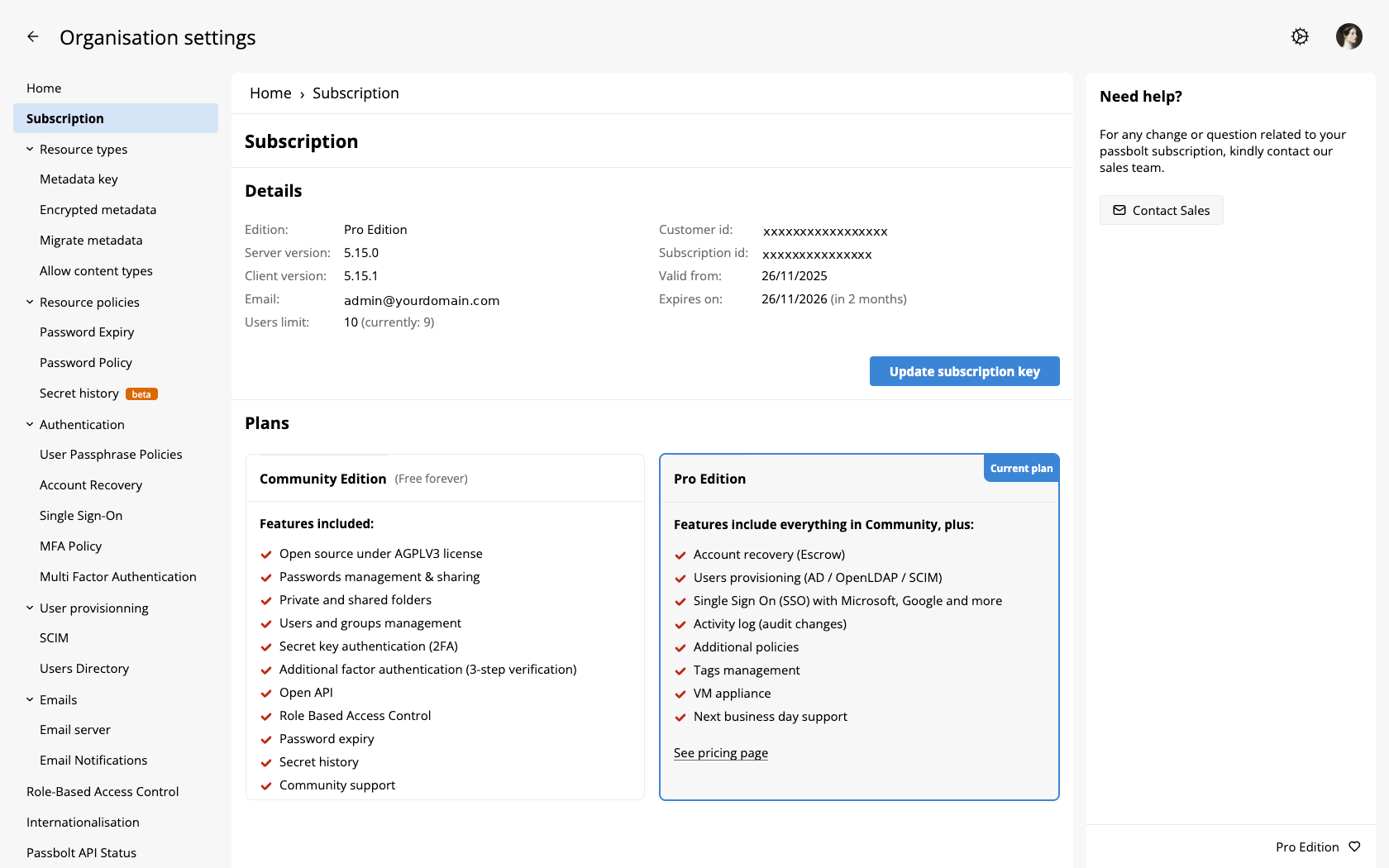
Navigate to ⚙ > Organisation settings > Subscription and click on the Update subscription key button.
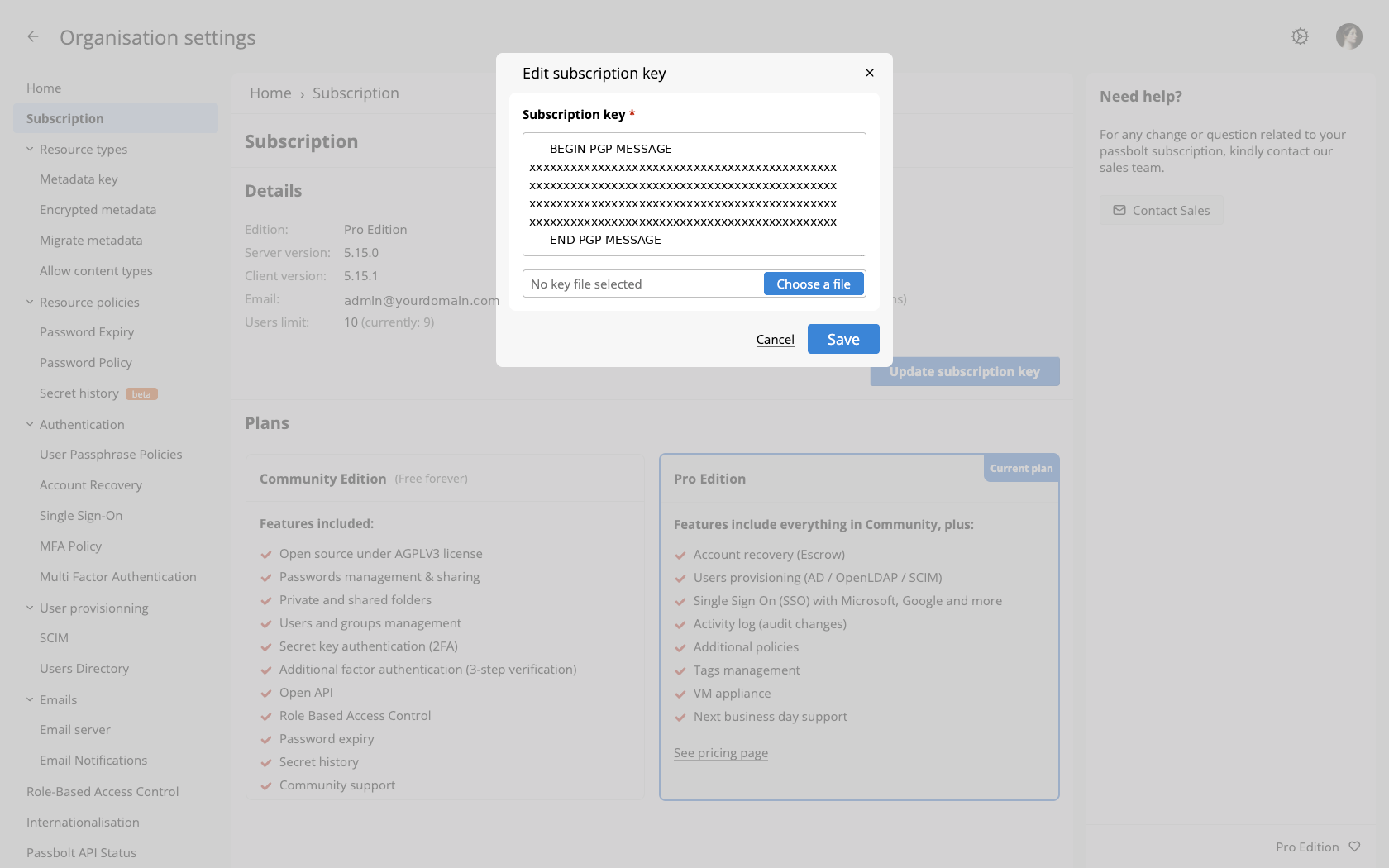
A pop-up will appear and you will be able to import your new subscription key
Once the key is saved, the Details panel above shows your subscription. It opens with Edition, which reads Pro Edition or Community Edition, followed by the server and client versions. On Pro Edition it also lists the email the subscription was issued to, the users limit with your current usage beside it, the customer and subscription ids, and the Valid from and Expires on dates.
Two of those values change colour to flag a problem. Expires on turns amber within 30 days of the expiry date and red once the subscription has expired. Users limit turns red when the number of users exceeds the limit on the key.
Under Plans, a card for each edition lists what it includes, and the one you are running is marked Current plan.
From command line
Get ready
All the commands provided below should be done from inside your passbolt directory located in /etc/passbolt/
If you installed passbolt using the Debian package, or are using the passbolt VM (OVA) run the commands from /etc/passbolt.
Steps
To update your subscription key, you need to replace your previous subscription key with the new one. In passbolt, the subscription key is stored in /etc/passbolt/subscription_key.txt
To replace the existing subscription key with the new one:
sudo cp -u path_to_your_new_subscription_key /etc/passbolt/subscription_key.txt
To check if the operation was successful and if the new subscription key is valid:
sudo su -s /bin/bash -c "/usr/share/php/passbolt/bin/cake passbolt subscription_check" www-data
If you are on a RPM distribution, replace www-data with nginx
Older documentation and scripts may use passbolt license_check; it still works as an
alias of subscription_check.
If your key is valid, this command will display the passbolt logo and the subscription key details, as in the example below:
/usr/share/php/passbolt/bin/cake passbolt subscription_check

     ____                  __          ____
    / __ \____  _____ ____/ /_  ____  / / /_
   / /_/ / __ `/ ___/ ___/ __ \/ __ \/ / __/
  / ____/ /_/ (__  |__  ) /_/ / /_/ / / /
 /_/    \__,_/____/____/_.___/\____/_/\__/

 Open source password manager for teams
---------------------------------------------------------------

Thanks for choosing Passbolt Pro
Below are your subscription key details

Customer id:	xxxxxx
Users limit:	150 (currently: 43)
Valid from:	May 6, 2025
Expires on:	May 6, 2026 (in 385 days)
Then, import the subscription key into the database, which is where passbolt looks for it first (see where the subscription key is stored):
sudo su -s /bin/bash -c "/usr/share/php/passbolt/bin/cake passbolt subscription_import" www-data
By default the command reads /etc/passbolt/subscription_key.txt; use --file to point at
another path. On success it prints "The subscription key was successfully imported in the
database."
How subscription seats are counted
A subscription seat is used by every user who has completed their account setup and has not been deleted:
- Users who have been invited but have not finished their setup do not use a seat yet.
- Suspended users still use a seat. Suspension blocks sign-in but keeps the account.
- Deleting a user frees their seat.
passbolt enforces the limit when the subscription key is saved or the Subscription page is viewed, not when users are added. If the number of users exceeds the key's users limit, the key is rejected with the error "The users limit is exceeded." (HTTP 402 on the API). Users can still be added beyond the limit, but the subscription key can no longer be validated or updated until the user count is back within the limit or a larger subscription is in place.
To compare your current usage against the limit, run subscription_check (see
above); the output includes a line such as Users limit: 150 (currently: 43).
If you hit "The users limit is exceeded.", suspending users does not help: suspended users still count towards the limit. Delete the users you no longer need, see suspend or delete, or renew with a higher users limit.
Where the subscription key is stored
passbolt looks for the subscription key in the database first, and only falls back to the
/etc/passbolt/subscription_key.txt file when the database holds no key:
- A key imported through the administration panel is stored in the database only. Nothing is written to disk.
subscription_importalso stores the key in the database.- The file is a fallback, read only when no key exists in the database.
If your key was imported through the administration panel, it exists only in the database.
A migration that copies the configuration files but does not restore the database loses the
subscription. Either migrate the database, in which case the key travels with it, or place
your subscription key at /etc/passbolt/subscription_key.txt on the new server. Run
subscription_check after the migration to confirm.
What happens when the subscription expires
An expired subscription does not lock you out. Signing in, using and sharing passwords all keep working; only the subscription administration endpoints reject requests until a valid key is provided.
What changes:
- Administrators see a warning banner from 30 days before the expiry date, and once the key has expired, a banner that cannot be dismissed. Regular users see no banner.
bin/cake passbolt healthcheckreports a warning within 30 days of expiry and an error once expired.- The Subscription page in the administration panel shows the key as invalid, with a Renew key button linking to the passbolt website.
To resolve it, renew and then import the new key as described above, or downgrade: from version 5.13.0 the Subscription page offers Downgrade to Community, which removes the subscription key and switches the instance to the Community Edition.
Downgrading to the Community Edition is destructive: Pro features and their data are lost, and the confirmation dialog requires you to accept this data loss. Renewing the key is the only option that preserves everything.