Encrypted Metadata
Configure which metadata format (encrypted v5 or legacy cleartext v4) is used for new resources. You can enable both formats during migration, or enforce only encrypted metadata for new installations.
New instances set up on passbolt 5.4.0 or later come with encrypted metadata enabled by default: new content is created in the v5 format. Instances upgraded from an earlier version keep creating v4 cleartext content until an administrator enables encrypted metadata, either on this screen or from Administration > Resource types > Getting started with "Enable encrypted metadata and new resource types (recommended)".
The default activation on new instances is governed by the passbolt.plugins.metadata.enableForNewInstances flag, true by default, and the administrator can decline it during setup by choosing "Keep legacy cleartext metadata".
What is Metadata Encryption?
Metadata encryption encrypts:
- Resource names, usernames, URLs, descriptions, and custom field keys

Requirements and Warnings
Requirements:
- API version v5.2 or higher
- A shared metadata key (generated automatically on installation)
Warnings:
- Enabling encrypted metadata has an impact on the auditability of resource metadata that won't be stored in clear anymore
- Migrating content to encrypted metadata might break your in-house integration with passbolt
- See Metadata Key for key distribution configuration
Configuration Options
Navigate to Organisation settings > Content types > Encrypted metadata to configure metadata encryption options:
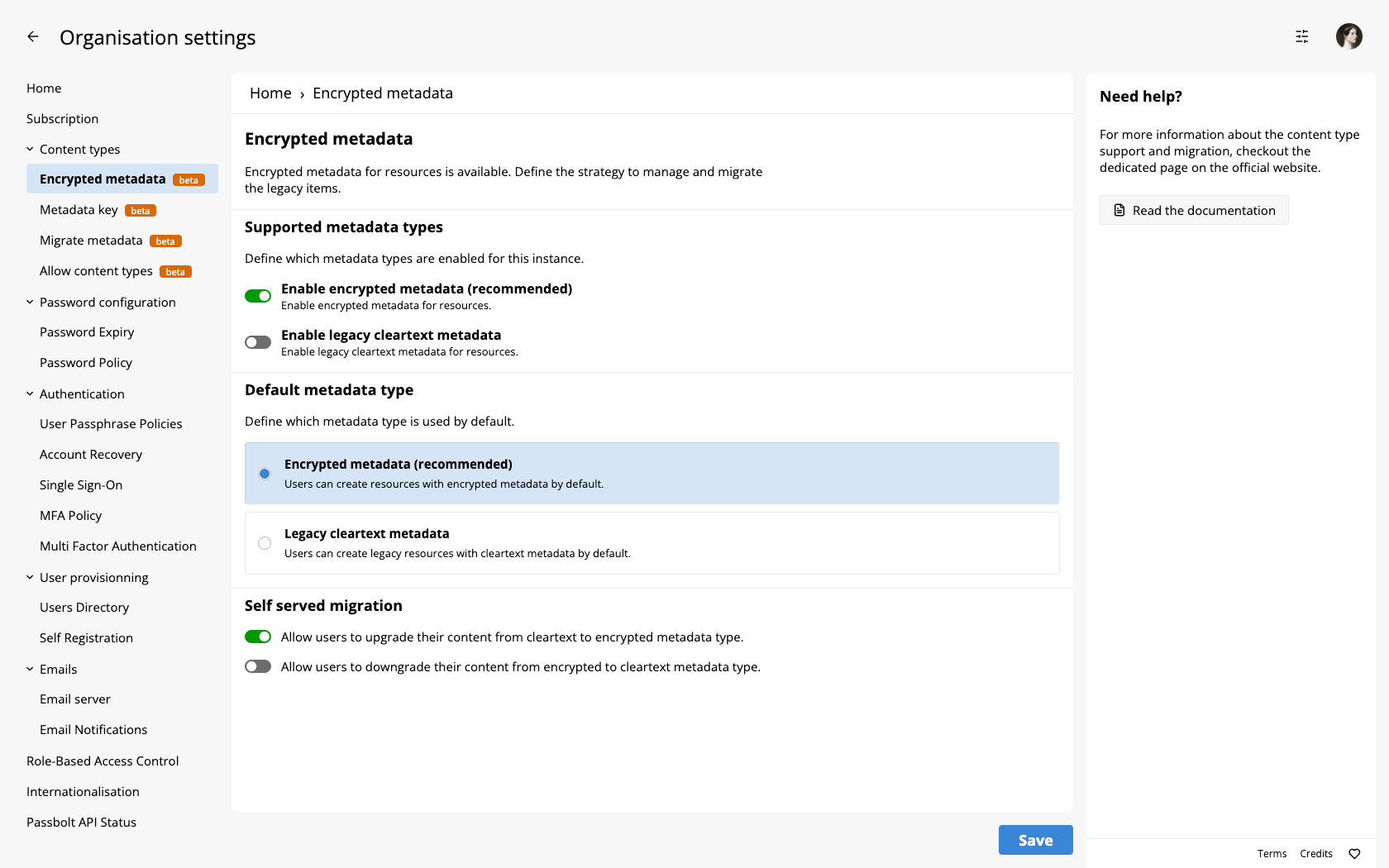
Enable Encrypted Metadata
Enables support for encrypted metadata (v5 format). New resources can use encrypted fields for name, username, URI, and description.
Enable Legacy Cleartext Metadata
Enables support for legacy v4 formats with unencrypted metadata. When enabled, legacy metadata formats can be selectively re-enabled by content type on the Allow Content Types page.
Default Metadata Type
Choose the default metadata format for newly created resources:
- Encrypted metadata (recommended)
- Legacy cleartext metadata
This option is only visible and configurable when both "Enable Encrypted Metadata" and "Enable Legacy Cleartext Metadata" options are enabled above.
Self-Served Migration
Allow users to manage their own format changes:
- Upgrade from cleartext to encrypted: Users can convert their existing resources from cleartext to encrypted format
- Downgrade from encrypted to cleartext: Users can convert their existing resources from encrypted to cleartext format
These migration options are only relevant when both metadata formats are enabled.
Security Considerations
The level of protection metadata encryption provides depends on which key type you use and how it is distributed. The table below summarises the risk coverage for each configuration.
The columns are grouped into two categories:
- Secret: the encrypted password or secret data, always end-to-end encrypted with the user's personal key.
- Metadata: resource names, URLs, and other metadata. Protection depends on the key configuration:
- Personal Key: encrypted with the user's own OpenPGP key. See Metadata Key.
- Shared Key (Zero-knowledge): encrypted with the shared metadata key, distributed manually by an administrator. See Zero-Knowledge Mode.
- Shared Key (Server-knowledge): encrypted with the shared metadata key, distributed automatically by the server. See User-Friendly Mode.
| Risk scenario | Secret: Personal Key | Metadata: Personal Key | Metadata: Shared Key (Zero-knowledge) | Metadata: Shared Key (Server-knowledge) |
|---|---|---|---|---|
| 1. Unencrypted backup access: attacker manages to decrypt or access cleartext backups and view metadata. | ✅ | ✅ | ✅ | ✅ |
| 2. SQL injection: an attacker manages to bypass application control to view metadata stored in the database. | ✅ | ✅ | ✅ | ✅ |
| 3. Adversary in the middle: an attacker manages to break TLS to view metadata transmitted on the wire. | ✅ | ✅ | ✅ | ✅ |
| 4. Remote code injection: an attacker manages to execute some PHP code as part of a specific request. | ✅ | ✅ | ✅ | ⚠️ |
| 5. Complete server access: an attacker manages to execute any code on the passbolt server. | ✅ | ✅ | ✅ | ❌ |
| 6. Complete infrastructure control: an attacker can access any server and run any code on the infrastructure side. | ✅ | ✅ | ✅ | ❌ |
| 7. Complete client control: an attacker can access memory or have full file access on the client side. | ❌ | ❌ | ❌ | ❌ |
✅ Protected | ⚠️ Partially protected | ❌ Not protected
- Personal keys offer the strongest metadata protection, equivalent to how secrets are protected. Use them for personal (non-shared) resources when privacy is the priority.
- Shared keys in zero-knowledge mode protect metadata against all server-side threats, including complete server access.
- Shared keys in server-knowledge mode protect metadata at rest (backups, database) but not when an attacker gains significant access to the running application. Secrets (passwords) remain protected by the user's personal key regardless.
- No configuration protects against full client compromise. Client-side security (device encryption, secure passphrase practices) remains essential.
Troubleshooting: a resource nobody can see
A resource whose metadata cannot be decrypted disappears from the interface instead of showing an error. The server still returns it, and the API still lists it, but the client cannot read its name, so it drops the entry and logs the failure rather than breaking the display of the whole vault. The effect for the user is a resource that has apparently vanished.
Diagnose it in this order:
- Open the console of the service worker of the browser extension, not the one of the tab, and reload the list of resources. The failure is logged there with the identifier of the resource, as "Unable to decrypt the metadata of the resource (
<id>) using the user key." for a user key, or "Unable to decrypt the metadata of the resource (<id>) using the shared key (<metadata key id>)." for a shared key, which names the key that failed as well as the resource. Reload the list rather than opening one resource: these messages only reach the console on the flows that refresh the local storage, the ones that ignore a decryption error instead of raising it. A variant naming the entity rather than the resource, and carrying no key, comes from the same path. A message mentioning a session key is benign: passbolt falls back to the normal decryption and discards the stale session key. - Compare the counts. The number of entries returned by
GET /resources.jsonagainst the number of rows displayed. A difference confirms the diagnosis without reading anything, and it is easy to have a user check. - Look at the resource itself, with
GET /resources/{id}.json, and read itsmetadata_key_typeandmetadata_key_id. For a shared key, check that the user has an entry for that key among the metadata private keys. For a user key, check that the key which encrypted the metadata is still the user's current key, which is the usual explanation after a key rotation. - Rule out an organisation-wide cause with
passbolt healthcheck --metadata, which reports a missing active key, a server without access to it, or a key it cannot decrypt. It says nothing about one particular resource.
There is no cake command that returns the resources a given user cannot decrypt, and there cannot be one: the server does not hold the keys. The console of the client is the only place where the failure is visible, which is why step 1 comes first.
Implementation Steps
Legacy cleartext metadata is less secure and not recommended for new resources. Consider using encrypted metadata for all new resources.
To implement encrypted metadata:
- Configure encryption settings on this page
- Configure key distribution in Metadata Key
- Enable content types in Allow Content Types
- Migrate existing resources using Migrate Metadata if needed