Metadata Key
This page configures how metadata encryption keys are managed and distributed in your organisation. For an overview of what metadata encryption is and how it works, see Encrypted Metadata.
Key Management
Passbolt encrypts metadata using OpenPGP keys. There are two options:
Personal key: The user's own OpenPGP private key encrypts metadata. Only that user can decrypt it. The server cannot access this metadata.
Shared metadata key: One OpenPGP key pair exists for the organisation. Its private key is encrypted separately for each user using their public key. All users who have been given a copy can decrypt metadata encrypted with this key.
Why both exist:
Shared resources require a shared key. When multiple users access a resource, they need to decrypt the same metadata. Each user decrypts their copy of the shared private key, then uses it to decrypt the resource metadata.
Personal resources can use either. You can allow personal (non-shared) resources to use the user's own key for maximum privacy, or enforce the shared key for all resources so administrators can audit metadata.
This page configures:
- Which key is used for personal resources
- How the shared key is distributed to users

Configuration Options
Metadata Key Policy
The metadata key policy and the zero-knowledge key distribution below are two independent settings, and any combination of the two is valid. Out of the box, personal keys are allowed and the distribution runs in user-friendly mode.
The policy offers two options:
Allow the use of personal keys (recommended)
Personal (non-shared) resources metadata are encrypted with the user's OpenPGP key. Shared content uses the shared key.
Use these settings if you want to:
- Allow users to encrypt personal resources with their own keys
- Prevent administrators from accessing personal resource metadata
Note that with these settings, the personal resources of the users won't be auditable.
Enforce the use of shared metadata keys
All metadata is encrypted using the shared metadata key. Personal keys are not used for metadata encryption under this policy.
Use these settings if you need administrators to be able to decrypt and audit all resource metadata.
If you try to save the page with "Enforce use of shared metadata keys" set but haven't generated a metadata key yet, you'll receive an error message.
Zero-Knowledge Key Distribution
Controls how the shared metadata key is distributed to users.
Navigate to Organisation settings > Content types > Metadata key to configure.
User-Friendly Mode (Default)
The API has access to the shared metadata key and distributes it automatically when users complete setup.
Security:
- Protects metadata if the database is compromised
- An attacker with full API access can access the shared metadata key
- Passwords remain encrypted with user personal keys
Zero-Knowledge Mode
The API does not have access to the shared metadata key. Administrators must share it manually with each user after setup.
Security:
- Protects metadata if the database or API is compromised
- Passwords remain encrypted with user personal keys
Operational requirements:
- Administrators must share the key with each new user
- Users cannot create or share resources until they receive the key
- Key rotation recommended when switching to this mode
New users will not receive the shared metadata key until an administrator shares it. See Sharing Missing Metadata Keys below.
Sharing Missing Metadata Keys
To share the metadata key with users:
- Navigate to the Users workspace
- Locate users with missing metadata keys (indicated by a warning or badge)
- Click "Share metadata keys" in the action bar
- Enter your passphrase
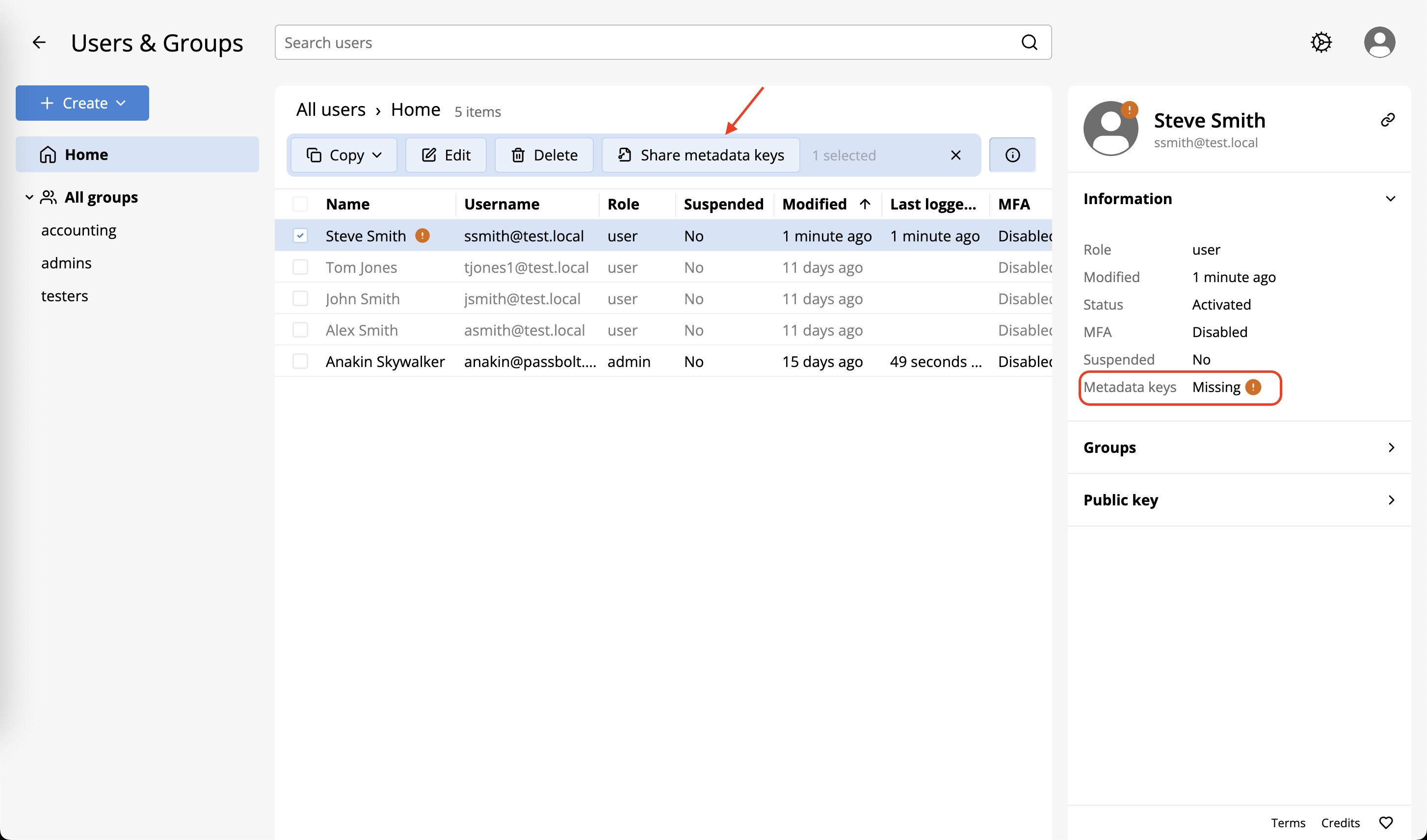
Users without the shared metadata key cannot create resources in shared folders or share existing resources.
Rotating the Shared Metadata Key
To rotate the shared metadata key:
- Navigate to Organisation settings > Content types > Metadata key
- In the "Shared metadata keys" section, click "Rotate key"
- Review the rotation details in the modal
- Click "Rotate key" to confirm, or "Cancel" to abort
- Click "Save" to apply the changes
Key rotation will generate a new shared metadata key. All existing encrypted metadata will need to be re-encrypted with the new key. This process may take time depending on the amount of data.
Troubleshooting
"Unable to encrypt the entity metadata, no metadata key found."
This error is raised by the browser extension, before any server call, when the list of shared metadata keys available to the user is empty. It can appear on any operation that needs the shared metadata key: creating or editing a shared v5 resource (or any v5 resource when the policy enforces shared keys), sharing a personal v5 resource for the first time (the share switches its metadata from the user key to the shared key), importing resources, or migrating and rotating metadata.
Two causes produce an empty list:
- No active shared metadata key. The key was never generated, for example when encrypted metadata was enabled through the configuration file or environment variables without going through the Getting started screen, or every key was deleted. In that case, the Metadata key administration screen shows "You need to generate a new shared key to enable encrypted metadata.": click "Generate key". A key that is expired but not deleted is still served and does not cause this error.
- The key is not shared with the user. In zero-knowledge mode, a user who has not received the key yet gets this exact error. Share the key with them as described in the sharing section above; generating a new key does not help here.
To verify the state after fixing, check that the key shows as active in the "Shared metadata keys" section of the screen, or run the metadata healthcheck:
sudo su -s /bin/bash -c "/usr/share/php/passbolt/bin/cake passbolt healthcheck --metadata" www-data
A neighbouring error, "Unable to encrypt the entity metadata, metadata private key is not decrypted.", is a different state: a copy of the key exists for the user but is not decrypted.
Key Information
The shared metadata key is generated automatically on installation. User-friendly mode is enabled by default.
Key details:
| Property | Example |
|---|---|
| Fingerprint | DC6A 4B28 58CF 2C58 6859 C505 7DEB 3F99 EE06 979B |
| Algorithm | eddsa ed25519 |
| Key length | 256 |
| Created | 30 days ago |
Related Documentation
- Encrypted Metadata - Configure encryption settings
- Allow Content Types - Enable content types
- Migrate Metadata - Migrate existing resources