Roles and Permissions
System-wide roles
Passbolt proposes two system roles "admin" and "user". This system is the first line of the authorisation mechanism performing checks directly for each user's actions.
In a nutshell, an administrator manages the instance. In practice it means that they can manage organisation-wide settings such as the content of the email notifications or which multiple factor authentication provider is enabled. Another responsibility is to create or delete users, manage groups and group managers, perform synchronisation with a user directory, etc.
Settings
| Action | Admin | User |
|---|---|---|
| Manage email notification settings | Yes | No |
| Manage MFA settings | Yes | No |
| Manage LDAP settings / sync | Yes | No |
| Choose organisation default language | Yes | No |
Users
| Action | Admin | User |
|---|---|---|
| Create users | Yes | No |
| Rename user | Yes | Yes (if own) |
| Update email address | Yes | No |
| Delete users | Yes | No |
| Promote/Demote admin | Yes | No |
| View users | Yes | Yes |
| Select user preferred language | Yes | Yes (if own) |
Groups
| Action | Admin | User |
|---|---|---|
| Create groups | Yes | No |
| Rename groups | Yes | No |
| Add user to group | No, unless also a group manager | No, unless a group manager |
| Remove user from group | Yes | No, unless a group manager |
| Promote/Demote group manager | Yes | No, unless a group manager |
| Delete groups | Yes | No, unless a group manager |
| View groups | Yes | Yes |
| View group composition | Yes | Yes |
See Administrators and group membership below for why adding members is the one group action the Admin role does not grant.
Others
| Resources / Action | Admin | User |
|---|---|---|
| Create resources | Yes | Yes |
| Manage resources | See "Resource level roles" | See "Resource level roles" |
| Create comments | Yes | Yes |
| Delete comments | Yes | Yes (if own) |
| Manage folders | See "Folder level roles" | See "Folder level roles" |
| Manage tags | See "Folder level roles" | See "Folder level roles" |
Group level roles
Each group must have at least one group manager in charge of adding and removing group members. When creating a group, the administrator appoints at least one group manager, which can be themselves or any other user.
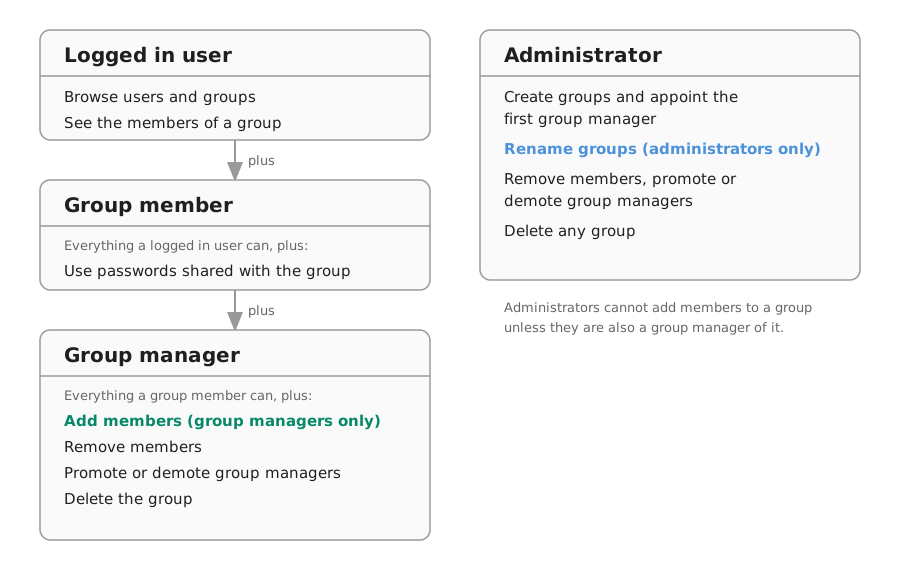
Due to the nature of the encryption in passbolt, only someone with access to the secrets of a given group can add a member to that group (as they need to be able to decrypt and encrypt the secret for the new member).
| Action | Group manager | Group member |
|---|---|---|
| Rename group | No | No |
| Add user to group | Yes | No |
| Remove user from group | Yes | No |
| Promote/Demote group manager | Yes | No |
| Delete group | Yes | No |
Renaming a group requires the administrator role.
Administrators and group membership
The Admin role and the group manager role overlap, but neither contains the other:
- An administrator who is not a group manager can rename the group, delete it, remove members, and change members' roles. They cannot add members: adding someone to a group means decrypting each secret shared with the group and re-encrypting it for the newcomer, which only someone with access to those secrets can do. The Edit group dialog hides the add field for them and shows "Only the group manager can add new people to a group."
- A group manager who is not an administrator can add and remove members, promote and demote group managers, and delete the group, but cannot rename it.
Every group must keep at least one group manager: passbolt refuses to remove or demote the last one. A suspended group manager still counts towards this rule, so suspending the only group manager leaves the group without anyone who can add members. See how to manage user groups for how to recover from that situation.
Additional resources:
Resource level roles
Passbolt offers three permissions on the resource level:
- Owner: can manage share settings, delete, update, read.
- Update: can update the record and delete.
- Read: can only read and use the password metadata and secret.
| Operation / Folder Permission | Owner | Update | Read |
|---|---|---|---|
| View resource metadata and secret | Yes | Yes | Yes |
| Edit resource metadata and secret | Yes | Yes | No |
| Delete resource | Yes | Yes | No |
| Share resource, e.g. edit permissions | Yes | No | No |
Folder Level roles
Behind the scenes, permissions for folders will reuse the same permissions system than the one available for the resources. This will allow the user to associate a set of permissions to one or more folders, while reusing the metaphors the users are already accustomed to.
Like resources, a folder must have an owner permission defined in the folder permissions. Two other permissions types are available: update and read. Each permission type give access to operations as described in the grid below:
| Operation / Folder Permission | Owner | Update | Read |
|---|---|---|---|
| View folder permissions | Yes | Yes | Yes |
| View folder | Yes | Yes | Yes |
| Rename folder | Yes | Yes | No |
| Delete folder | Yes | Yes | No |
| Create an item inside a folder | Yes | Yes | No |
| Move an item inside a folder | Yes | Yes | No |
| Edit folder permissions | Yes | No | No |
Once an item is inside a folder what can be done with the items does not depend on the folder permission but the item itself, like on a regular file system. For a user to move an item that is inside a folder they must generally at least have update rights on the item and the destination folder.
| Operation/ Enclosed Item Permission | Owner | Update | Read |
|---|---|---|---|
| Move an item outside the folder | Yes | Yes | Only in some cases. * |
| Edit the resource | Yes | Yes | No |
| Delete the resource | Yes | Yes | No |
(*) See Approach to personal & shared folder organisations
Approach to folder permissions inheritance
One of the key requirements is to be able to apply a given folder permission to the items inside it. For example when a user "share" a folder or create a new item in that folder, or drop an existing resource in a folder, the folder permissions will be applied to the items where possible.
The "where possible" is important here. While folders in passbolt can be used to organize resources and apply permissions, folders do not enforce the permission on its enclosed content at all times, but serve as a guide when an operation such as create or move is performed. As we have seen exceptions can be created, i.e. it is possible for a user to have more rights on an item than they have on a given folder. The opposite is also possible, the same way it is possible to create a hidden or restricted file in a shared folder in a traditional filesystem.
One should picture a folder permission list as a permission mask, i.e. a predefined set of group/user rights, that could be applied to the folder content whenever a user is interacting with it. Applying permissions on a folder is the equivalent of selecting all the resources the user has the right to share inside the given folder and apply a new set of permission to this selection. Items where the user does not have access to (or cannot edit the permissions) will be ignored.
This approach is also needed to work with the limitation of the end to end encryption scheme. Indeed only a user that has access to a secret can provide such access to another user.
A user with can update as a permission is able to move a secret from one folder to another folder. In this case if the new folder is shared with more users these users won't have the secret shared with them. This is because to share a secret a user needs to have the owner permission on the secret. To ensure a secret inherits the permissions you expect it is best to have a user with the owner permission move the secret to the new folder.