How to share resources
What are the different permissions?
passbolt offers three permission levels, named in the share dialog as follows:
- can read: read and use the metadata and the secret.
- can update: read, use and update the resource, and delete it.
- is owner: everything above, plus managing who the resource is shared with.
A user with can update is able to delete a resource. The difference that matters between can update and is owner is the ability to share.
Only an owner can open the share dialog. If you have can read or can update on a resource, sharing it is not yours to do, and neither is removing yourself from it.
Share a resource
- Log in and go to the passwords workspace.
- Select the resource, then click the share button.
- In Share with people or groups, start typing a user or a group name.
- Pick the entry you want in the list, then choose its permission level.
- Click Save.
- Enter your passphrase, then wait until the encryption is done.
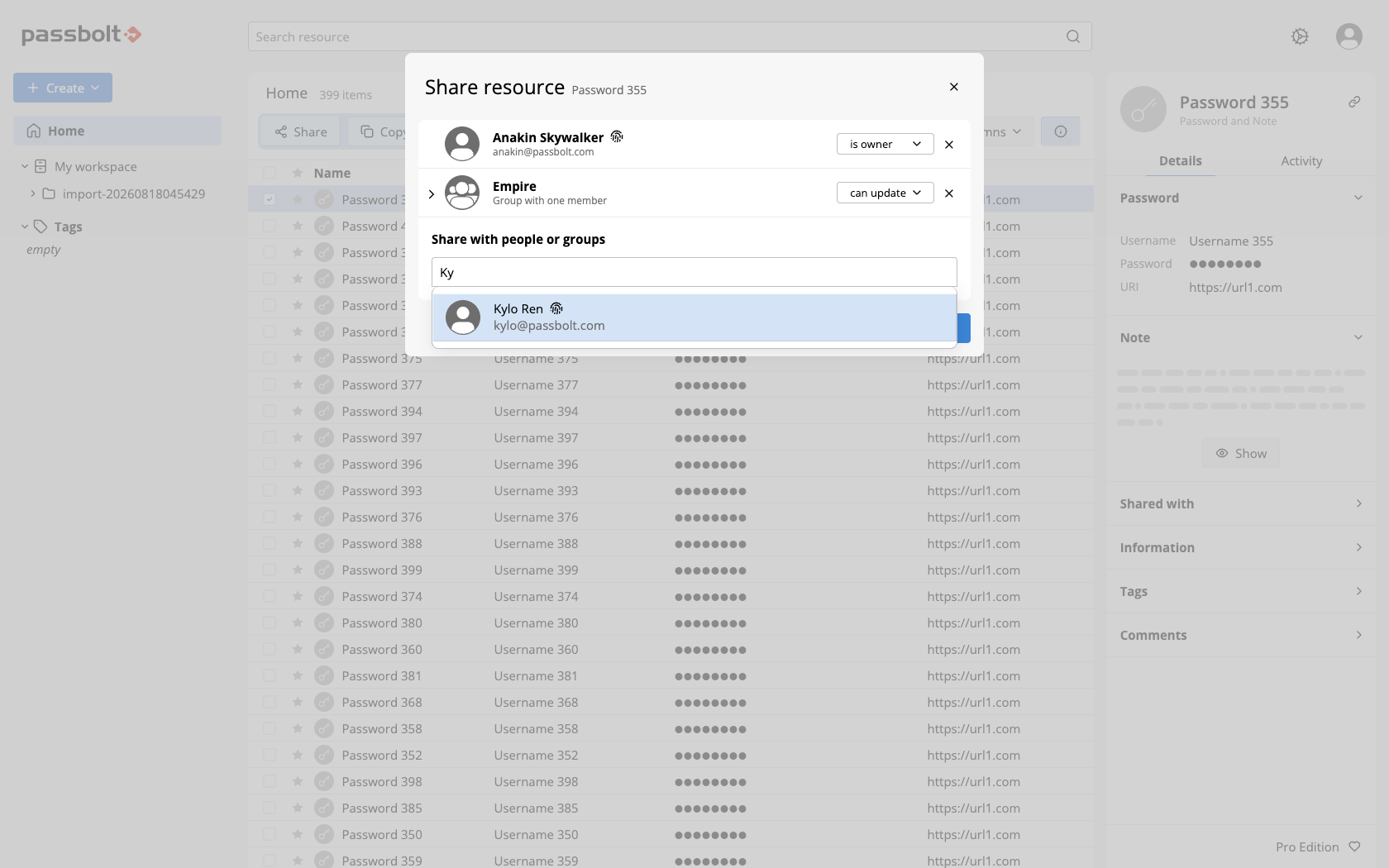
Make sure you click Save every time you make changes. Until you do, the badges described in review the changes before you save show what is pending, and nothing is applied.
The suggestion list mixes people and groups, and the subtitle is what tells them apart: an email address for a person, a count such as "3 group members" for a group. The three permission levels are the same for both.
A resource must keep at least one owner. Any change that would leave it without one is refused, with "Please make sure there is at least one owner.".
Review the changes before you save
passbolt shows you who is about to get access to a secret, or lose it, before it applies the change. Nothing reaches anyone until you save.
When passbolt asks you to confirm
- When you share one resource or several, the share dialog marks every row you change with a badge, as described below.
- When you edit the secret of a shared resource, or create a resource in a shared folder, a Confirm permissions dialog lists everyone who will be able to decrypt the secret before passbolt encrypts it. If you edit a resource you can update without being one of its owners, that list is read-only.
- When you move items between folders, see the Confirm permissions dialog on the page about moving.
passbolt decides whether a resource is shared from its list of permissions alone: a resource shared with a group counts as shared, even when that group has a single member. Editing only the metadata of a resource, such as its name or its description, opens no dialog, since no secret is encrypted again. Editing a note does, because a note is part of the secret.
A folder does not decide who can access its content at every moment. Every resource and every folder keeps its own list of permissions, and passbolt applies the permissions of a shared folder to an item at three moments only: when you change the permissions of the folder, when you create an item in it, and when you move an item into it. This is why creating a resource in a shared folder asks for your confirmation.
Read the badges
Each row you change in the share dialog carries a badge until you save:
| Badge | Meaning |
|---|---|
| added | The person or group has no access to any of the resources in the dialog, and is about to get it. |
| modified | The person or group already has access, and you changed their level. |
| removed | The person or group has access and is about to lose it. The row stays in the list, dimmed. |
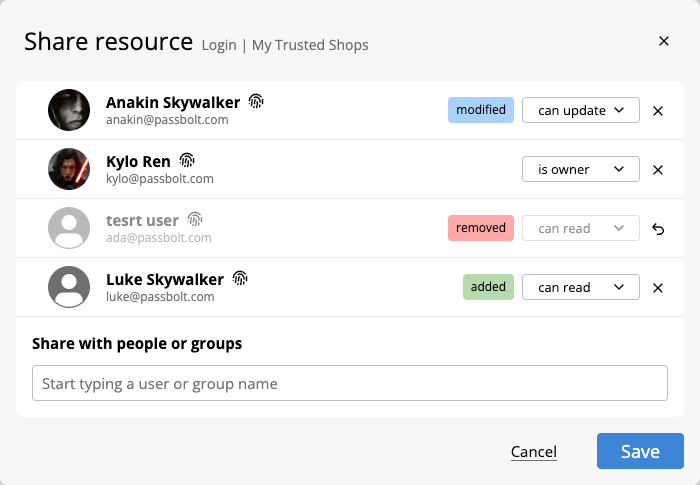
- A row you added and then removed again disappears: there was no access to remove.
- To cancel a removal, click the revert arrow that replaces the cross on the dimmed row. The row returns to the level it had when you opened the dialog, not to the last level you chose.
- To cancel a level change, choose the original level again: the modified badge disappears.
Share with a group, or with people
Sharing with a group means the access follows the composition of the group, in both directions, without ever reopening the share dialog.
- When a group manager adds someone to the group, that person gains access to everything shared with the group. The manager's browser re-encrypts each secret for the newcomer during the operation, so on a group that shares many resources this takes a while. No background process can do it instead, which is also why directory synchronisation does not add members to a group that shares passwords, and notifies the group managers instead.
- When someone leaves the group, their access is withdrawn and their encrypted copies of those secrets are deleted. They keep only what another permission still grants them, such as a direct share on the same resource or membership of another group that has it.
Share with a group when the access should belong to a team, since new joiners and leavers are handled for you. Share with people when the access is meant to be nominal and durable, independent of team movements.
Removing someone from a group takes their access away for the future, but they may have read or copied the secret before. When the departure is sensitive, change the secret as well.
Share several resources at once
Select more than one resource, then share them in a single operation:
- Tick the checkbox of each row, or the checkbox in the header to select everything in the current view.
- Or hold ctrl, cmd on macOS, and click to add and remove resources one by one.
- Or hold shift and click to select a range.
The dialog then names the size of your selection, "Share 12 resources", and lists every person and group who has a permission on any of the selected resources.
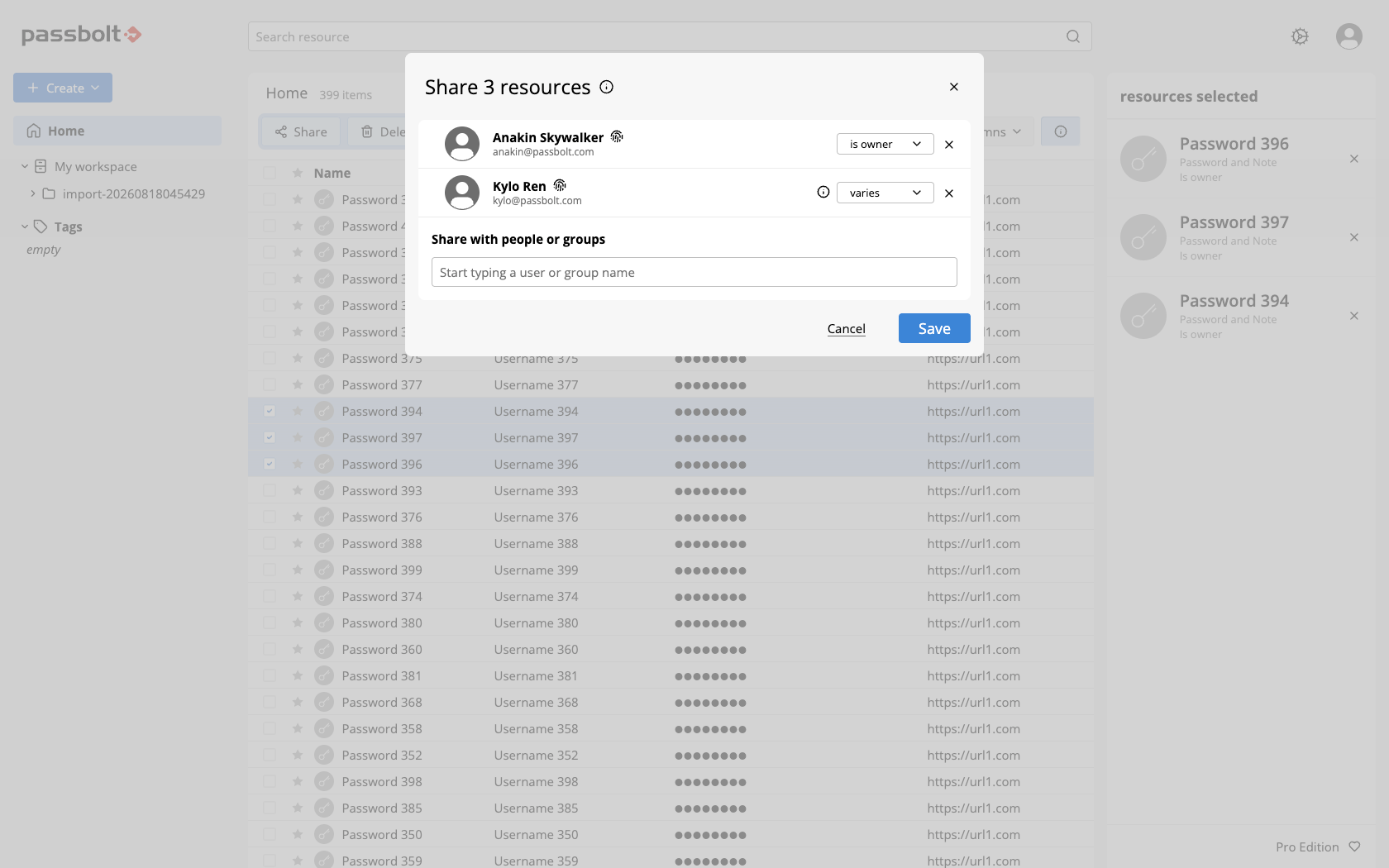
When a recipient does not have the same level on all the selected resources, their level reads varies instead of one of the three. This also covers the case of a recipient who has access to only part of the selection: partial access counts as varying, not as no access. Hover the information icon next to the level to see the detail, one line per resource, sorted by name: No access, Can read, Can edit or Is owner, where Can edit is the tooltip's name for can update. The tooltip lists three resources at most, followed by "and more..." when the selection is longer.
Choosing a real level for that recipient applies it to every resource of the selection, including the ones they could not see before. Once you have picked a level, the list no longer offers varies. Leaving varies as it is changes nothing for that recipient: each resource keeps the level they already had on it.
Setting a level for one recipient leaves the other permissions of those resources untouched. A bulk share adds to what exists, it does not reset the sharing of the selected resources.
Every recipient who gains access means one encryption per secret, done by your own browser. A bulk share over a long selection is therefore a slow operation, not a frozen one.
What Shared with me contains
Shared with me, in the menu on the left, lists the resources you have access to without being their owner, which is to say everything where your level is can read or can update.
That definition has two consequences worth knowing:
- A resource somebody shared with you as an owner does not appear there, even though it was shared with you.
- A resource you created yourself appears there as soon as you are no longer its owner.
Access inherited from a group counts exactly like a direct share, since what passbolt keeps for each resource is your highest level across your direct permissions and your groups. A group that makes you an owner therefore takes the resource out of this filter.
Removing yourself from a resource
You can remove your own permission from the share dialog, but only on a resource you own, and only as long as another owner remains.
On the resources listed under Shared with me you are, by definition, not an owner, so you cannot remove yourself: ask one of the owners to do it. When your access comes from a group, the resource is not the right place to act at all, and a group manager has to change the membership of the group instead.