How to configure passbolt to use TOTP
Passbolt Pro Edition since v2.4 and CE since v3.9 support TOTP (Time-based One Time Password) as a multi factor authentication option.
TOTP is a type of authentication method that generates a new, unique password at set intervals (such as every 30 seconds) to be used in addition to another authentication method (such as username and password).
Multi Factor Authentication requires HTTPS to work.
Security considerations
When using Time-based One-Time Passwords (TOTP) as a form of multi-factor authentication, it is recommended to set up at least one additional multi-factor authentication method as a backup. Should the Time-based One-Time Passwords (TOTP) service experience downtime, this measure guarantees that users can continue to access their accounts despite the malfunction of one authentication method.
Another consideration involves ensuring accurate time synchronisation between the server and client devices. Without this, TOTP codes may not align, leading to authentication failures.
Enable TOTP access
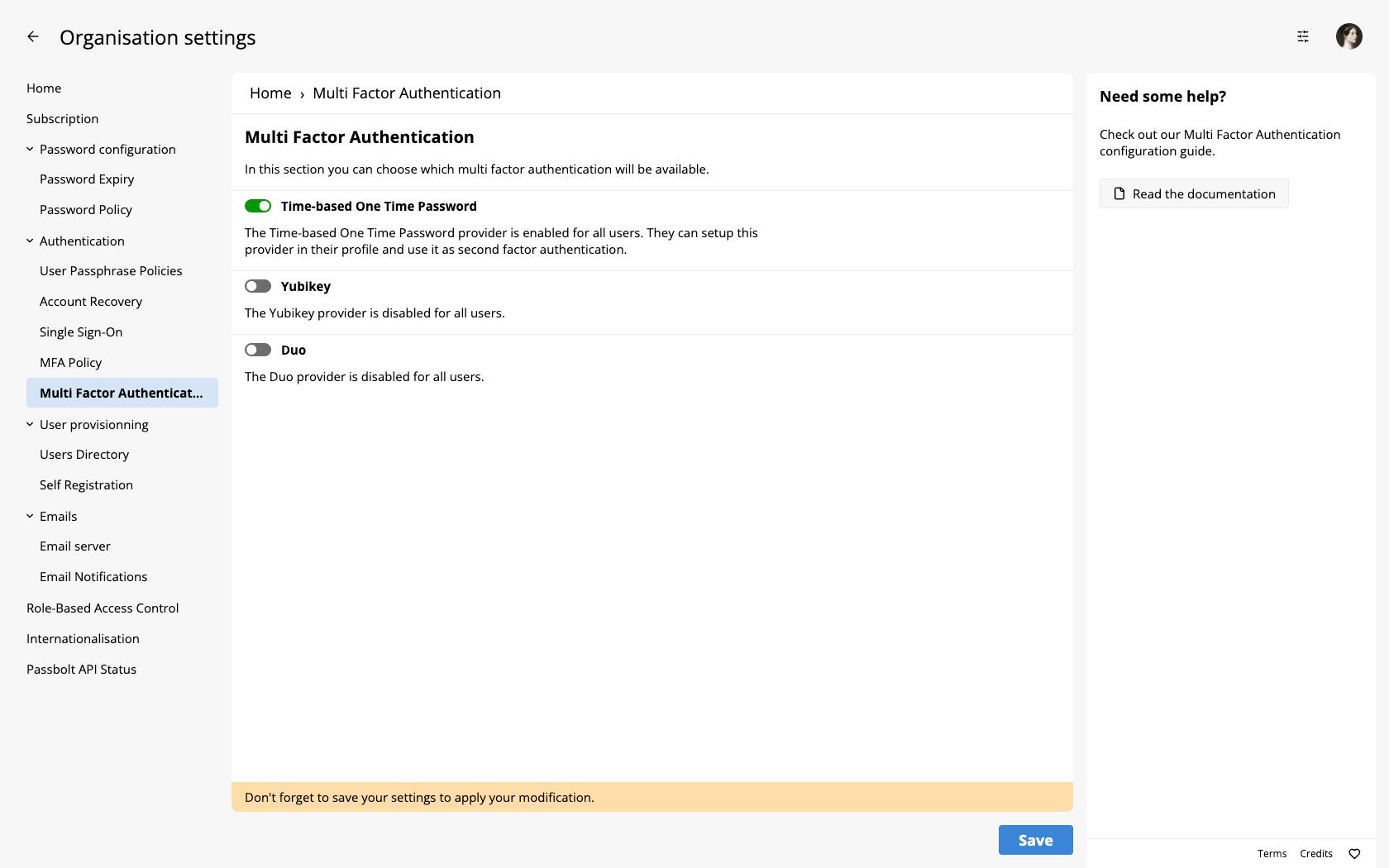
To enable TOTP for the organisation, navigate to the multi-factor authentication administration page: Administration > Multi Factor Authentication. Subsequently, enable the "Time-based One Time Password" provider by moving the adjacent toggle to the on position. Ensure you save these modifications to activate the provider.
Failed attempt handling
Since version 4.1.0, passbolt reacts to repeated wrong TOTP codes by ending the session of the user. This applies to TOTP only: Yubikey and Duo verifications are not counted, and Duo applies its own limits on its side.
What happens after too many wrong codes
The user is signed out, and nothing else. The account is not locked, not suspended, and there is no penalty delay: the user can sign in again straight away with their passphrase and gets a fresh set of attempts. Their TOTP secret is untouched.
What the user sees depends on how their client submits the code:
- The browser posts a form rendered by the server, not JSON. On that path, passing the threshold logs the user out and redirects them to the sign-in screen, with no message.
- Clients that call the API in JSON, the mobile and desktop applications included, get a 400 response instead, carrying "You have been logged out due to too many failed attempts." Their refresh token is revoked at the same time.
The counter is not stored. It is the number of failed TOTP verifications recorded since the last successful sign-in of that user, counted per user, whatever their IP address or device. Signing in again therefore resets it.
Because there is no persistent lock, recovering a user who hit the threshold takes no administrator action: they sign in again. If a user can no longer produce a valid code at all, that is a different problem, see below.
Tune the threshold
The threshold is an integer, 4 by default. The session ends after more than that number of consecutive failed verifications. Set it with an environment variable:
PASSBOLT_SECURITY_MFA_MAX_ATTEMPTS=4
Or in /etc/passbolt/passbolt.php, where it should be written as an integer literal:
'passbolt' => [
    'security' => [
        'mfa' => [
            'maxAttempts' => 4,
        ],
    ],
],
Any value below 1, including 0 and negative numbers, disables the mechanism and allows an unlimited number of attempts.
The environment variable is parsed as an integer, and a value that is not a valid integer, such as four, 4 or an empty string, is treated as lower than 1. It therefore disables the protection instead of falling back to the default, without any error message. Double-check the value you set, or set it in the configuration file as an integer literal.
The count is read from the action log, so it depends on the log plugin, which is enabled by default. Disabling that plugin neutralises this protection whatever the threshold, and purging the action logs resets the counters of users who have not signed in since.
When a user cannot produce a valid code
A lost phone, a reinstalled authenticator or a drifted device clock are not threshold problems: the user needs their multi factor authentication settings removed so they can enrol again. An administrator can do it from the Users workspace, in the contextual menu of the user, with Disable MFA. The confirmation dialog warns that "Existing settings will be lost. This action cannot be undone.", and the operation reports "Multi-factor authentication has been disabled successfully".
The same operation is available on the API, with DELETE /mfa/setup/{userId}.json, which an administrator can call for any user and a user can call for their own account while they still have a valid session.
The user then configures TOTP again. If your MFA policy is set to Prompt, they get the invitation to enable multi factor authentication at their next sign-in.
On a self-hosted instance, another administrator can disable it for them. An organisation with a single administrator has no in-product way out. On a Cloud plan, contact passbolt support: disabling multi factor authentication for a locked-out administrator goes through an identity verification.
Setup TOTP as a user
To setup TOTP as multi-factor authentication method, please refer to our dedicated user guide.