Advanced Directory Options
Known Issues and Support Scenarios
Even with a correct setup, some issues may arise during directory synchronisation. This section covers common problems, their causes, and how to resolve them.
Synchronisation Error Messages
When running a sync (simulated or actual), Passbolt may display errors or warnings for users or groups it couldn't process. These messages highlight common issues and help guide troubleshooting.
Message
The user [email_protected] could not be added to group X because it is not active yet.
Explanation
This means a user was synced (created) and the sync tried to add them to a Passbolt group, but the user hasn't activated their Passbolt account yet (they haven't clicked the invite link to finalize setup). Passbolt cannot add inactive users to groups.
Solution
No manual intervention is needed with cron jobs enabled. As soon as the user activates their account, Passbolt will automatically add them to the group on the next sync.
Message
The user [email_protected] could not be mapped with an existing user in passbolt because it was created after.
Explanation
This indicates a conflict where the user exists in both Passbolt and LDAP, but was first created in Passbolt (likely manually) and later appeared in LDAP. Passbolt gives priority to its existing user record and will not auto-merge or replace it via sync.
Solution
Delete the user from Passbolt and re-run sync. Be cautious of any existing passwords to avoid orphaning.
Message
The group X could not be mapped with an existing group in passbolt because it was created after.
Explanation
A group was created manually in Passbolt before being present in LDAP.
Solution
Delete the manual group in Passbolt (after confirming it's safe), then re-run sync to re-create it from LDAP.
Message
The previously deleted user [email_protected] was not re-added to passbolt.
Explanation
The user exists in LDAP but the matching passbolt account is soft-deleted, whether an administrator deleted it manually or the delete operation of a previous synchronisation removed it. When the LDAP object is older than the last modification of the deleted account, passbolt treats the deletion as deliberate, does not recreate the account, and the error repeats at every run.
Solution
To bring the user back: recreate them in passbolt (send a new invitation with the same email address), then run the synchronisation again. The next run maps the LDAP entry to the new account and reports "The user X was mapped with an existing user in passbolt." The data of the old account is not restored, and the user goes through the setup again. Run a simulation first to check the expected report. This procedure does not trigger the "created after" conflict described above, which only applies when the LDAP object is more recent than the existing passbolt account.
To keep the user out instead, silence the recurring error with ignore_create (see the section on ignoring problematic LDAP entries): the record is skipped at the next runs and the account stays deleted. ignore_create silences the error, it is not a recovery step.
Message
The user [email_protected] could not be added to the group X because of an internal error.
Explanation
Often this means the group didn't exist when sync tried to add the user.
Solution
Check the sync logs for errors during group creation, fix them, and re-run sync.
Message
A request to add user [email_protected] in group X was sent to the group manager.
Explanation
Passbolt cannot auto-share existing secrets due to encryption constraints. This is expected behaviour.
Solution
The group manager must manually add the user through the UI.
Message
The user A was not synced with existing membership for group B because the membership was created before.
Explanation
A user was manually added to a group before sync tried to assign them.
Solution
Remove the manual group membership and re-run sync to allow LDAP to take control.
Message
User removed from LDAP group remains in Passbolt group (no direct error)
Explanation
Manual group membership blocks LDAP-driven removal.
Solution
Manually remove the user from the Passbolt group to align with LDAP.
Message
The user [email_protected] could not be added to the group X because membership was removed in passbolt.
Explanation
The user was removed from the group manually, and Passbolt respects that decision.
Solution
If the user should be in the group, manually re-add them, then re-run sync.
Message
The user undefined could not be added because of data validation issues.
Explanation
Usually caused by missing or malformed user attributes in LDAP.
Solution
Ensure all LDAP users have valid email addresses and fix formatting issues before syncing again.
Message
The synchronization failed. Could not retrieve the group matching name X
Explanation
The users parent group or groups parent group setting names a group that is not present in the results returned by the directory. The value is matched by name against the fetched groups, after the search: it is not a DN or an LDAP query. A group that exists in the directory but sits outside the queried scope (base DN, group path, custom filters) produces the same error. Both settings are resolved before any entry is processed, so a wrong value does not filter anything out: the whole run fails, users and groups included, until the value is corrected. The simulation shows the same message prefixed with "The simulation failed.", and the CLI prints the raw error.
Solution
Set the parent group to the exact name of a group present in the synchronisation scope, or clear the setting.
Note:
The sync report categorizes issues as Errors (actions failed) or Ignored (actions skipped by design). Ignored entries are usually intentional protections (e.g., avoiding deletion), while Errors require investigation.
LDAPS and Certificate Issues
When using LDAPS (implicit TLS) for secure directory sync, one of the most common issues is certificate trust. The Passbolt server must trust the LDAP server's TLS certificate. If the certificate is self-signed or issued by a private CA, the connection may fail with errors like:
"Can't contact LDAP server"
ldap_sasl_bind(SIMPLE): Can't contact LDAP server (-1)
These usually indicate a TLS validation problem.
Verify Connectivity Outside Passbolt
From the Passbolt server, use ldapsearch to test LDAPS directly:
sudo su -s /bin/bash -c 'ldapsearch -x -D "<bind_dn>" -W -H ldaps://your_ldap_server.com -b "DC=example,DC=com" -d 9' www-data
- Replace
<bind_dn>and base DN as needed. - Run as the web server user (
www-dataornginx). - The
-d 9flag provides verbose TLS/debug output.
See: Configure LDAP with TLS (SSL)
Managing LDAPS Certificates
To ensure secure directory synchronisation, Passbolt must trust the LDAP server's TLS certificate. If the certificate isn't signed by a trusted public CA, you'll need to configure Passbolt to trust it using our certificate bundler tool.
🔗 Get the LDAPS Certificate Bundler Tool
This Python tool automatically retrieves and validates the complete certificate chain from your LDAP server, bundling it into a single file for Passbolt to use. The certificates are ordered in the chain from server certificate to root CA, ensuring the complete chain of trust is maintained. This is particularly important for self-signed certificates or those issued by private CAs.
For detailed setup instructions, please refer to the LDAPS page.
Common LDAPS Pitfalls
- Use
ldaps://(notldap://) and port 636 (typically) - Don't mix STARTTLS and LDAPS (they are mutually exclusive approaches)
- Certificate CN must match the hostname
- Avoid disabling hostname verification in production
Example: Works in CLI, Fails in UI
If ldapsearch works but the Passbolt UI fails, PHP may not trust the certificate.
Fix: Add the cert to the system trust store or configure it in Passbolt.
Summary
- Test with
ldapsearch - Ensure LDAP cert is trusted
- Configure trust via system or app settings
- Use the cert utility if needed
Once LDAPS trust is working, sync should succeed.
Resource and Performance Issues
Running a directory sync against a large user base can put significant load on your Passbolt instance. Below are common performance-related issues and recommended resolutions.
Memory and Large Directory Considerations
Syncing thousands of users or groups can be memory-intensive. If PHP's memory limit is too low, the sync may fail with errors like:
"Allowed memory size of 134217728 bytes exhausted (tried to allocate 20480 bytes)"
This typically happens when memory_limit is set too low (e.g., 128M).
Solution: Increase the memory limit in your PHP configuration (e.g., /etc/php/8.2/fpm/php.ini):
memory_limit = 1024M
- Restart PHP-FPM or your container afterwards.
- Minimum recommended:
256Mfor small directories,512M-1024Mfor large ones.
Pagination Issues
passbolt automatically paginates directory searches through the standard LDAP paged-results control (RFC 2696), in pages of 1000 entries, the default of the LdapRecord library used by passbolt. There is nothing to configure: no option disables pagination or changes the page size.
The control is sent as non-critical, so a server without paged-results support (e.g., Sun Directory Server or eDirectory) ignores it and answers within its own limits instead of rejecting the query. If results are truncated, the remedy is on the server side (for example the Active Directory MaxPageSize policy, or the OpenLDAP size limits and paged-results overlay, see your directory vendor's documentation), or reduce the synchronised scope with the base DN, the user and group paths, custom filters, or parent groups.
A legacy directory that rejects the query outright reports "Operations error". The remedies are the same: raise the server-side limits, or reduce the synchronised scope.
Active Directory and OpenLDAP support paging by default. This issue is rare, and primarily affects legacy directories.
Large Group Counts
Directories with tens of thousands of groups may degrade sync performance. If you only need a subset of users or groups, always apply LDAP filters to reduce scope.
Benefits:
- Improves sync performance
- Reduces UI clutter
- Minimises resource usage
Group nesting and the parent group filter narrow the scope further.
Version 4.6 and later include improvements, but filtering is still the best way to reduce memory and sync time.
Execution Timeouts
Long syncs via the web interface may hit timeouts.
- Web-based syncs may time out after ~30 seconds
- CLI-based cron jobs do not have this limitation
Solution:
- Run the first sync using CLI
- Optionally increase
max_execution_timein PHP if needed
Database Load
Sync operations insert or update users, groups, and relationships in bulk.
- While typically manageable, large syncs can spike DB load
- For heavy imports, run during off-peak hours
Ensure your database is tuned for write-heavy operations if syncing thousands of entries.
Post-Sync Healthcheck
After a large sync, run the Passbolt healthcheck to ensure system integrity:
./bin/cake passbolt healthcheck
This checks for:
- GPG key mismatches
- Configuration issues
- General system status
It won't catch every sync error but ensures baseline integrity is intact.
Directory-Specific Quirks
Certain behaviours and edge cases can arise depending on your LDAP directory type, structure, and policies. Below are commonly encountered quirks and how to handle them.
Active Directory Account Lockout
If the bind account credentials are incorrect, Active Directory may lock the account after a few failed attempts.
- Always double-check bind credentials.
- AD logs may contain more details on failed bind attempts.
Changing Directory Attributes
Passbolt identifies users by their persistent LDAP GUID (objectGUID for AD, entryUUID for OpenLDAP). This GUID is not visible in the UI, but is used internally.
- Passbolt only updates
firstNameandlastNamefor existing directory users. Email addresses are not changed by sync after account creation. - If a user's email changes in the directory, Passbolt keeps the original email. To change it in Passbolt, create a new user with the new email and migrate ownership as needed.
Tip: Avoid manually editing synced user names in Passbolt; manage them in your directory. Email changes require provisioning a new account.
Multi-Domain Forests (AD)
passbolt does not support configuring multiple AD domains via the UI.
- Declare each domain as an entry of the
ldap.domainsarray in/etc/passbolt/ldap.php, as described in the file-based configuration reference. - A single synchronisation run queries every configured domain and merges the results into one set: there is no need to run one sync per domain.
- A Global Catalog only contains data from the domains of its own forest, an Active Directory behaviour documented by Microsoft. To cover several forests, declare one
ldap.domainsentry per forest.
This is considered advanced and should be coordinated with support or engineering.
Unwanted or Empty Directory Groups in passbolt
By default, a synchronisation brings in every group returned by the directory, including empty ones. On Active Directory, this covers distribution groups as well as security groups: passbolt only filters on the group object class, without any member or group type condition.
To keep groups out of passbolt, both restrictions being opt-in:
- Disable the group synchronisation operations with the "Create groups", "Update groups" and "Delete groups" toggles, in the administration interface under Users Directory > Synchronization options > Sync operations, or with the matching
jobs.groupskeys of the file-based configuration. - Restrict what the directory returns with the groups parent group, the group path, or custom group filters.
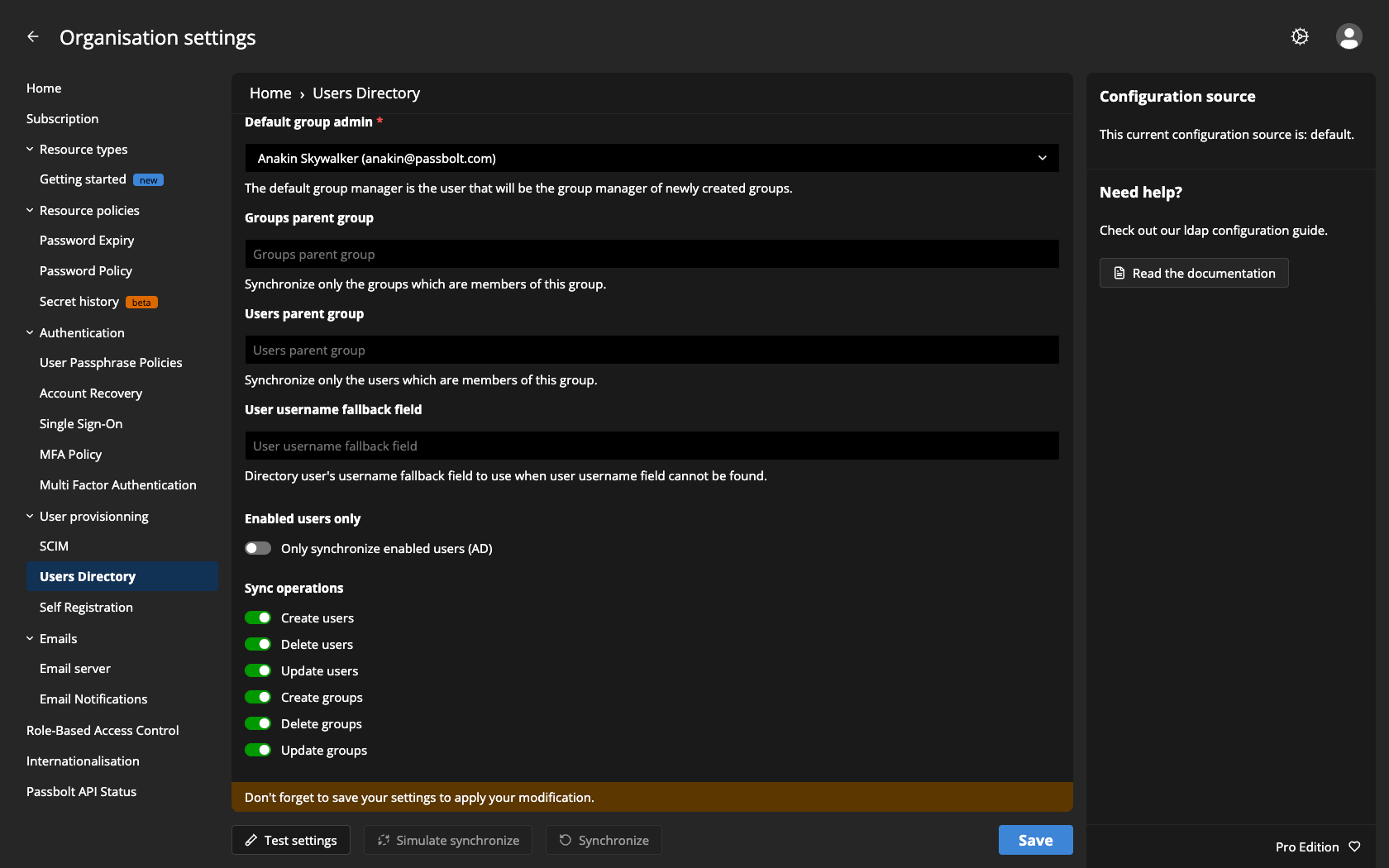
Do not use a group custom filter that matches nothing to "disable" group synchronisation. Already synchronised groups would then look as if they had disappeared from the directory, and the next run deletes them from passbolt when the delete operation is enabled, which is the default. Use the synchronisation operation toggles instead.
Deleted LDAP Users Still in Passbolt
If a user is removed from LDAP, Passbolt will try to delete them on sync, unless:
- The user owns passwords
- The user's deletion sync is disabled
If the user owns any secrets, deletion is skipped to avoid data loss.
Solution:
An admin must first transfer or delete those secrets. After that, the user will be removed on the next sync.
"Check Request Error" When Saving Sync Settings
This generic error in the UI may be triggered by a server-side issue (e.g., PHP memory exhaustion).
- Check the Passbolt error log immediately after seeing this error.
- Example: A low PHP
memory_limitcan cause a fatal error masked as a client-side failure.
Solution:
Resolve the underlying error (e.g., increase memory) and retry.
Ignoring Problematic LDAP Entries
If certain entries cause repeated sync failures (e.g., malformed data, no email), they can be ignored.
To ignore a record at the next synchronisations:
./bin/cake directory_sync ignore_create --model <Users|Groups|DirectoryEntries> --id <uuid>
--modelaccepts exactlyUsers,GroupsorDirectoryEntries, capitalised.--idis always a UUID, never a DN: the passbolt id of the user or group forUsersandGroups, or the directory entry id forDirectoryEntries, which is the GUID of the directory object (objectGuidon AD,entryUUIDon OpenLDAP).
Ignored records are skipped by the create and delete passes, with a report message such as "The user X was not synced because the passbolt user is marked as to be ignored."
To stop ignoring a record:
./bin/cake directory_sync ignore_delete --model <Users|Groups|DirectoryEntries> --id <uuid>
To view ignored entries:
./bin/cake directory_sync ignore_list
The footer printed by ignore_list suggests ignore_create [ID] to stop ignoring records. That embedded help text is wrong on both counts: the command to stop ignoring is ignore_delete, and it takes the --model and --id options shown above.
Useful for excluding system accounts, test users, or known bad records. Document any entries you ignore.
Troubleshooting Workflow
Having Trouble with LDAP Sync or Configuration?
If you're experiencing LDAP synchronisation issues, follow this structured checklist to identify and resolve problems efficiently.
Connectivity and Configuration Checks
-
Basic reachability
Ensure the Passbolt server can reach the LDAP or AD server:- Confirm correct IP or hostname
- Check firewall rules (e.g., ports 389, 636, or custom ports are open)
- Run:
telnet <ldap_host> <port>orping <ldap_host>(if ICMP is allowed)
💡 Network or DNS misconfigurations are a common cause in production.
-
Credentials and binding
Verify the bind DN and password using an LDAP client:- Use
ldapsearch(see LDAPS section) - If the password was changed in AD and not updated in Passbolt, binding will fail
- Use
-
Check Passbolt configuration values
In the Admin UI, double-check:- Base DN format and proper
,separators (not;) - No trailing spaces
- Avoid duplicating the Base DN in the User/Group paths
Example:
✅ Base DN:DC=example,DC=com
✅ User Path:OU=Users
❌ User Path:OU=Users,DC=example,DC=com
- Base DN format and proper
-
Use "Test Settings" and "Simulate Synchronise"
- Test Settings: Checks the connection and basic LDAP queries
- Simulate Synchronise: Runs a dry sync (no data is saved)
These are safe tools to confirm configuration before syncing.
-
Check the API Status page
Go to Organisation Settings > Passbolt API Status.- If "Directory Sync" is failing, the plugin may be disabled or misconfigured
File-Based Configuration
Directory synchronisation settings can be provided in a file instead of the administration interface. The file is /etc/passbolt/ldap.php (the config/ldap.php of your installation), not passbolt.php.
File-based configuration is mostly useful when you need what the administration interface does not offer, such as multiple LDAP servers or domains. For a single directory, prefer the administration interface: file-based configuration is expected to be deprecated in the future.
The file is a fallback: passbolt reads it only when no settings have been saved from the administration interface. Settings stored in the database take precedence entirely, there is no merge between the two sources.
The file must return a single array, with everything nested under passbolt > plugins > directorySync. A misplaced nesting does not raise an error, passbolt silently reads an empty configuration. Example with two domains:
<?php
return [
    'passbolt' => [
        'plugins' => [
            'directorySync' => [
                'enabled' => true,
                'defaultUser' => '[email protected]',
                'defaultGroupAdminUser' => '[email protected]',
                'ldap' => [
                    'domains' => [
                        'corp' => [
                            'domain_name' => 'corp.example',
                            'username' => 'sync-bind',
                            'password' => 'secret1',
                            'base_dn' => 'dc=corp,dc=example',
                            'hosts' => ['dc1.corp.example'],
                        ],
                        'labs' => [
                            'domain_name' => 'labs.example',
                            'username' => 'sync-bind',
                            'password' => 'secret2',
                            'base_dn' => 'dc=labs,dc=example',
                            'hosts' => ['dc1.labs.example'],
                        ],
                    ],
                ],
            ],
        ],
    ],
];
Connection keys and synchronisation keys
The configuration splits into two levels:
- Connection keys live under
ldap.domains.<alias>, one entry per domain, where the alias is a free name. Per domain:domain_name(required),username(required),password(required),base_dn(recommended, otherwise queried via the RootDSE),hosts(recommended, otherwise resolved via DNS),port(389 by default, 636 withuse_ssl),use_tls,use_ssl,use_sasl,sasl_options,ldap_type,lazy_bind,server_selection,bind_format,options(LDAP_OPT_* constants),timeout. Next todomains, the only sibling key isdefault_domain. - Synchronisation and filter keys live directly under
directorySyncand apply to all domains:defaultUser,defaultGroupAdminUser,usersParentGroup,groupsParentGroup,enabledUsersOnly,useEmailPrefixSuffix,fieldsMapping,groupPath,userPath,userCustomFilters,groupCustomFilters,jobs. Filters cannot be set per domain.
Synchronisation jobs
The jobs key toggles each synchronisation operation individually. The six toggles default to true, and a partial jobs block keeps the defaults for the omitted keys: only an explicit false disables an operation. They match the "Sync operations" toggles of the administration interface.
'jobs' => [
    'users' => [
        'create' => true,
        'update' => true,
        'delete' => true,
    ],
    'groups' => [
        'create' => true,
        'update' => true,
        'delete' => true,
    ],
],
create => falsestops new entries from being created; already synchronised entries stay in place and keep being tracked.update => falsestops changes from being applied; for groups, the update operation also covers membership additions.delete => falsekeeps entries in passbolt when they disappear from the directory.
Deleting or suspending removed users
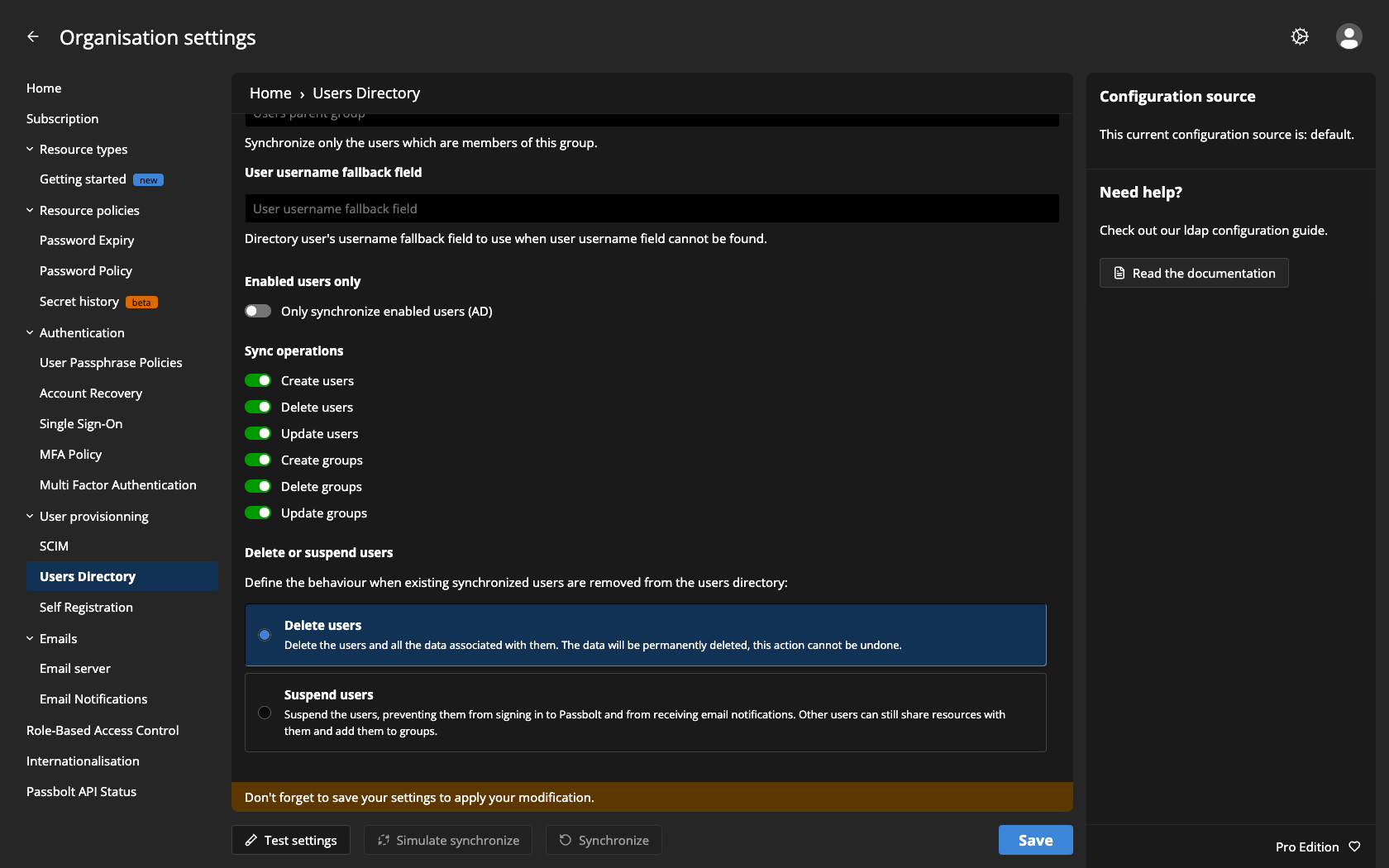
Since version 4.9.0, the deleteUserBehavior key, which the API and the administration form call delete_user_behavior, defines what the delete operation does to synchronised users removed from the directory. It sits directly under directorySync, next to jobs, and accepts two values:
delete, the default: the user goes through the standard passbolt soft delete, removing the data associated with them. The deletion is skipped, with a report message, when the user is the only owner of one or more passwords or the only manager of one or more groups.disable: the user is suspended instead. They can no longer sign in or receive email notifications, but other users can still share resources with them and add them to groups. The suspension applies even to users who are the sole owner of passwords. If the user reappears in the directory with the same DN, the next synchronisation unsuspends them.
This setting only chooses what the delete operation does when it runs: with jobs.users.delete set to false, removed users are neither deleted nor suspended.
The same choice is available in the administration interface, under Users Directory > Synchronization options, with the "Delete or suspend users" radio buttons ("Delete users" and "Suspend users").
Multiple hosts and server selection
Each domain accepts a hosts array listing several servers. server_selection controls how they are used: order, the default, tries them in the order written, and random shuffles the list before connecting. The older servers key is deprecated since version 3.12.0; it still works and is copied into hosts when present, but new configurations should use hosts. Likewise, connect_timeout is deprecated in favour of timeout.
SASL (GSSAPI) authentication
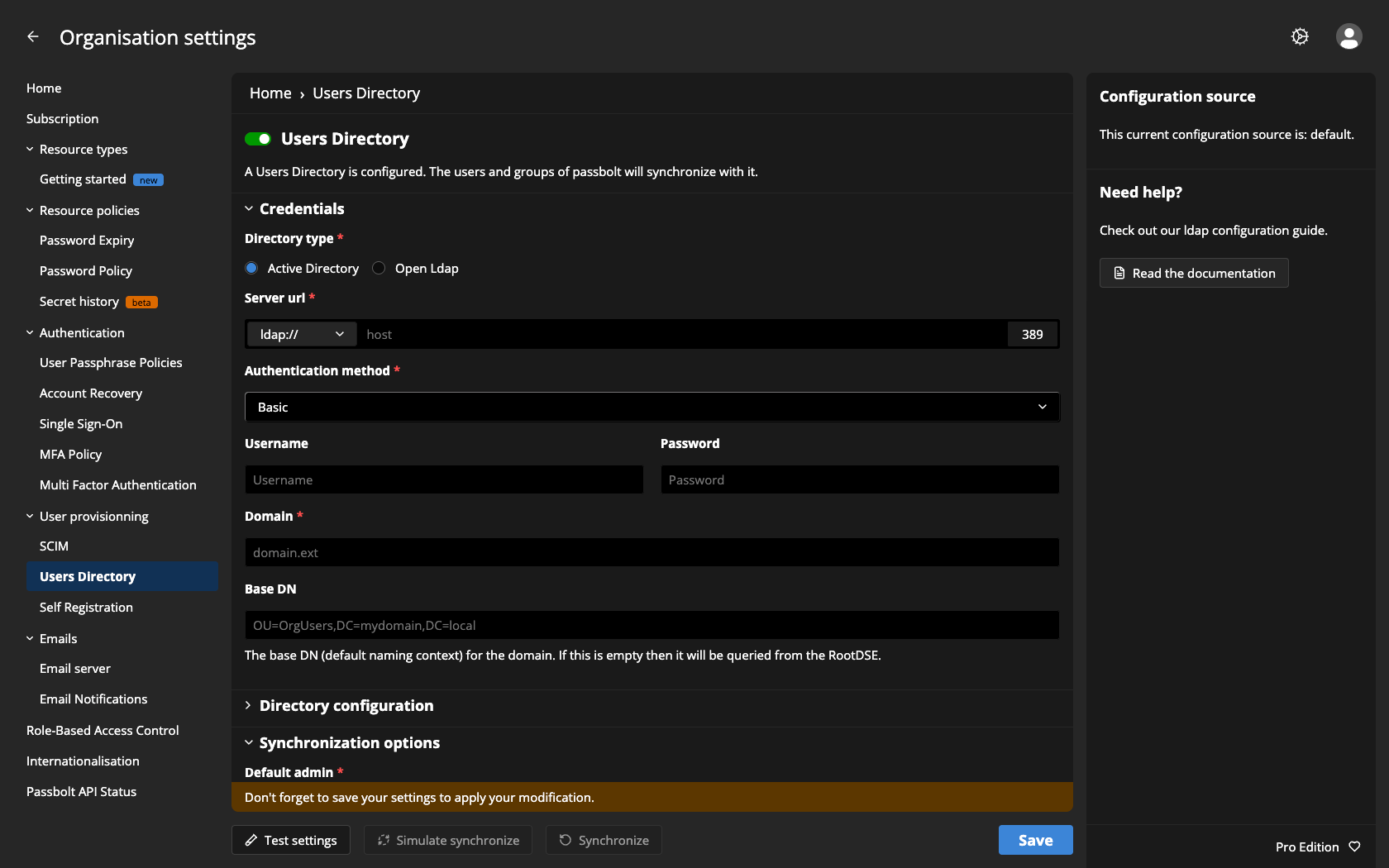
Since version 4.0.0, the directory bind can authenticate with SASL instead of a username and password, for both directory types. In the administration interface, select "SASL (EE)" in the "Authentication method" dropdown of the Users Directory screen: the username and password fields disappear, and the bind uses the Kerberos credentials of the system user running passbolt.
In the file-based configuration, SASL is a per-domain connection setting. The fine-grained options have no interface equivalent and can only be set in the file:
'use_sasl' => true,
'sasl_options' => [
    'mech' => 'GSSAPI',   // SASL mechanism
    'realm' => '',        // Kerberos realm
    'authc_id' => '',     // authentication identity
    'authz_id' => '',     // authorisation identity
    'props' => '',
],
sasl_options can be omitted entirely: the mechanism defaults to GSSAPI. Other SASL mechanisms accepted by the system libraries would be passed through, but GSSAPI is the only one passbolt names and documents; treat others as untested. With SASL enabled, username and password are not needed, the identity comes from the Kerberos ticket.
The PHP ldap extension must be built with SASL support. passbolt does not obtain Kerberos tickets itself: the system user running PHP needs a valid ticket, typically obtained from a keytab with kinit, with the credential cache designated by KRB5CCNAME. Mind that the interface runs as the web server user while scheduled synchronisations run as the cron user; both need a ticket.
Field fallbacks
fieldFallbacks, which the API and the administration form call field_fallbacks, defines, per directory type, a replacement LDAP attribute used when the primary attribute from fieldsMapping is empty on an entry. It never overrides a primary attribute that has a value. It is keyed by directory type, then by passbolt field. Only the username field is currently accepted:
'fieldFallbacks' => [
    'ad' => [
        'username' => 'userPrincipalName',
    ],
    'openldap' => [
        'username' => 'uid',
    ],
],
Directory types
ldap_type accepts two values: ad (Active Directory, the default) and openldap. passbolt has no dedicated, supported FreeIPA directory type.
Logs and Diagnostic Tools
If the basic connectivity and configuration checks don't resolve the issue, move on to server-side diagnostics.
Enable Debug Logging
Increase logging verbosity to get more insight into sync behaviour:
- In
config/passbolt.php, temporarily enable the global CakePHP debug mode at the top level of the configuration:
'debug' => true
To run a dry sync with verbose CLI output:
su -s /bin/bash -c "/usr/share/php/passbolt/bin/cake directory_sync all --dry-run -v" www-data
- Add
-vvvfor even more verbosity - Inspect output for failure points (e.g., bind errors, missing attributes)
Web Server and Passbolt Logs
Check logs for relevant errors at the time of the sync:
- Debian install:
/var/log/passbolt/error.log - Source install:
logs/error.logunder web root
Common entries to look for:
- LDAP extension errors (e.g.,
ldap_searchfailures) - PHP fatal errors (e.g., memory exhaustion)
- Exceptions during sync
If logging isn't verbose, you can update config/log.php to include a debug-level log.
Make sure you have appropriate permissions (
sudo) to view logs if needed.
Healthcheck and Status Report
Run the Passbolt healthcheck to verify the environment:
./bin/cake passbolt healthcheck
To gather a full diagnostic report (includes healthcheck, datacheck, logs):
sudo -u www-data /usr/share/php/passbolt/bin/status-report > /tmp/status.txt
This file can be reviewed or sent to support for analysis.
LDAP Server Logs
If you have access to your LDAP/AD server:
- Look for evidence of bind attempts or errors from the Passbolt IP
- AD's Security logs or LDS logs may contain bind errors, DN issues, or rejected credentials
Cross-Check with ldapsearch
Use ldapsearch for comparison:
- If
ldapsearchworks but Passbolt doesn't:- Are the same bind DN and credentials used?
- Is the base DN identical?
- Are filters equivalent?
For large DNs or restricted bind accounts, consider narrowing the scope or adjusting filters to reduce search load.
Sync Recovery Checklist
After resolving the root cause of a sync issue (e.g., configuration fix, certificate trust update, memory increase), follow this checklist to complete recovery and verify success.
1. Re-run Simulate or Full Sync
- Use Simulate Synchronise first to verify that errors are resolved without making changes
- If the simulation passes, proceed with a full Sync
2. Verify Critical Outcomes
- Ensure new users received invitation emails
If not, confirm SMTP settings and delivery
- If any messages mentioned "request sent to group manager", follow up to ensure those users are added manually
- Review any skipped or errored entries in the sync report
For details, refer to Known Issues
3. Document Manual Actions
- Keep a record of any users or groups manually added, removed, or ignored during recovery
Useful for auditing and future troubleshooting
4. Monitor Subsequent Syncs
- Manually trigger another sync or monitor the next scheduled run
- Confirm no recurring errors or skipped entries
- If using the ignore list, run:
./bin/cake directory_sync ignore_list
- Verify that the intended entries are excluded correctly
5. Escalate If Needed
If the sync still fails or behaves unexpectedly:
- Gather logs and run the diagnostic report:
sudo -u www-data /usr/share/php/passbolt/bin/status-report > /tmp/status.txt
- Check for:
- Errors in Passbolt logs
- GPG or PHP issues
- Unusual LDAP behaviour
If a bug is suspected, escalate to the support team with logs, reproduction steps, and environment details.
If absolutely necessary, consider inviting users manually via the UI (Passbolt does not support direct CSV user import).