Directory Options
OpenLDAP Specific Guidance
When integrating with OpenLDAP, keep in mind the following specifics:
Schema and Attributes
- Passbolt expects standard OpenLDAP schemas:
- User entries should use the
inetOrgPerson(or a subclass) object class. - Group entries should use
groupOfUniqueNames.
- User entries should use the
- If your OpenLDAP uses different object classes (e.g.,
posixAccountfor users, orgroupOfNamesfor groups), you can override the User object class and Group object class in the configuration. - Requirements:
- Each user must have a unique and valid email address in the attribute Passbolt
maps as the username (usually
mail). It must be properly formatted (no leading/trailing spaces). - Each group must list its members in the attribute passbolt maps as the group users field. The default mapping reads
member, whilegroupOfUniqueNamesgroups store members inuniqueMember: see the mapping note in the example configuration below.
- Each user must have a unique and valid email address in the attribute Passbolt
maps as the username (usually
- If these are not present or properly formatted, sync will report a "data validation" error.
Bind DN Permissions
- The bind account must have read access to all user and group entries under the Base DN.
- If entries are stored under different OUs, consider:
- Adjusting the Base DN
- Using User Path or Group Path
- Applying custom filters
Custom Filters
Use the Custom Filter fields to fine-tune user/group selection. Examples:
(objectClass=inetOrgPerson)
(!(uid=service_*))
This helps exclude service accounts or include only specific object types.
Case Sensitivity
- While LDAP DNs and attribute names are case-insensitive, values you enter in Passbolt's filter fields (like group names) are case-sensitive.
Example Configuration
If your OpenLDAP has:
- Users:
ou=People,dc=example,dc=com - Groups:
ou=Groups,dc=example,dc=com
Then set:
- Base DN:
dc=example,dc=com - User Path:
ou=People - Group Path:
ou=Groups
Mind the membership attribute: by default, the search targets groupOfUniqueNames groups but reads members from the member attribute, so the membership of standard groupOfUniqueNames groups is ignored until the mapping is overridden. Read the Group object class field before you change anything: groupOfUniqueNames is the default for a fresh setting, but an instance upgraded through version 4.0.0 while the group object class was empty may hold groupOfNames instead, and there the shipped member mapping is already correct. When the field shows groupOfUniqueNames, override the group users field mapping to uniqueMember, with the "Group users field mapping" field of the Users Directory screen or with fieldsMapping.openldap.group.users in the file-based configuration. Change the group object class only if your groups use a different class, and set the users mapping to match that class's membership attribute (member for groupOfNames).
Active Directory Specific Guidance
For Microsoft Active Directory integration, the Passbolt LDAP connector handles much of the heavy lifting. Keep these points in mind:
Domain and Base DN
- The Domain field (e.g.,
MYDOMAIN.LOCAL) is used internally, possibly for constructing principal names. - The Base DN is usually the root of your AD domain:
DC=mydomain,DC=local.
You can restrict the sync scope by setting the Base DN to a specific OU.
User Attributes
- By default, Passbolt uses the AD
mailattribute as the username. - If
mailis not populated, consider:- Filling the
mailfield in AD. - Overriding with
userPrincipalNameorsAMAccountName.
- Filling the
This can be changed with the "User username field mapping" field of the Users Directory administration screen, or with the fieldsMapping key of the file-based configuration. Only the overridden key needs to be declared, the rest of the mapping keeps its defaults:
'fieldsMapping' => [
    'ad' => [
        'user' => [
            'username' => 'sAMAccountName',
        ],
    ],
],
Enabled Users Only
- Enable this option to ignore disabled accounts.
- This is recommended in environments with many stale or service accounts.
Group Memberships
- Passbolt reads group membership through:
- The
memberOfattribute on user objects - The
memberattribute on group objects
- The
Group memberships are automatically inferred.
⚠️ Note: Nested groups are not supported.
If Group A is a member of Group B in AD, Passbolt will not include Group A's members in Group B.
AD Naming Attributes
- Default mapping:
mailmaps to the Passbolt username - Optional override:
userPrincipalName,sAMAccountName - Override with the "User username field mapping" field of the interface, or in the file-based configuration:
'fieldsMapping' => ['ad' => ['user' => ['username' => 'userPrincipalName',],],],
Contact engineering if you require a different mapping strategy.
Site/DC Awareness
- Use the appropriate Server URL to connect to the correct Domain Controller (DC) or global catalog.
- Example:
ldaps://dc1.example.corp:636
- Example:
If your AD enforces secure transport:
- Enable LDAPS
- Ensure certificates are trusted on the Passbolt server
Permissions
- The bind account must be a domain user with read access.
- Make sure:
- The account can read the necessary OUs
- The AD configuration allows reads over the protocol you're using (LDAP/LDAPS)
Some environments enforce:
- LDAP signing
- Channel binding
- LDAPS-only access
Common AD Issues
Very large ADs may hit the default 1000-record page size limit.
- passbolt uses the LdapRecord library, which paginates queries automatically, in pages of 1000 entries by default.
- If AD paging is disabled, you might see errors like:
ldap_search(): Search: Operations error
✅ To resolve:
- Enable paging on the AD server
- Or adjust your LDAP configuration/query behaviour
Example Configuration
For an AD domain example.corp, use:
- Domain:
example.corp - Server URL:
ldaps://dc1.example.corp:636 - Base DN:
DC=example,DC=corp - Users parent group: set to an AD security group (e.g.,
Passbolt Users) to restrict synced users.
Configure the plugin
The available options are:
| Parameter | Details | Example |
|---|---|---|
Directory Type | Choose here the type of your directory. Currently only Active Directory and OpenLdap are supported. | Active Directory |
Domain | The domain your directory is configured with. | mydomain.local |
Server URL | The full url to reach your server. | ldap://198.163.0.1:389 |
Authentication method | "Basic" (username and password, the default) or "SASL (EE)". With SASL, the username and password fields are hidden and not required: the bind uses the Kerberos credentials of the system user running passbolt (GSSAPI). Available for both directory types since version 4.0.0. | Basic |
Username and password | Username and password to authentify on your directory. Not used with the SASL authentication method. | |
Base DN | The base DN (default naming context) for the domain. | OU=OrgUsers,DC=mydomain,DC=local |
Group path | If your groups are located in a different path than your base DN, you can specify here the complementary path.
| OU=MyGroups |
User path | If your users are located in a different path than your base DN, you can specify here the complementary path.
| OU=MyUsers |
Group object class | For OpenLdap only, you can specify here the name of the group object class that you are using in your openldap.
| groupOfUniqueNames |
User object class | For OpenLdap only, you can specify here the name of the user object class that you are using in your openldap.
| inetOrgPerson |
Default admin | Choose here the username of the passbolt admin user that will be used to perform the operations on behalf of the synchronisation tools.
| [email protected] |
Default group admin | Choose here the username of the default group manager. It is the user that will be assigned as a group manager to all new groups created by ldap. | [email protected] |
Groups parent group | Using this filter will list only groups that are part of the given parent group (recursively). Enter the parent group name. | MyGroupName |
Users parent group | Using this filter will list only users that are part of the given parent group (recursively). Enter the parent group name. | MyGroupName |
Enabled users only | Only for AD. Synchronise only the users that are enabled (=not disabled). | |
Sync operations | By default, the synchronisation will be done for all created / deleted users and groups in your directory and all edited group members. You can enable / disable some tasks here.
| |
Delete or suspend users | Defines what happens to synchronised users removed from the directory: "Delete users" permanently deletes them and the data associated with them, "Suspend users" prevents them from signing in and from receiving email notifications while other users can still share resources with them and add them to groups. Available since version 4.9.0.
| Delete users |
Groups & Users Parent Group
One of the options for filtering users and groups is to use the Groups Parent Group or the Users Parent Group option. This can be found under the Synchronisation options section of the Users Directory configuration page.
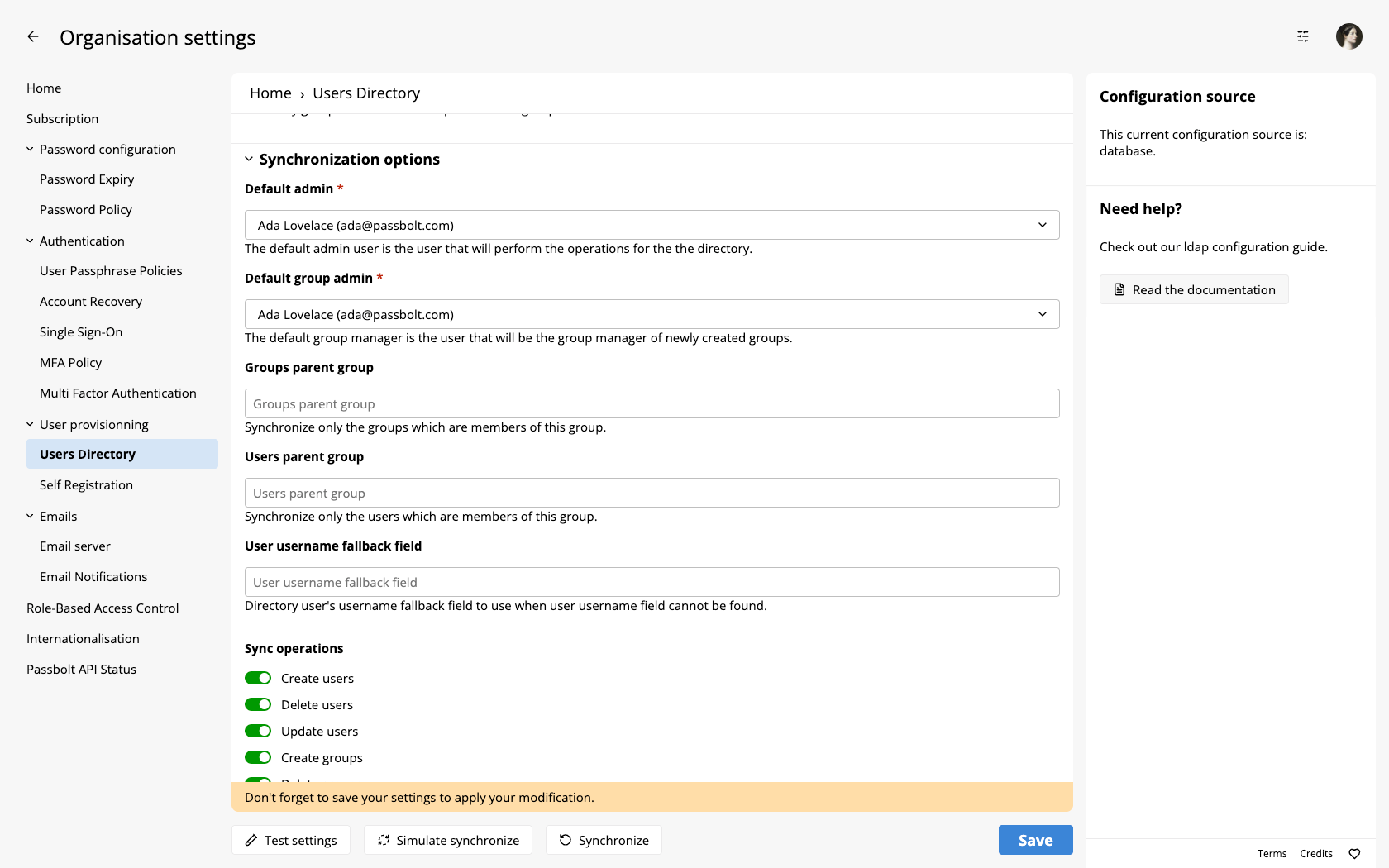
This option will allow you to specify a Parent Group for your users or groups. Passbolt will then only look for Users or Groups which are part of that Parent group and use those for synchronisation. This is most useful if you have directory set up where the Users or Groups you want to synchronise are all under the same group. For this field you can use just the name of the group, for example:
- admins
- testers
- Passbolt_Users
- Passbolt Groups
Group & User custom filters
The other option we have is to use custom filters for users or groups. This can be found under the Directory configuration section of the Users Directory configuration page.
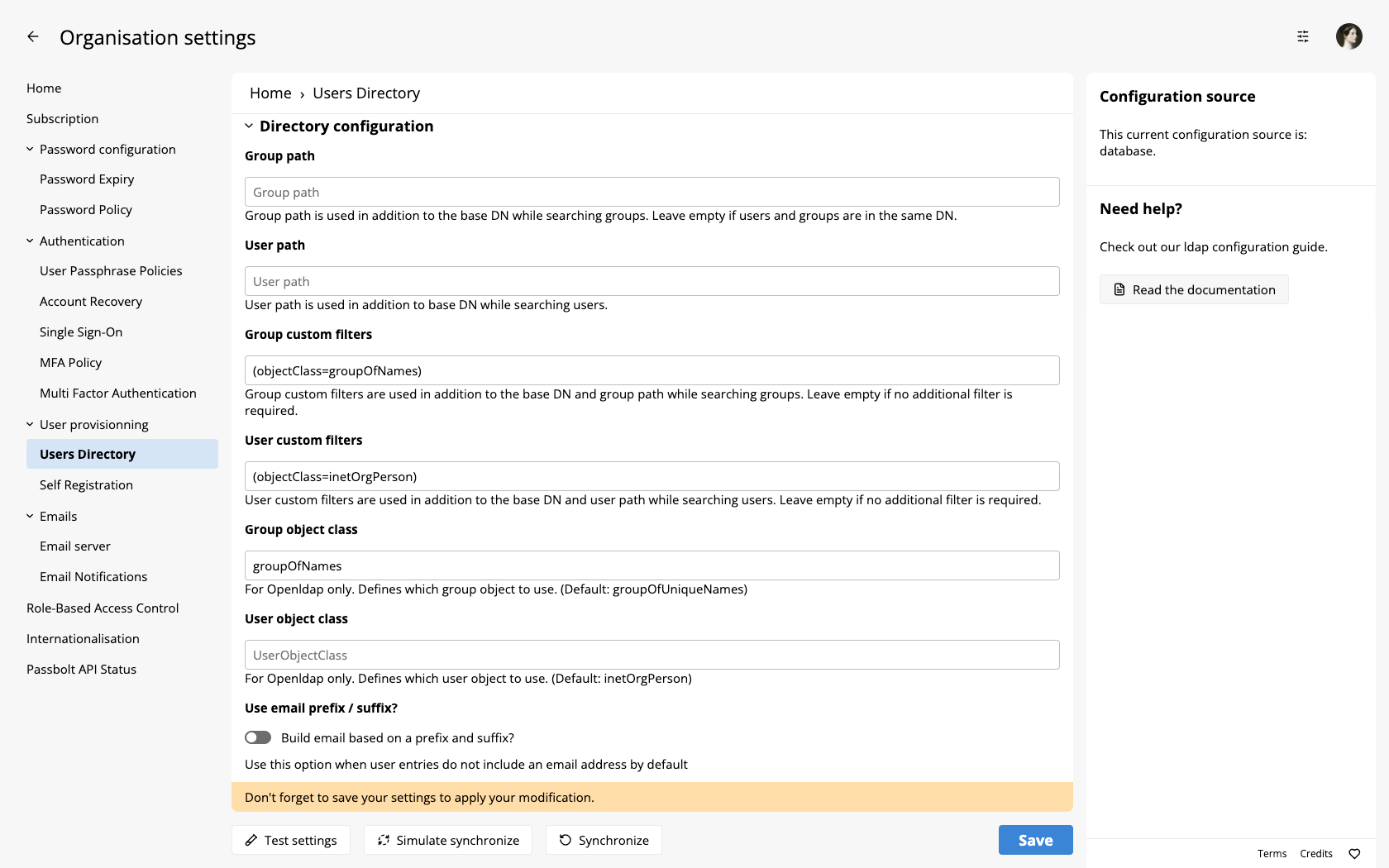
These fields will accept standard LDAP query syntax. This is useful if you need just a few groups/users or wish to exclude one which may have normally been synchronised. These fields provide more flexibility when interacting with more complicated directory structures. Some examples of the expected syntax are:
(memberof=cn=somegroup)- This would be for the users filter for members of "somegroup"
(|(cn=admins)(cn=testers))- This would be for the groups "admins" or "testers"
(uid=*smith*)- This would be for any user with "smith" in their uid
Optional server tooling
For testing purpose, it might be handy to have some ldap utilities installed on your system. On Debian you can use ldapsearch for example to search for and display entries:
sudo apt-get install ldap-utils
ldapsearch -b'dc=example,dc=com' -x