
4 min. read
Bring Passbolt secrets into command-line workflows with Go CLI
Discover how Passbolt Go CLI helps developers and IT teams securely access secrets from the command line and integrate them into operational and automated workflows.


Good news everyone: Offline Mode is out before GTA VI!
It only took seven years.

The request was simple: keep critical credentials accessible when Passbolt is not. But delivering it meant rethinking how authentication, synchronisation, local storage, permissions and security should work without a live server.
With Passbolt 5.16, Offline Mode (Beta) finally closes that gap by allowing authorised users to pre-select credentials for offline access, while also giving organisations control over who can use it and for how long.
Here’s the story of what it took to make Offline Mode possible: the architectural changes, security considerations, engineering decisions and testing behind the first Beta.
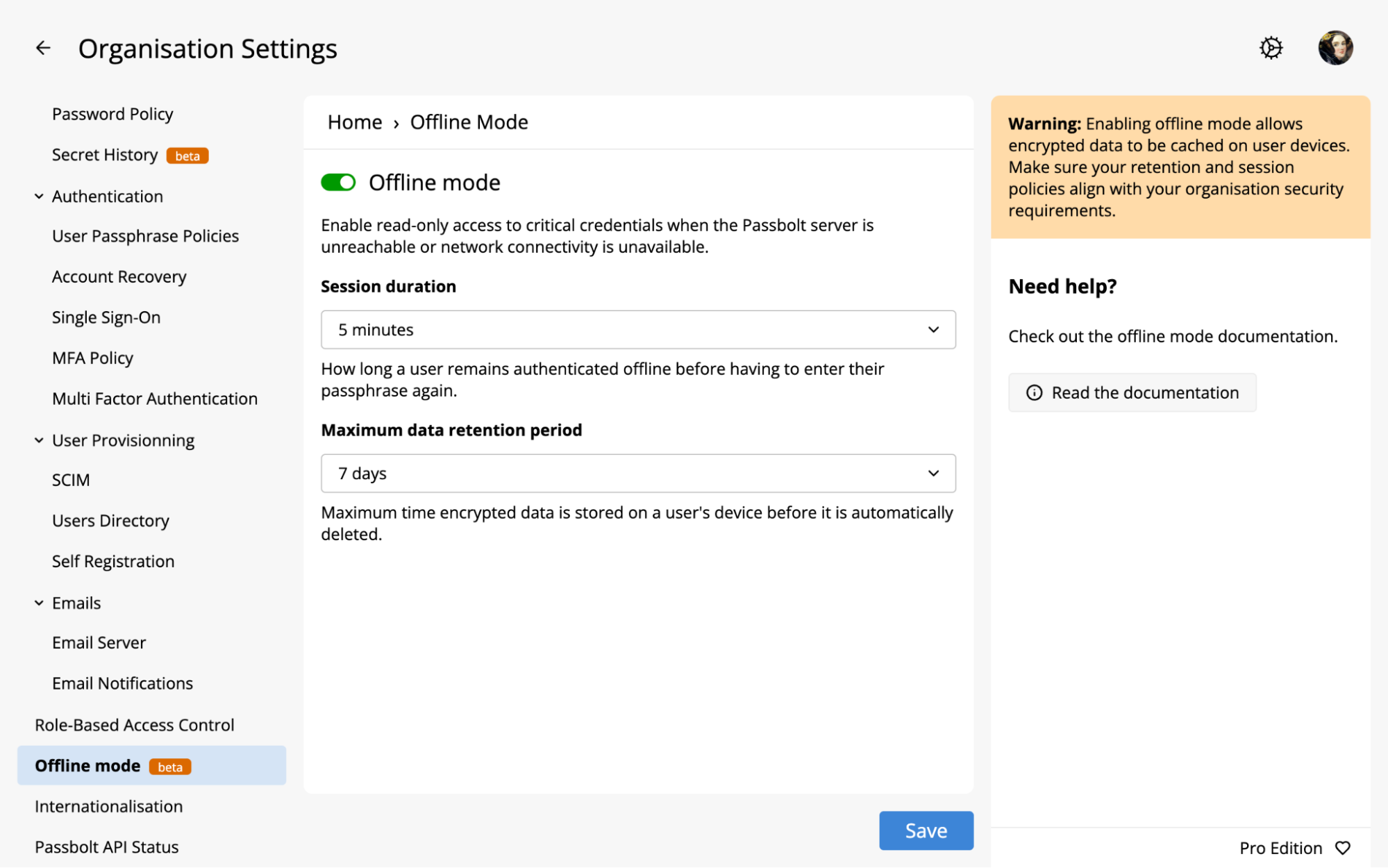
An administrator enables Offline Mode in Organisation Settings and assigns the related RBAC actions to roles that determines which user is eligible. Each eligible user then needs at least one server-authenticated login so the browser extension can detect and store their eligibility.
While signed in online, eligible users can select “Make available offline” on individual resources. The server registers each selected resource, and the browser extension caches it locally, in encrypted form.
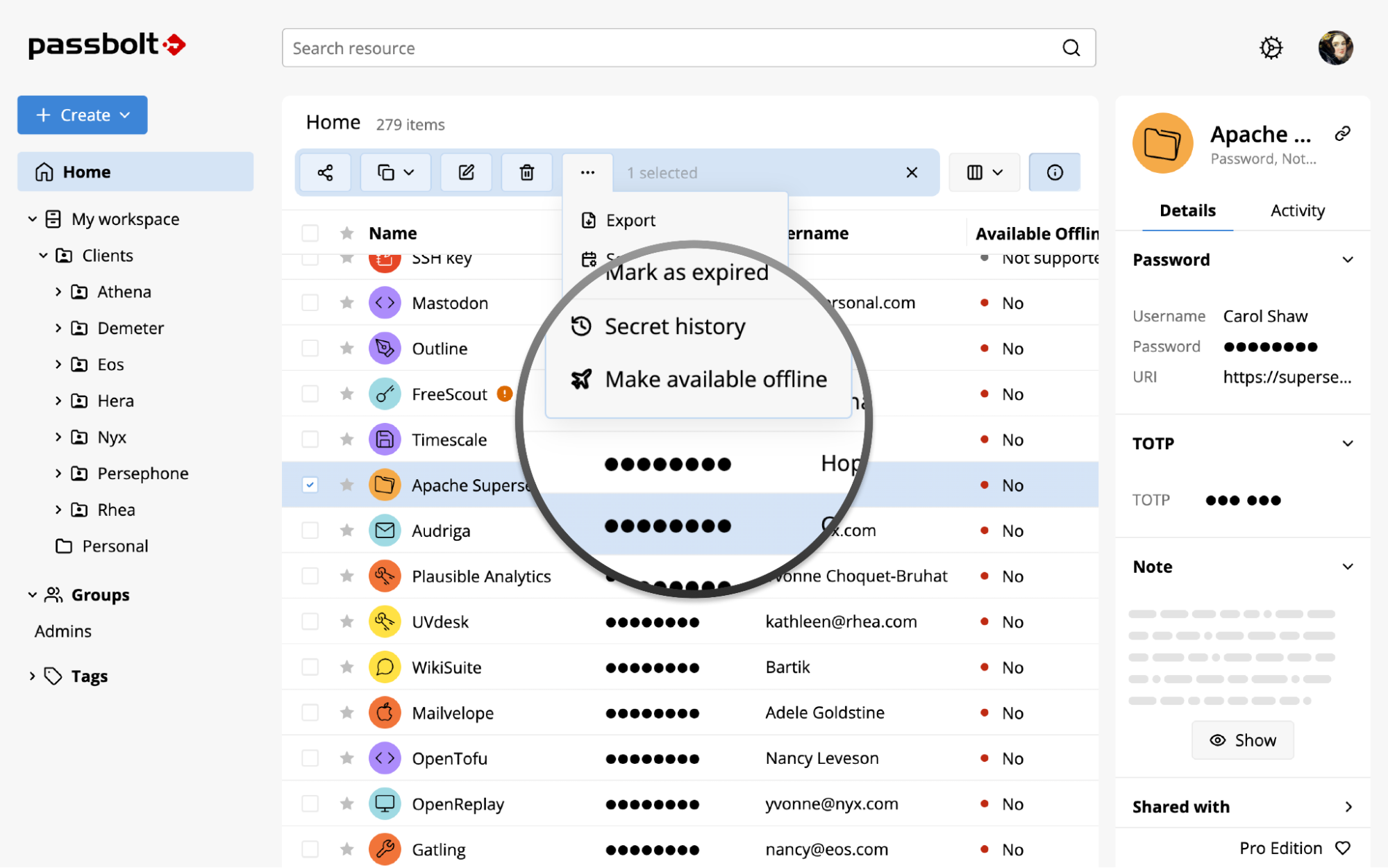
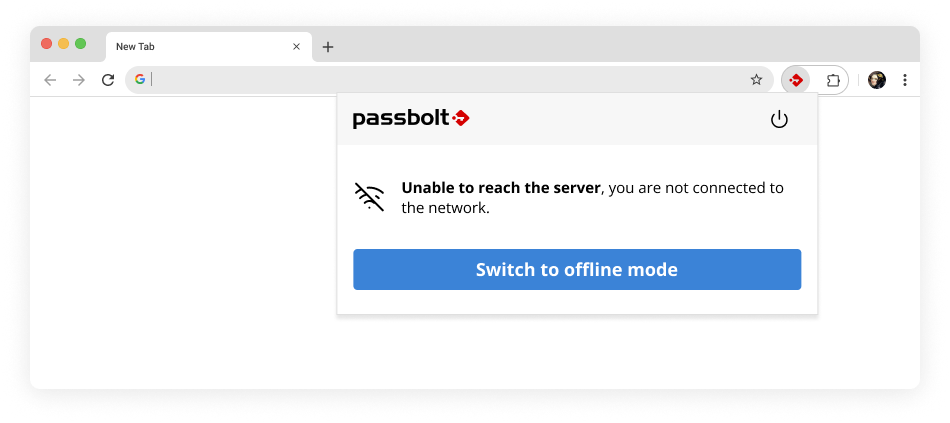
If the server becomes unavailable during an active session, Users can either choose the “Switch to Offline Mode” option ending the current online session, or simply log out. Users who aren't signed in see the “Use Offline Mode “ option instead. Offline Mode is read-only, so users can view their saved resources but can't create or edit any.
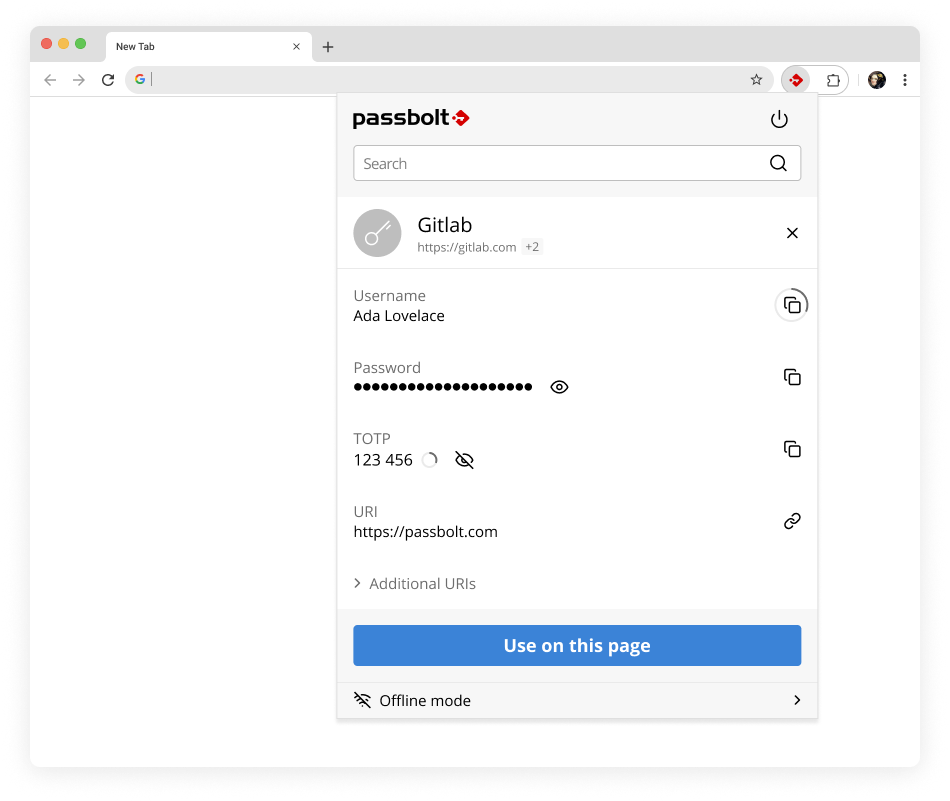
Offline Mode is read-only, so users can view their saved resources but can't create or edit any. Each offline session lasts 5 minutes by default, after which the passphrase is required again. Cache data only updates during an online session, so any changes made in the meantime, such as edits to a resource or its permissions, show up after the next sync.
After 7 days without a server connection by default, cached data is treated as stale and removed. Passbolt Pro Edition administrators can configure both the session duration and the retention period.
The QuickAccess footer shows the remaining session time, the retention period and the last online sync.
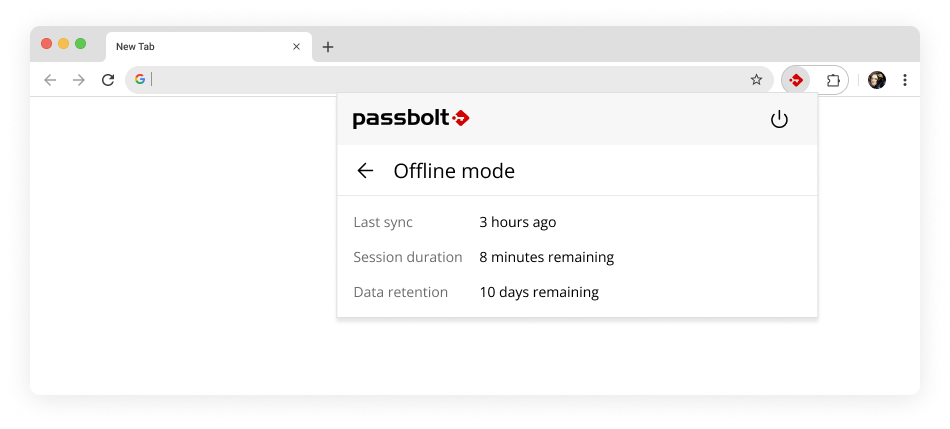
When the connection returns, users switch back by selecting “Go back online” in QuickAccess.
Offline Mode stores selected credential data on the endpoint to make it accessible without the server, but this shifts some security controls from the server to the device. Hence, strong authentication, auditability, session duration, data retention, immediate revocation and endpoint security are important considerations.
Resource metadata, secrets and metadata private keys are encrypted in the browser's private storage (OPFS). Tags, permissions and other associated metadata are stored locally in plaintext, which makes device and browser-profile security part of the organisation's security boundary.
Every offline system shares one security trade-off: a device that can't reach the server can't receive its changes. This means a deleted or suspended user can still open resources already cached there, until the retention period expires, and local data is cleared on the next online sync.
Passbolt’s Offline Mode is designed to keep that exposure narrow and bounded:
From the start, Passbolt was built to work online. This kept credentials secure and made it easy to keep shared resources and permissions in sync. But it also meant that storing data locally was a fundamental blocker.
With version 4 resources, the data needed for offline access was not encrypted in a way that made local storage safe. Once resource metadata became encrypted, and could be stored on the device safely, Offline Mode finally became possible to build!
This only solved part of the problem. Without the server, core functions like authentication, authorisation, keeping the cache up to date and protecting data at rest all had to work differently.
To make Offline Mode work, the team had to:
The previous session experience let users choose their own offline session duration. This was simplified so every offline login uses the duration set in the Offline Mode settings. The QuickAccess footer was also redesigned to make the offline state clearer, including whether the server is reachable.
Some of the hardest work happens behind the scenes: when users move between online and offline states- authentication, cached data, and metadata keys must stay consistent even if a shared resource is changed from another device or by another user.
Offline Mode creates authentication journeys that did not previously exist, and needed to work without introducing regressions into the existing online flows.
Unit tests and dedicated test cases cover every path users can take through the feature. The most sensitive area has been testing online and offline sessions in combination, with and without MFA required.
The first release is Beta because Offline Mode has not yet undergone its Cure53 security audit. It is intended for testing on non-production instances while validation is in progress.
The Beta also helps to test the feature in practical conditions that are otherwise difficult to reproduce fully in development. This includes actual outages, cache flushing after the maximum retention period, browser disk pressure, clock changes, and profile synchronisation.
Feedback from administrators and security teams will be particularly valuable before the feature moves beyond Beta!
Offline Mode is expected to expand to other resource types already supported by QuickAccess, including PIN codes, notes, and custom fields. Further security hardening is also part of the work ahead.
With Passbolt 5.16, Offline Mode moves from design into real-world conditions. What happens during this Beta, from security validation to how organisations rely on it during actual outages, will define the next phase.
4 min. read
Discover how Passbolt Go CLI helps developers and IT teams securely access secrets from the command line and integrate them into operational and automated workflows.

6 min. read
Meet the people behind Passbolt Support in this ongoing series. Starting with Antony, Lead Support Engineer for EMEA, take an inside look at how the team troubleshoots complex issues, works across teams, learns from customers, and thinks about the role of AI in support.

 Made in Europe. Privacy by default.