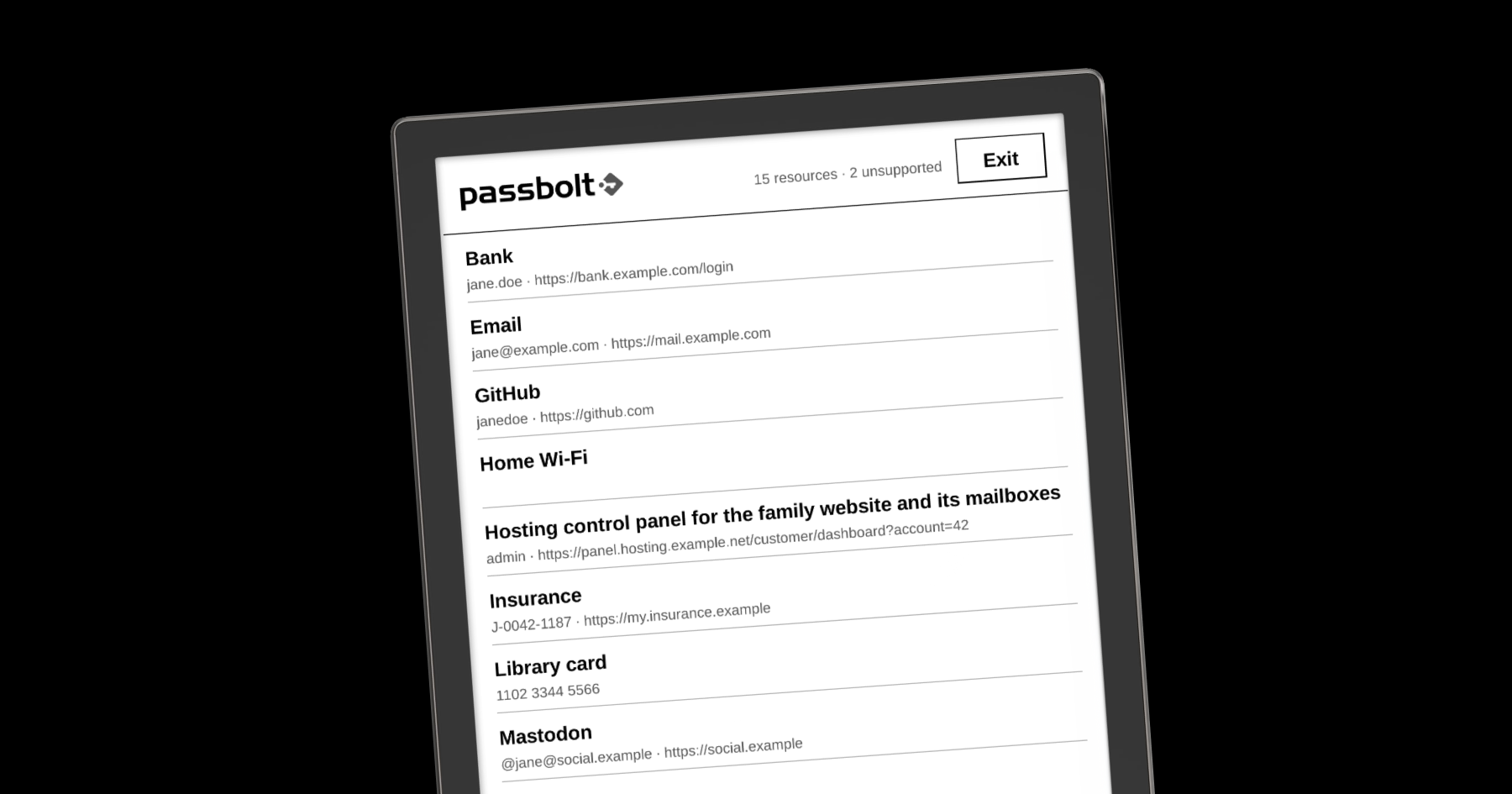
For episode two of running Passbolt on the strangest devices, we picked something made for reading novels: a PocketBook InkPad 3.
Passbolt doesn't support its browser, and the browser doesn't allow extensions to be installed. Most people would take the hint. We decided to build a client instead!
There is a useful reason to try: Passbolt’s browser extension and mobile apps cover most everyday needs, but some teams need credentials inside an internal tool, a backend service, a kiosk, or a device with its own operating system.
For Go developers, go-passbolt offers a way in without building the cryptography from scratch. It's this library behind the Passbolt Go CLI that handles server verification, authentication, encrypted resource metadata and secret decryption, so an application doesn’t have to implement OpenPGP itself.
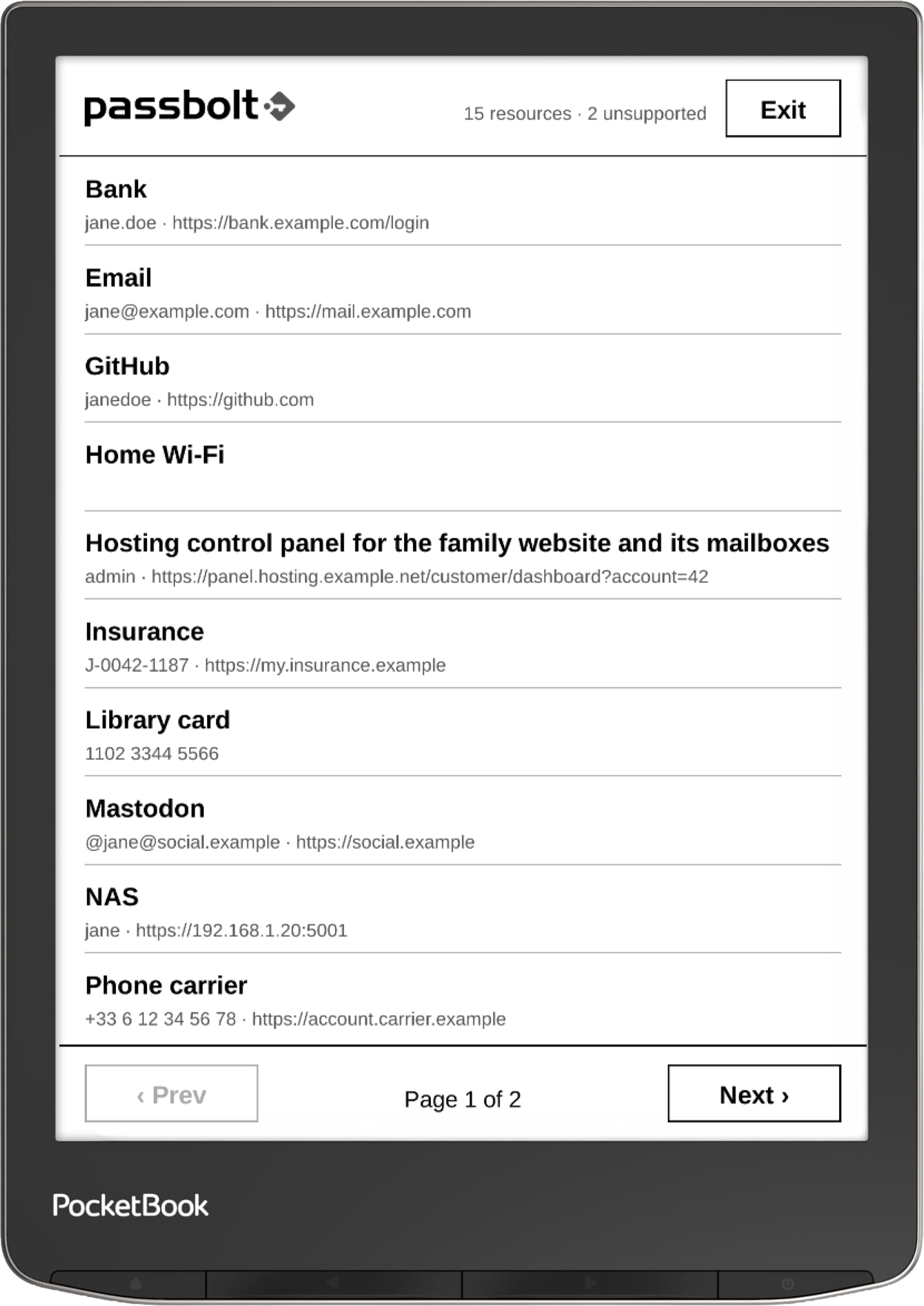
An e-reader has an ARM processor, an e-ink screen and its own C toolchain. We built an app that verifies the server, logs in, lists the user’s resources and decrypts a password on tap.
Keep Passbolt in a plain Go package
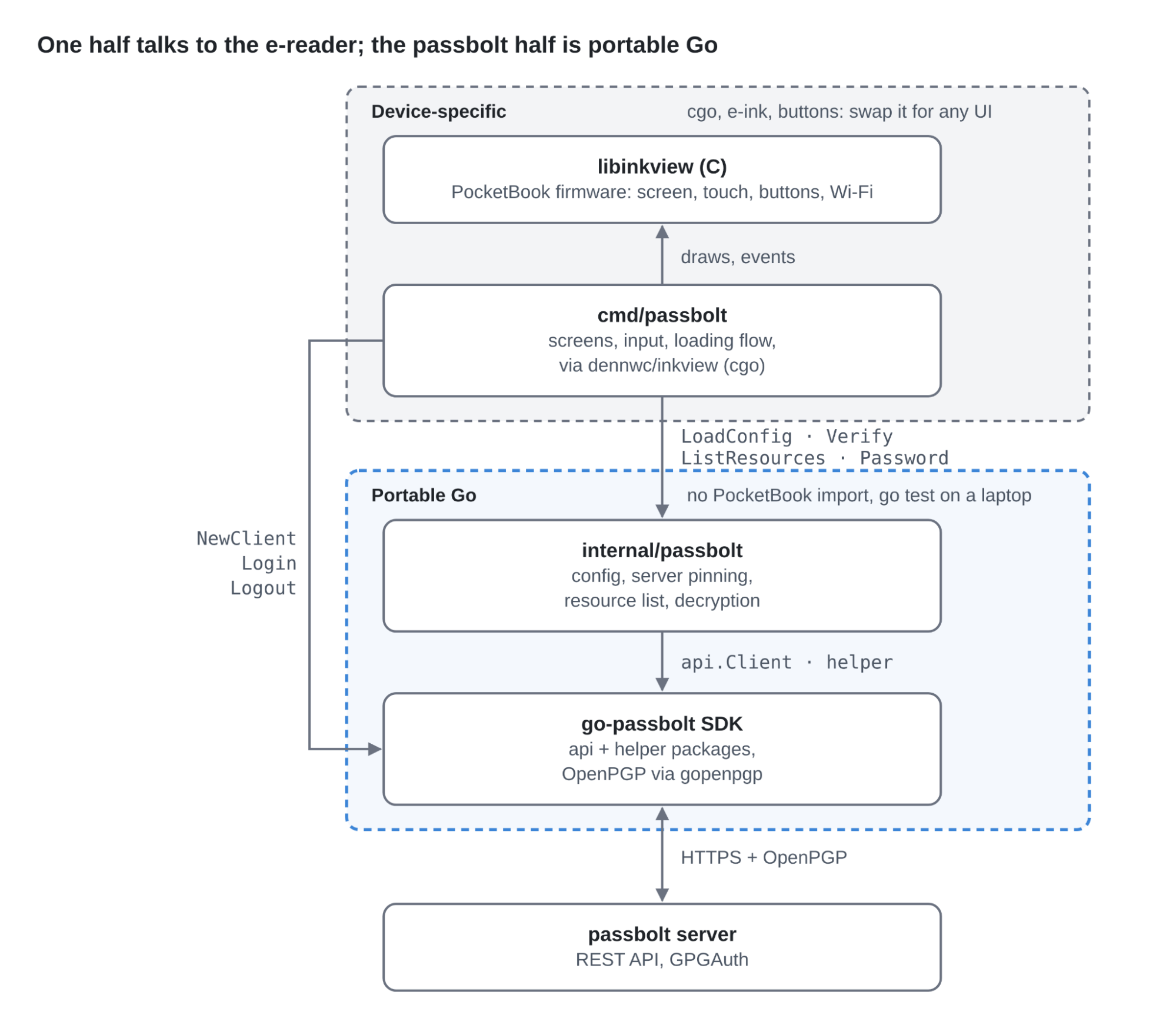
The app has two parts. One talks to the PocketBook: it draws screens and handles taps and buttons with the device’s UI library. The other handles Passbolt and imports nothing from PocketBook.
Keeping the two parts separate means we can test the Passbolt code on the laptop, and reuse it in other Go applications without changing it.
Fig. 2 parts of the app
Almost all the Passbolt logic lives in one Go file of about170 lines. It builds and runs its tests on a laptop, without the e-reader. The same package could sit behind a command-line tool, an HTTP handler or a background job without a rewrite.
Cross-compile without extra work
The SDK and the OpenPGP library it uses are written in pure Go. Unlike the Nintendo 3DS experiment, there’s no need to translate Go through WebAssembly and C just to run the Passbolt part.
A Docker image is required with PocketBook’s toolchain, but only to build the C-based interface. The Passbolt code compiles for ARM as ordinary Go.
Hence. if Go can build for your target, the SDK can too: Linux on ARM, Windows, macOS or a minimal container. No PocketBook required.
The password ghost in the e-ink screen
The app downloads resources with their secrets still encrypted. It decrypts a password only when the user opens that resource, and never writes passwords to disk or to the log file.
But e-ink brings a problem you don’t usually worry about on a phone or laptop: ghosting.
An e-ink screen forms its image by moving tiny black and white particles inside each pixel. To stay fast, most updates only move the particles of the pixels that change, but some particles don’t return all the way. The previous image then stays faintly visible under the new one, as a “ghost”.
This is a harmless little bug when you’re reading a novel but slightly more concerning when it’s a secret that decides to stick around.
So when the user leaves a password, the app clears it and does a full refresh: the screen briefly flashes to reset every pixel, and no trace of the password stays on the display.
Getting started: six steps to a working client
The e-reader app follows the steps below, each requiring just one SDK call. Together, they cover everything needed for a complete read-only Passbolt client.
1. Add the SDK
go-passbolt is a regular Go module with two packages: api for the passbolt API, and helper for common tasks built on top of it.
go get github.com/passbolt/go-passbolt
2. Create a client
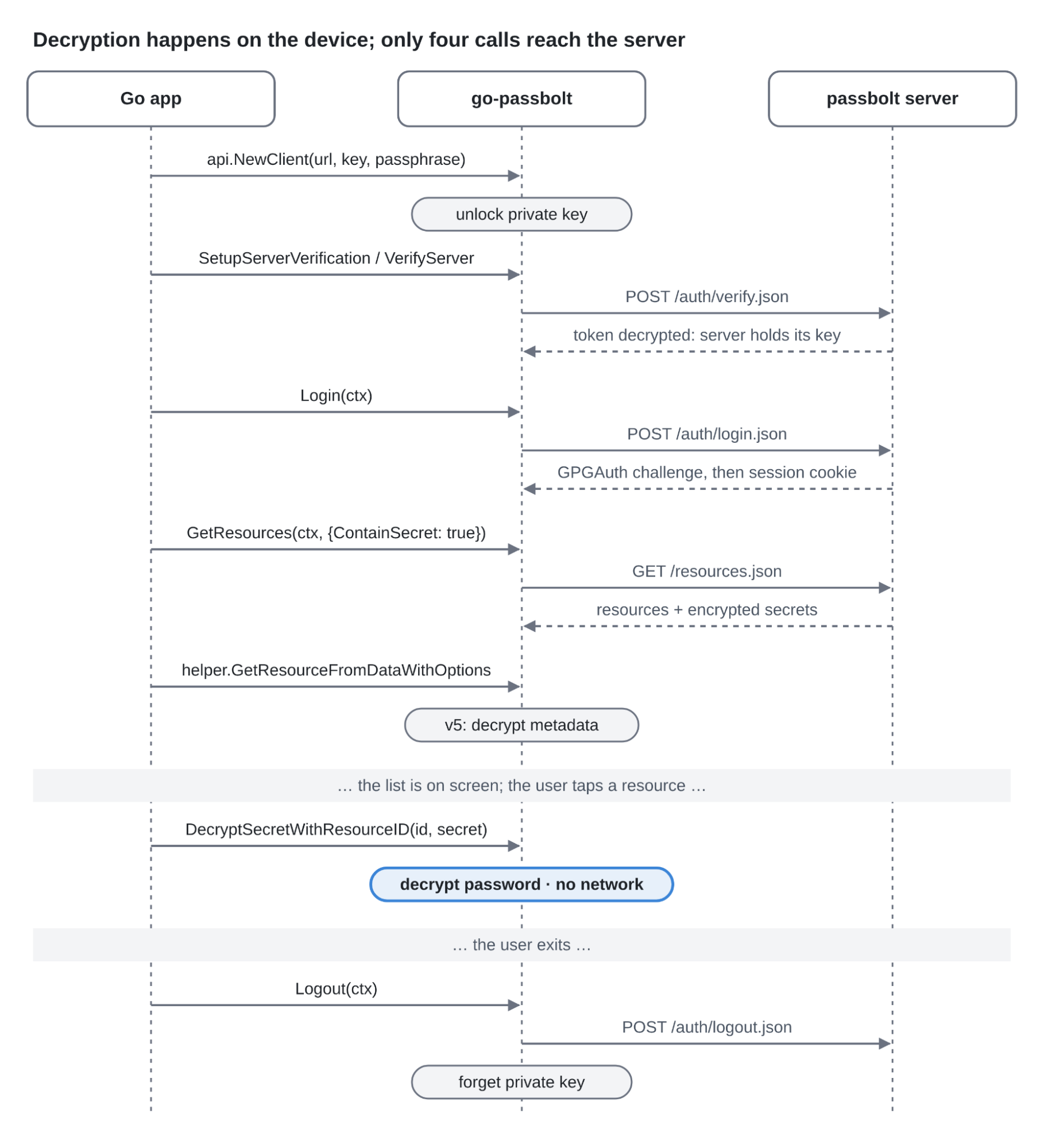
api.NewClient takes the server address, the user's armored private key and its passphrase, then unlocks the key. Its first argument accepts any *http.Client, which keeps timeouts, proxies and TLS settings in the app's hands.
On the first connection, SetupServerVerification encrypts a random token with the server's key and checks that the server can decrypt it. The app saves the result, and every later run calls VerifyServer to repeat the check before logging in. If the server's key ever changes, the app stops right there.
token, encToken, err := client.SetupServerVerification(ctx) // first run
err = client.VerifyServer(ctx, token, encToken)           // later runs
4. Log in and list resources
Login authenticates with the user's key. A single GetResources call then returns every resource the user can access, with the secrets still encrypted.
5. Read v4 and v5 resources the same way
passbolt v5 encrypts resource metadata as well. The helper package detects the resource type, decrypts the metadata when needed, and hands back the name, username and URI as plain strings. Resource types the SDK doesn't support come back as a typed error, so the app can simply skip them.
Logout ends the session and clears the private key from the client. Every SDK call that touches the network takes a context.Context, so the SDK fits naturally with goroutines, timeouts and cancellation.
err = client.Logout(ctx)
Before shipping something similar
The e-reader app is an experiment, not a production client. It takes two shortcuts a real integration shouldn’t: it stores the passphrase on the device and skips TLS certificate checks.
A production version should ask for the passphrase at startup and keep normal TLS verification enabled. The SDK uses the HTTP client you pass in, so neither shortcut is required. Secrets and metadata remain end-to-end encrypted either way.
Where to start
For software already written in Go, the best first project is the workflow the team repeats most often, wrapped in a small package of its own.
Here is the fullGo SDK documentation covering the full API, including creating and sharing resources.
The complete source of the e-reader app is available on Github.
That’s a wrap (for this device)
An e-reader built for novels now opens a Passbolt vault. The Go SDK stayed unchanged, and integrating Passbolt took about 170 lines of Go code, excluding the e-reader-specific code.
The useful takeaway for developers? Adding Passbolt to an existing Go project doesn't require building password management functionality from scratch.
Passbolt credential on Pocketbook Inkpad screen
Two unlikely devices later, we are nowhere near running out of strange ideas. Stay tuned for the next episode of running Passbolt on devices that never asked for it.
In the meantime, have you run Passbolt on an equally unlikely device? Share your setup, how you made it work, and a photo on the Passbolt community forum.
Who knows? Your experiment might inspire our next episode.