Making autofill improvements: Tackling the complexity of modern web
6 min. read
Passbolt team
29 October, 2026
A search box is a perfectly good place to look for a customer record. Less so for a password manager icon. Yet on one CRM page, Passbolt's previous autofill algorithm matched with unrelated search inputs, turning a useful shortcut into an unnecessary distraction.
And that was only one part of the challenge. Modern login forms can appear after a button is clicked, hide inside custom components, or skip conventional HTML structures altogether.
WithPassbolt 5.17, autofill gets better at navigating this complexity. The updated algorithm recognises more login forms and reduces unwanted suggestions, making everyday sign-ins smoother.
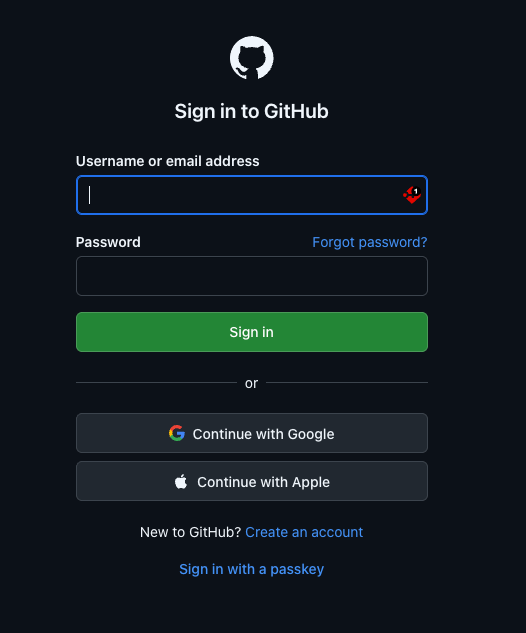
On the webpage, the result looks simple enough: the Passbolt icon appears on the right fields, ready to fill credentials.
Getting there, however, meant rethinking how Passbolt detects, classifies, and selects fields, and testing the approach across real websites.
Why modern login forms became harder to detect
Passbolt's previous autofill algorithm relied on HTML attributes such as type and autocomplete, alongside values in name, id, and other attributes, to identify potential credential fields.
This approach worked reasonably well with conventional HTML forms. But modern websites have found plenty of creative ways to build a login page, some of them don't even use HTML <form> elements.
JavaScript frameworks and single-page applications can generate, replace, or reveal forms long after a page loads, often without any navigation. Web Components and Shadow DOM isolate parts of a page, sometimes to keep their styles independent or restrict access by other scripts. Cross-origin iframes introduce additional security boundaries, preventing the parent page from directly inspecting their contents.
Also, web standards aren't always followed to the letter. Attributes may be missing or contain non-standard values, such as autocomplete="password" instead of the standard current-password. Labels aren't necessarily placed next to their inputs, or even properly linked to them.
Multi-step authentication adds another complication. An email field on its own could belong to a login flow, a newsletter signup, or a contact form. Its purpose becomes clearer only when the surrounding context is considered.
Why more detection rules led to more false positives
While some login fields went undetected, the previous algorithm could also be a little too enthusiastic, flagging unrelated inputs as credential fields. A page full of text inputs with "name" in their placeholders, for example, displaying Passbolt icons across all of them. On complex pages, the algorithm could match hundreds of fields.
Adding a selector might solve one website's problem, only to create unwanted matches elsewhere. So the old approach had reached its limits. Passbolt replaced its selector-driven matching logic with a more context-aware approach, evaluating fields according to their purpose and the forms they belong to.
How Passbolt autofill works today
The updated algorithm follows three stages: detecting forms and fields, classifying their purpose, and selecting the right inputs for autofill.
1. Detecting forms and fields
The first step is finding the fields, wherever a website has decided to put them.
Passbolt traverses the page to discover shadow roots and locate forms and inputs. This includes handling closed shadow roots, whose contents aren't directly accessible through standard DOM traversal.
Since modern webpages constantly change, detection also needs to account for fields that appear after the initial page load. Passbolt attaches MutationObservers to the main DOM and every discovered shadow root. These track changes across the page, allowing newly introduced fields to be detected, such as when clicking a login button opens a dialog.
Observing and traversing all these elements can quickly become resource-intensive. To keep the process efficient, Passbolt uses caching backed by WeakMaps to track previously processed shadow roots and elements, avoiding repeated traversal of the same page structures. Weak references also allow cached entries to be garbage-collected when their keys are no longer referenced elsewhere, helping prevent memory leaks.
Once the relevant structures are discovered, Passbolt collects HTML input elements based on their type, autocomplete value, and visibility on the page. It also identifies HTML <form> elements and associates each input with the form it belongs to.
But what happens when there's no form?
Inputs outside conventional <form> elements, known as orphans, are grouped geometrically according to their position on the page. These clusters become pseudo-forms, allowing the rest of the process to work the same way whether a website uses an actual HTML form or not.
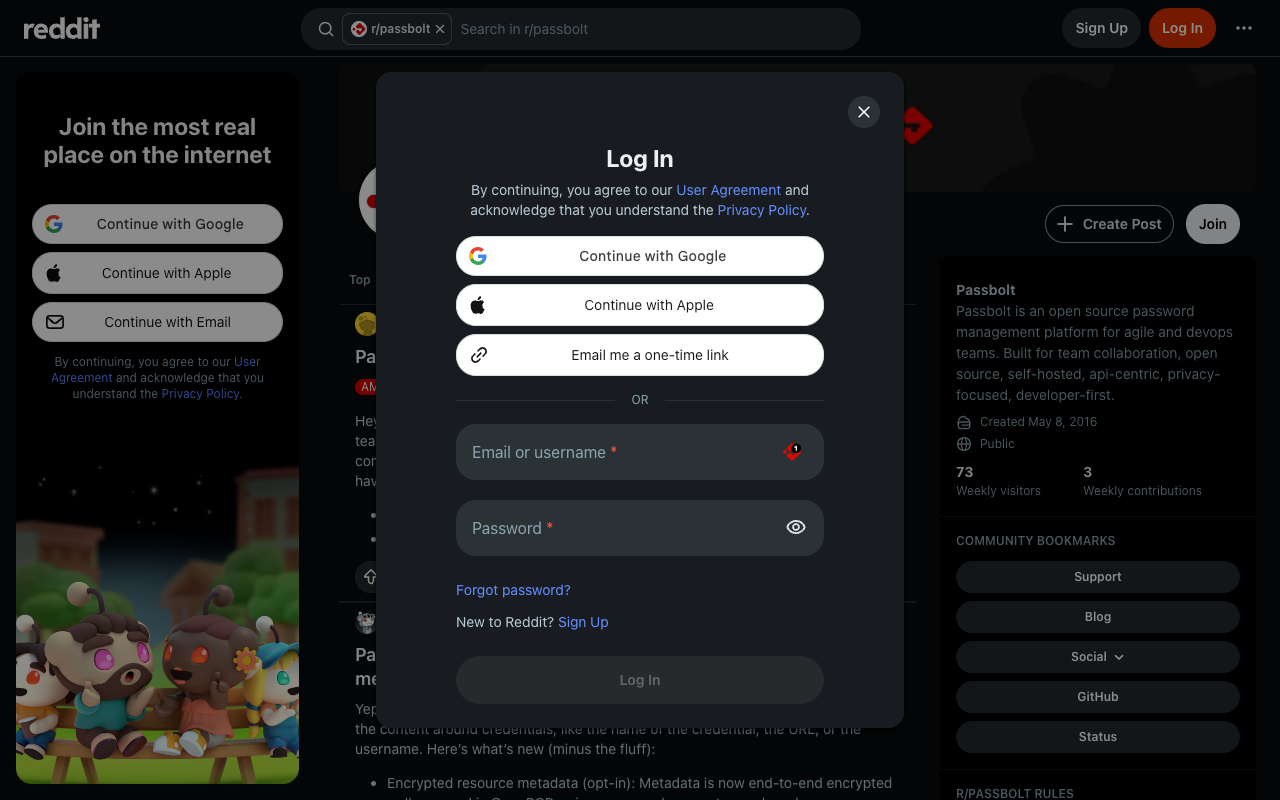
Fig. Login page before the sign-in dialog opens.
Fig. Dynamically loaded login dialog with Passbolt icons on the detected credential fields.
2. Classifying fields
Once the fields are grouped into forms or pseudo-forms, Passbolt determines their likely purpose: username/email, password, or time-based one-time password (TOTP).
The algorithm prioritises technical signals provided by the website developer, as these are generally the most reliable. For example, autocomplete="current-password" explicitly indicates that a field expects an existing password.
Passbolt also compares attributes such as name and id against predefined keywords.
Next come the human-facing clues: field labels, form headings, and surrounding context. A field labelled "Username", for instance, is very unlikely to expect a password.
Combining these signals helps Passbolt classify fields more accurately, including cases where technical attributes alone don't provide enough information.
3. Selecting the right fields: rationalization
With the fields collected and classified, a final decision remains: which ones should actually be used for autofill?
A password confirmation field, for example, shouldn't be confused with the current password field. Neither should a search box be mistaken for a username input.
This step is called rationalization. Using the information gathered during detection and classification, Passbolt filters the candidates down to one username field and one password field per form, whenever possible. The final selected fields display the Passbolt icon, ready for users to fill in their credentials.
Security safeguards remain in place
The updated autofill algorithm retains Passbolt’s existing security protections around credential entry and interaction with the autofill icon.
For example, Passbolt monitors the icon, the call-to-action (CTA) displayed within login fields, for potential tampering. If something attempts to move, hide, or cover it, Passbolt can remove the icon rather than risk an unsafe interaction.
Passbolt also verifies that a click intended for the autofill icon reaches the icon itself, rather than a transparent layer that may have been placed over it.
These safeguards remain in place as autofill detection expands across more complex webpage structures.
The real test: The wonderfully unpredictable web
A well-designed algorithm still needs to survive contact with real websites.
Testing the updated autofill logic required a diverse collection of URLs spanning different frameworks, languages, contexts, and form structures, including Shadow DOM, iframes, custom containers, and inputs outside conventional forms.
Finding enough variety was a challenge in itself. After all, how can a login form structure be tested if it hasn't even been encountered yet?
And testing was (surprisingly) hands-on😧.
Across dozens of websites, Passbolt's developers manually checked whether:
A login form was actually present, sometimes on pages in unfamiliar languages.
The Passbolt icon appeared on the appropriate fields.
Autofill worked when triggered through the icon.
Autofill also worked from the extension menu.
Website performance remained unaffected.
Each test failure required root-cause investigation, a fix, and another round of testing to check for regressions. This cycle continued over several days.
The original technical approach held up well throughout development, thanks to initial analysis Most refinements came from adapting the algorithm to website patterns uncovered during testing.
What has improved so far, and what's next?
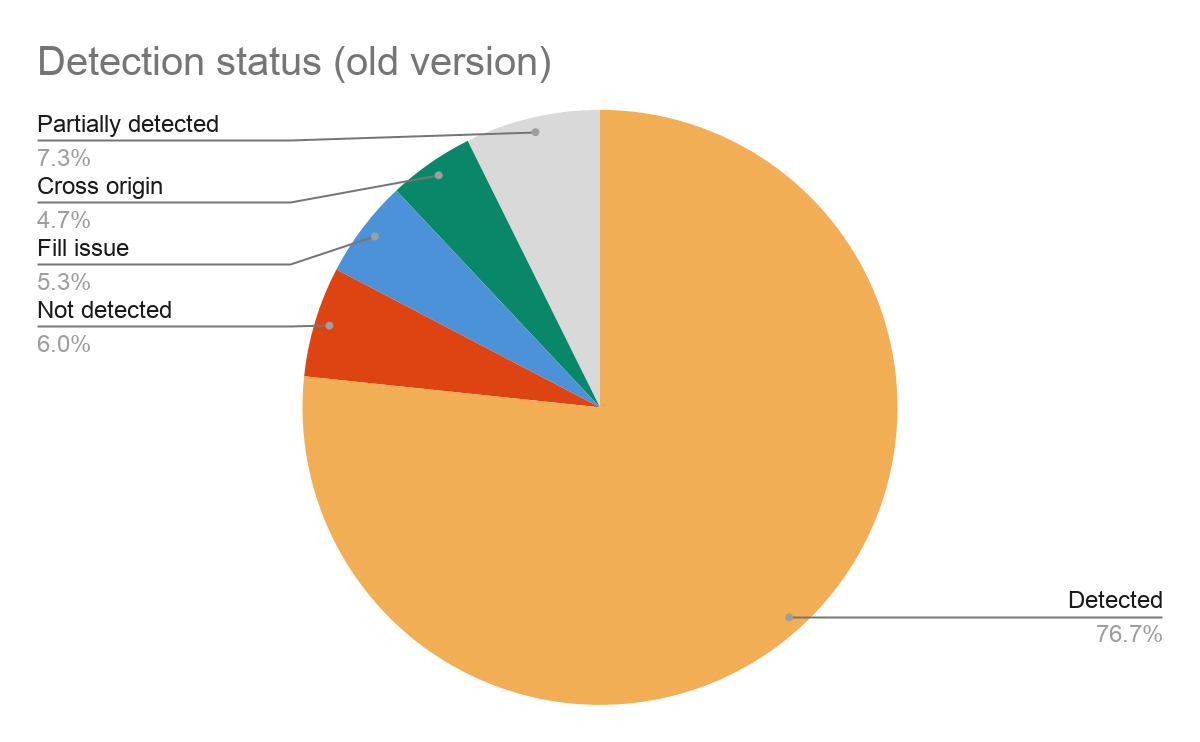
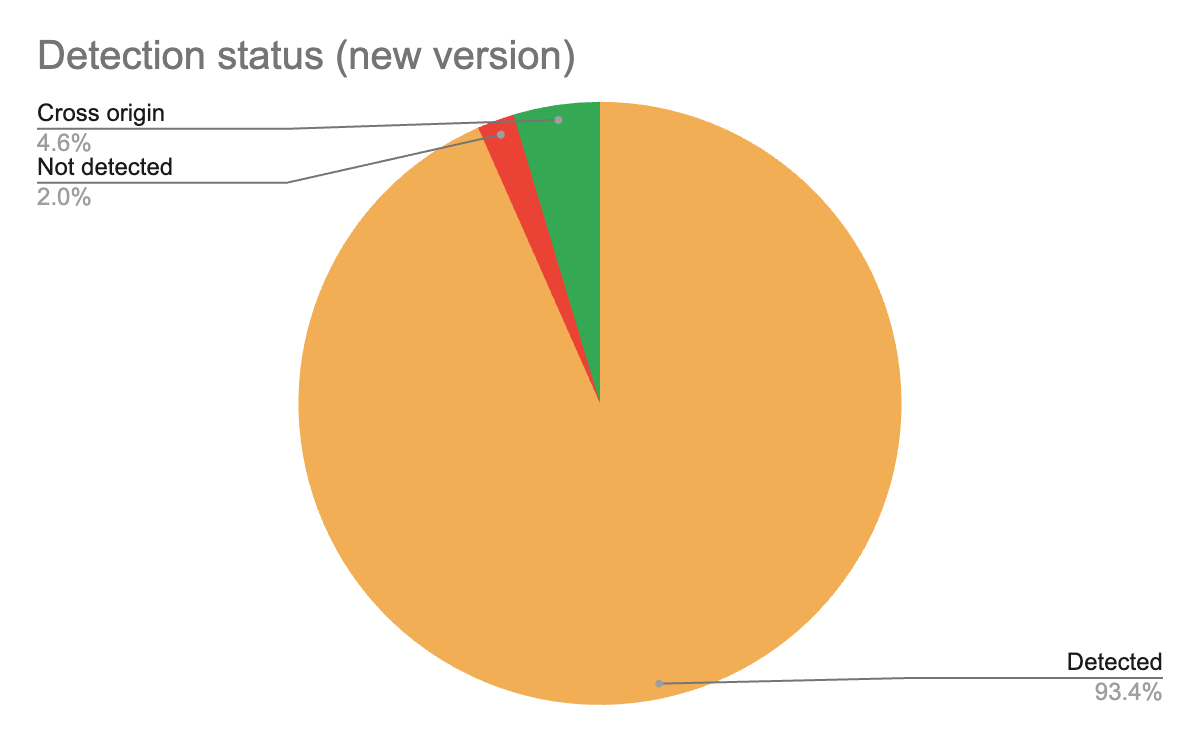
The results are encouraging. Across the evaluated test cases, Passbolt's updated autofill algorithm delivered:
20% more recognised forms, extending autofill coverage across different login structures.
Elimination of the false positives observed during testing, reducing irrelevant autofill icons.
Fixes for interaction issues, including cases where the Passbolt icon appeared but couldn't be clicked.
Fig. Autofill detection status in oldversion
Fig. Autofill detection status in new version
One particular area for future improvement is the positioning of the Passbolt icon within input fields, particularly where it can overlap existing controls, such as password-reveal buttons, or appear outside the intended field.
Fig. Tested login page showing the Passbolt icon correctly positioned within the appropriate input field.
As the web evolves, real-world testing will guide Passbolt's autofill improvements, keeping sign-ins simple.