Why are my emails not being sent?
Why are my emails not being sent?
This can come from a variety of reasons, here are the most common ones.
Reason 1: Configuration issues
There may be an issue with some of the SMTP configuration items, such as credentials, or the hostname, or the port for the selected protocol.
By default passbolt is quite discrete on why a given configuration is not working. You can use the following command to send a test email and get more debug information (replace www-data with nginx if you are running a RHEL-like server, or wwwrun in case you are using OpenSUSE):
sudo -H -u www-data bash -c "/usr/share/php/passbolt/bin/cake passbolt send_test_email [email protected]"
If this fails you should double check what is the recommended configuration in your email provider documentation. You can also ask on the community forum in case another user have a working configuration for the same provider.
Running these commands on Docker
On the official Docker image, run the commands on this page against the passbolt compose service, sourcing /etc/environment so the container's environment variables are available. For example, to send the test email:
- CE
- PRO
docker compose -f docker-compose-ce.yaml exec passbolt su -s /bin/bash -c ". /etc/environment && bin/cake passbolt send_test_email [email protected]" www-data
docker compose -f docker-compose-pro.yaml exec passbolt su -s /bin/bash -c ". /etc/environment && bin/cake passbolt send_test_email [email protected]" www-data
On the rootless image, drop the su wrapper and run bin/cake passbolt send_test_email [email protected] directly.
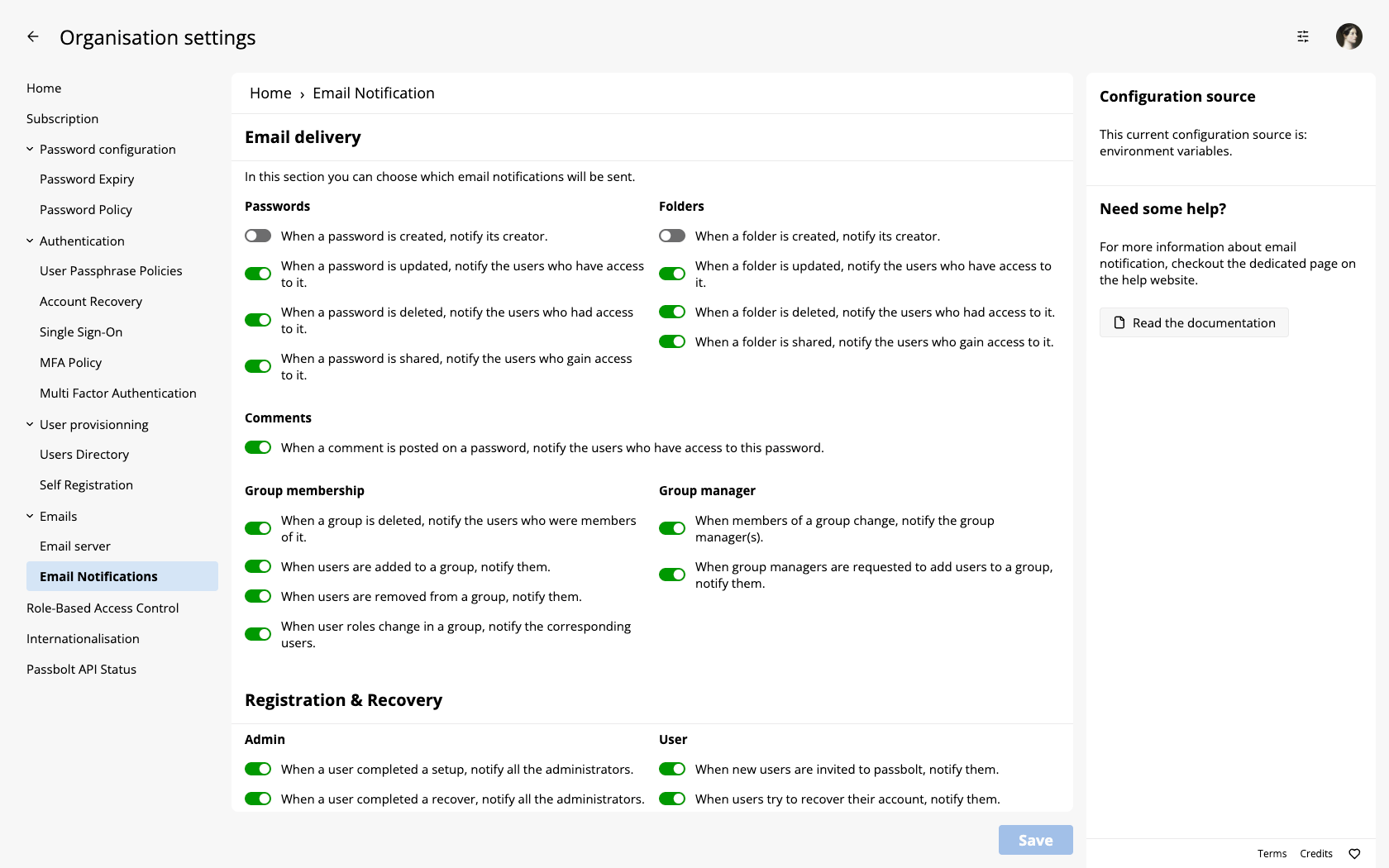
Reason 2: Email notifications are disabled in the config
Another reason could be because email notifications are disabled in your configuration. You can review such settings in the administration panel, when you are logged in as an administrator in passbolt.
Reason 3: The cron system is stopped
passbolt uses a system of email queue to send email notifications. A dedicated cron job (located in /etc/cron.d/passbolt-pro-server or /etc/cron.d/passbolt-ce-server) runs every minute to go through the queue and send emails.
So if you manage to send the test email but are not receiving notifications (such as registration emails), one of the reason may be that the cron service is stopped.
On Docker, the cron job runs inside the passbolt container, so there is no host service to check: look at the container output (docker compose logs passbolt) instead, and process the queue manually to see errors directly:
- CE
- PRO
docker compose -f docker-compose-ce.yaml exec passbolt su -s /bin/bash -c ". /etc/environment && bin/cake passbolt email_digest send" www-data
docker compose -f docker-compose-pro.yaml exec passbolt su -s /bin/bash -c ". /etc/environment && bin/cake passbolt email_digest send" www-data
You can verify if the service is running by executing this command:
sudo systemctl status cron.service
You can also verify cronjobs activity with this command:
sudo journalctl -fu cron.service
Reason 4: There is an issue with the database schema related to the email queue
If after an update you are getting error messages such as:
Exception: SQLSTATE[42S22]: Column not found: 1054 Unknown column 'EmailQueue.to' in 'field list' ...
It is possible that the wrong version of the data model is stored in the cache. This can happen if the cache is not cleared after an install or an update. You can try clearing out the cache to solve this(replace www-data with nginx if you are running a RHEL-like server, or wwwrun in case you are using OpenSUSE).
sudo -H -u www-data bash -c "/usr/share/php/passbolt/bin/cake cache clear_all"
Reason 5: You are using credentials password instead of application password
Some email providers will not let you use the password from your organisation account for security purposes. It means that if you're trying to use the authentication method "Username & Password" it will result in a failure if you are using something other than an application password.
Reason 6: The test email works, but the saved settings are different
The send test email button in the administration interface uses the values currently displayed in the form, even when they have not been saved. The queued notification emails are sent with the saved settings, where settings stored in the database take precedence over environment variables and passbolt.php.
So the interface test can succeed while notifications keep failing, in two common shapes:
- The form was filled in and tested, but never saved: the queue keeps using whatever was configured before.
- The settings were once saved to the database, and were later "changed" through environment variables or
passbolt.php: the database values still win, and the queue keeps using them.
The send_test_email command shown in Reason 1 uses the same saved settings as the queue (database first, then passbolt.php, then environment variables), which makes it the right diagnostic: if the interface test succeeds but the command fails, the saved settings are the problem. Re-save the correct settings in the administration interface.
Reason 7: Implicit TLS (port 465) configured as STARTTLS
There are two different ways SMTP connections are encrypted, and each has its own configuration in passbolt:
| Your provider offers | Port | Host | TLS setting |
|---|---|---|---|
| STARTTLS | 587 (or 25) | smtp.example.com | tls set to true |
| Implicit TLS (SMTPS) | 465 | ssl://smtp.example.com | tls set to null |
Setting tls => true against a port 465 implicit-TLS server typically fails with SMTP timeout. after about 30 seconds: the server waits silently for a TLS handshake while passbolt waits for a plaintext greeting. You may also see SMTP server did not accept the connection or trying to connect to non TLS SMTP server using TLS. The reverse mistake, an ssl:// host against a STARTTLS port, fails with Unable to connect to SMTP server.
On Docker, the same applies to the environment variables: EMAIL_TRANSPORT_DEFAULT_HOST=ssl://smtp.example.com with EMAIL_TRANSPORT_DEFAULT_PORT=465, or a plain host with EMAIL_TRANSPORT_DEFAULT_PORT=587 and EMAIL_TRANSPORT_DEFAULT_TLS=true. See the email server configuration examples for the passbolt.php form.
Listing email queue entries
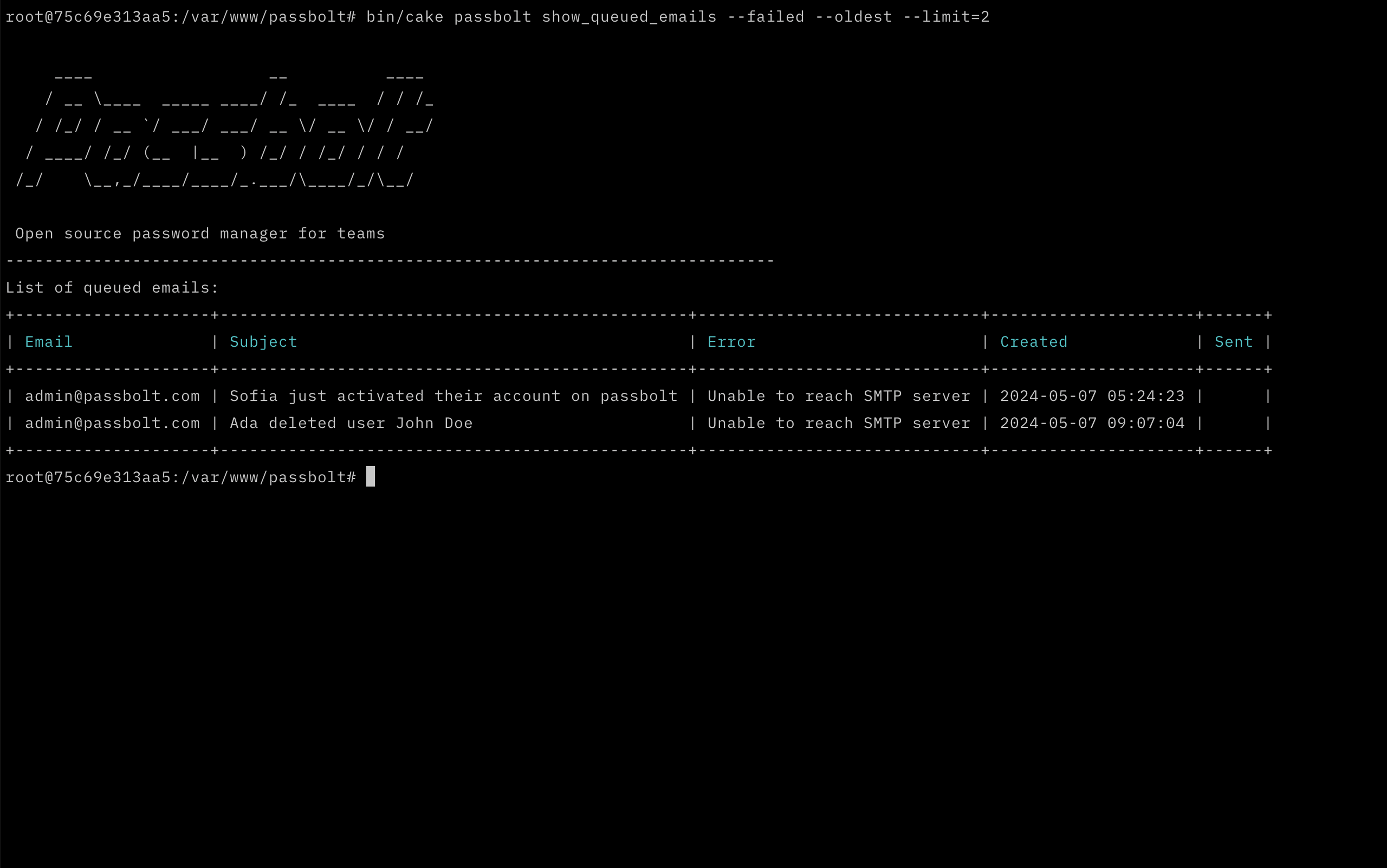
You can use the show_queued_emails passbolt command to display email queue entries from the database. This is useful when there is an issue sending emails as it will output any errors that have been logged with sending emails.
sudo -H -u www-data bash -c "/usr/share/php/passbolt/bin/cake passbolt show_queued_emails"
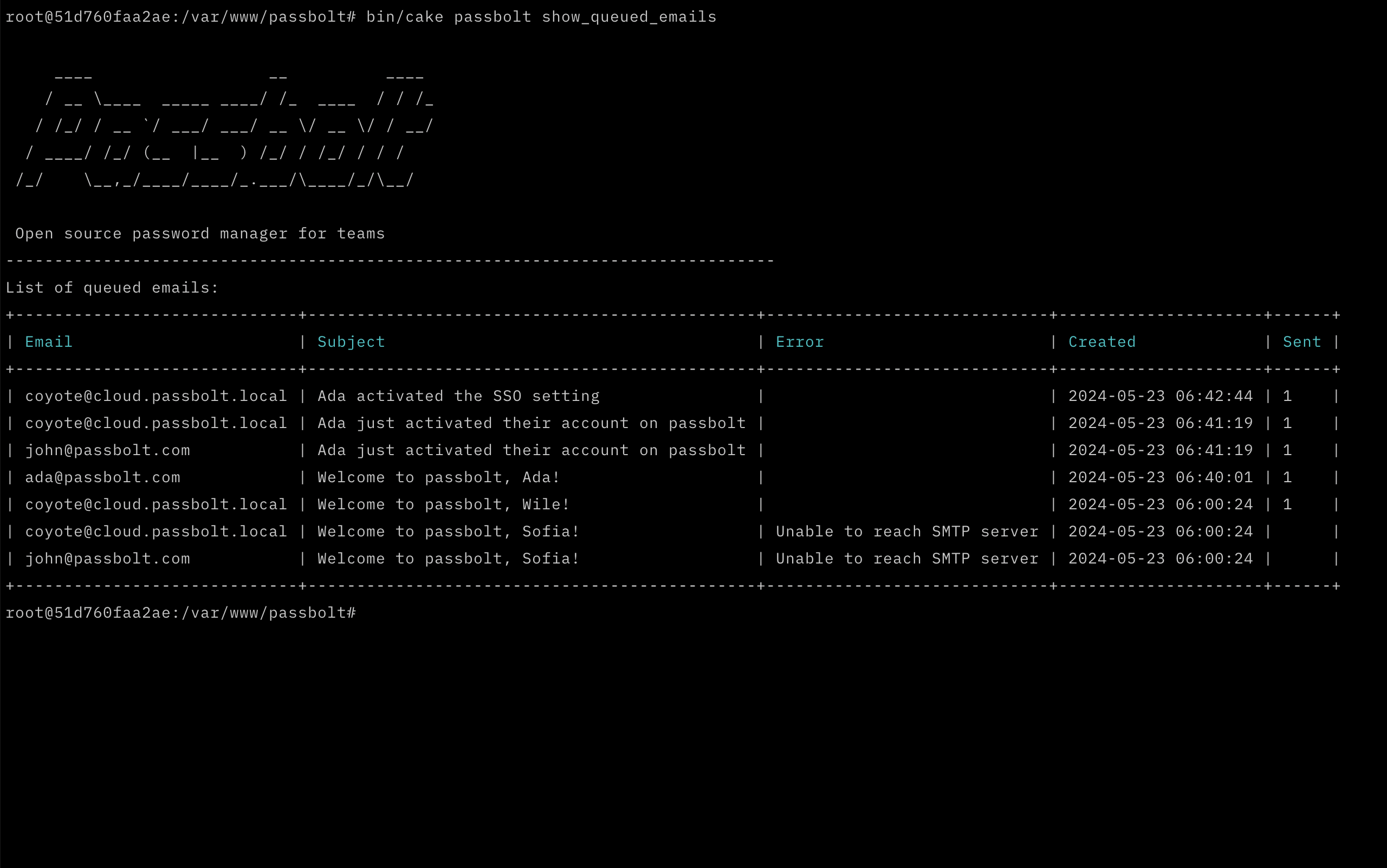
By default, the 15 most recent records from the email_queue table will be displayed; however, it is also possible to filter the records further. See all the available options below:
--limit= Number of records to show (Range: min 1 & max 100). Default is 15.--failed= Return only records with an error.--oldest= Displays older records first (sorted by date).